Start here: choose your first test
Loot, Vendors & Economy supplies trading, loot collection, buyback, market interfaces and integration contracts. Your game owns production inventory, currency, saves and authority. There are two different examples: the standalone sample bag and a buyer-owned inventory connection. Their wallets and stock are separate.
Install in your existing third-person project
- Install the engine-compatible LootVendorEconomy plugin through Fab. For manual source installation, put its single folder in your project's Plugins directory and build Development Editor with Unreal's compatible C++ toolchain. The source plugin does not require you to write a gameplay C++ module.
- In Edit → Plugins, enable Loot, Vendors & Economy explicitly. Keep IKRig, SQLiteCore, InterchangeAssets and ACLPlugin enabled. Restart when requested. Rowan is bundled; a separate QuartermasterRowanCore plugin is not required. The bundled Fallen Marauder retargeting assets reference the standard Third Person template mesh /Game/Characters/Mannequins/Meshes/SKM_Manny_Simple. Keep that template content for the supplied character examples, or replace those retargeting references when adapting them to your own characters. It is host template content, not a BIS UI dependency.
- Use your existing Third Person level, with collision-enabled ground and a possessed local player. Enable Show Plugin Content in the Content Browser. The editable examples are under LootVendorEconomy → LootVendorEconomy → Examples.
- For the ordinary standalone demonstration, press Play and use the sample bag's plain word buttons. For your own inventory, duplicate BP_LVE_BuyerStarter, BP_LVE_BuyerInventory and BP_LVE_BuyerCommerce into your project's Content before customizing them, and follow the illustrated setup below.
Manual source installation needs a build toolchain. An Epic-managed compiled installation follows Fab's installation workflow. A working editor preview does not prove that your own replacement assets are cooked into a packaged game.
Try the bag, vendor, loot and market
Standalone DEMO BAG
- Each new Play session starts with an empty temporary bag and no demo Rowan, Marauder or display bench. The standard Third Person level, character and game mode remain in place.
- Use the single ITEMS button to add the active demo collection. Press the same button again to remove its remaining temporary units. The bag shows one square slot for each active item definition, including an empty slot when that item is absent. The bundled collection has fifteen definitions; its slot count follows the collection rather than a fixed grid of twenty.
- Use ROWAN and MARAUDER to spawn or remove their runtime demo instances. Repeated clicks must not create duplicates. End Play and start again, or reload the level: the demo actors begin absent. Their temporary instances are not saved into the level.
- A chat-bubble indicator shows when Rowan is available. Approach and right-click to open trading. The standalone opens the vendor; in BIS UI, Rowan opens dialogue first and Trade opens the vendor. Vendor and market access remain in the commerce interface. The old coin prompt and bottom proximity bar are not part of the current standalone.
- Buy only when wallet, stock and capacity allow it. Purchased and interchangeable demo units share compatible stacks. Selling or consuming an item uses its remaining demo units first. Removing ITEMS then removes only remaining demo-granted units, preserving purchased and unrelated quantities. It does not grant money or reset your wallet.
- Use Buyback after a sale. Buy Back Selected restores one unit at its sale price; a refused buyback leaves wallet, stock and eligibility unchanged. Unique backpacks and equipment retain their identity. A sold demo identity bought back with your money becomes buyer-owned and is preserved by later demo cleanup.
- Approach the Marauder and right-click to open loot. Take one or Take All. Accepted loot from the bundled demo Marauder is temporary and is removed with the remaining demo collection. Partial transfers credit only the quantity actually received. Take All processes stacks separately, so an accepted earlier stack remains if a later stack is refused. Buyer-owned loot providers do not become temporary just because their items share a name.
- Open Market for the separate local preview. Drag an owned item to its posting slot and submit explicitly. Closing a draft does not post it. The optional sample buyer can complete a preview listing after about five seconds; it is not a real online purchaser.
The Ironbound Satchel and Field Repair Kit are excluded from current vendor offers and the active demo collection. Their legacy definitions and existing buyer-owned saved items remain compatible.
BIS UI and buyer persistence
BIS UI keeps its existing Inventory Kit bag, square cells, wallet and equipment integration. Its ITEMS button adds the same fifteen LVE demo definitions and quantities; WORLD ITEMS remains the separate physical prop and armour collection. Remove one collection before activating the other. The normal host bag capacity is not replaced by the standalone collection grid.
Only recorded temporary demo quantities are cleaned up at session end and startup. Buyer purchases, custom items, equipped gear, saves and providers remain intact. If cleanup cannot safely reduce bag capacity, or its ownership journal is missing or inconsistent, it refuses and reports the reason. Keep both inventory and ownership saves together; do not delete one file as a reset shortcut.
Generic LVE demo inventory controls stay disabled for connected buyer inventories and network play. A host such as BIS UI supplies its own recorded temporary collection controls. They remove exact owned demo quantities rather than resetting the connected inventory.
Buyer-owned inventory example
Place one BP_LVE_BuyerStarter near Player Start. Its inventory begins empty, with 500 minor units, two distinct item stacks and a four-unit limit per item. Match the currency IDs on its inventory and commerce components. Set Reward Item Id and a separate Loot Source actor. Startup connects once; failures return a reason.
With commerce windows closed, G grants one configured reward and H consumes one. The wallet stays unchanged. V opens the registered vendor; O registers the separate loot actor and L opens it. M opens the separate market preview. F8 disconnects. Successful purchases and loot already transfer their items: do not grant them again from a notification.
Controls and window behavior
| Action | Control | What to expect |
|---|
| Demo actors and bag items | Plain word buttons in the bag | Explicit spawning/removal; no actor spawn hotkeys. The standalone DEMO BAG and connected buyer inventory remain separate; the host owns any temporary collection it adds to its inventory. |
| World vendor or loot | Approach and right-click the source | The selected source's distance and feature rules apply. Leaving its range or destroying it closes its window. |
| Rotate a loaded 3D item | Left-drag the model | Central grabs tip the model; tangential grabs roll it. Ctrl + horizontal left-drag is an optional precise roll, chosen at mouse-down. |
| Inspection zoom | Mouse wheel | Zooms the selected model. Selecting another item resets its inspection pose. An item without a loaded mesh uses its 2D image. |
| Move a window | Shift + drag | Main, detached settings and information windows remember their positions and stay inside the usable viewport after resizing. |
| Navigate controls | Arrows / Tab or gamepad D-pad / left stick | Enter / gamepad A confirms. Left/right adjusts a focused slider. Demo spawn controls remain click-only. |
| Back or close | Gamepad B; Start / Escape | B backs out of settings or a post form first. Escape closes LVE's window/settings/draft. A later fresh Escape is available to the host after LVE closes. |
Text search and numeric entry use the platform's normal text-input path; an on-screen gamepad keyboard is your host/platform integration. The buyer starter's G/H/V/M/O/L/F8 callers are editable examples, not universal keys installed into every game.
Appearance, settings and feature switches
Use window settings to adjust scale, width/height, back glass, surfaces, borders, background art, portraits and inspection. Changes apply live and save to GameUserSettings.ini after approximately 0.35 seconds without another change. Closing the window does not undo them. These are presentation saves, not saved money or inventory.
Reset Standard Appearance restores appearance/inspection defaults and the three window positions. It does not reset a production economy or erase the saved bag visibility preference. Standard, Compact and Wide are presentation profiles. Inspect your actual player viewport after changing scale or opacity.
For project-wide switches, edit your project's Config/DefaultGame.ini and restart Play/module startup. Set only the keys you need; these are separate from each player's saved appearance.
[LootVendorEconomy.Features]
bEnableDemoTools=False
bEnableTestBag=False

[LootVendorEconomy.Preview]
bEnableAutomaticPreview=False
| Section | Supported keys | Purpose |
|---|
| LootVendorEconomy.Features | bEnableVendor, bEnableMarket, bEnableLoot, bEnableSettings, bEnableTestBag, bEnableItemInspection, bEnableCommerceNotifications, bEnableTargetPortrait, bEnableDemoTools, bEnableBackgroundArt, bEnableDemoAutoSell | Enable the corresponding local UI/features. DemoTools gates spawn controls; TestBag gates the sample bag and launcher. Disabling auto-sell leaves preview listings active rather than simulating a buyer. |
| LootVendorEconomy.Preview | bEnableAutomaticPreview, bStartPreviewOpen | Control the standalone demonstration layer. Disabling it does not remove the auction server subsystem. |
| LootVendorEconomy.Interaction | CloseDistanceCm, bAutoCloseOnDistance | Configure source proximity dismissal. Distances use centimetres. The open window has a small extra closing margin to prevent flicker. |
| LootVendorEconomy.Demo | GroundClearanceCm, VisibleMeshClearanceCm, MaxSlopeDegrees, MaxSurfaceDeviationCm, bCorrectSpawnedRowanMaterial, bGroundPlacedDemoActors, SpawnedRowanShininess | Configure grounded teaching actors and optional Rowan material/contact correction. They do not supply continuous foot IK or repair arbitrary replacement rigs. |
Vendor portraits capture the selected actor's animated face and shoulders only while visible. A head socket is preferred; bounds provide fallback framing. Custom skeletons/materials need their own visual check. Loot portraits use a separate full-body framing path.
Add your own items and connect your own inventory
- Copy the buyer examples into your game. In BuyerCommerce's Items array, add a unique Item Id and Offer Id, readable Display Name, optional Description/Icon, matching Currency Id, purchase/sale prices and Initial Stock. The sample IDs are examples; your provider need not use them.
- For loot, add matching Loot entries with item IDs and quantities. Assign a separate source actor and a unique source identity; registering it does not open its window or transfer anything.
- Configure BuyerInventory's Currency Id, Balance Minor Units, Counts, Stack Capacity and Maximum Per Item. On a placed starter, inspect its component instance settings as well as the copied component's defaults.
- Connect your actual inventory component through ConnectBuyerInventory. Branch on Return Value and show Failure. Query the registered source before displaying prices/counts. Use the illustrated graphs below to retain the success/refusal paths.
- Replace the parent/example Read, Room and Commit operations with your real inventory callbacks. Read is an observation; Room must obey your capacity policy. Commit must compare the complete Expected state and apply Desired atomically. False means no mutation; true means the change already happened.
- Use inventory-change snapshots to refresh your UI. Do not grant another unit from a receipt or notification. Use Add LVE Inventory Item / Remove LVE Inventory Item only for separate gameplay rewards or consumption; preserve returned failure messages.
Keep callbacks synchronous. Do not use Delay, start another inventory/commerce mutation during a callback, or substitute the demo bag when the owner is lost. Your game supplies saving/loading, server authority and adapters to other inventory frameworks. Keep operation IDs stable for an identical uncertain retry; a different action gets a new ID.
The component example retains twenty eligible buyback sales separately from up to 4096 successful operation receipts. A full receipt store refuses new operations; it does not silently evict replay protection. Repeated successful requests return their existing receipt rather than granting twice.
Customize the included preview assets
For the active fifteen-definition bundled demo collection, use LootVendorEconomy.PreviewAssets in DefaultGame.ini. CommerceIcon, SettingsIcon, CloseIcon, PickupIcon and CurrencyGoldIcon / CurrencySilverIcon / CurrencyCopperIcon take disk-resource paths relative to Resources/Preview. Sample inventory icons use Resources/Preview/Items/<ItemId>.png. Keep replacement disk resources in packaging/staging.
Inspection mesh keys include FlyAgaricMesh, SilverbladeMesh, NightfallMesh, IronboundSatchelMesh, WeatheredTonicMesh, CobaltWhetstoneMesh, CobaltShardMesh, RangersRopeMesh, WardensLanternMesh, FieldRepairKitMesh, CrackedTankardMesh, TornBootMesh, CopperOreMesh, CopperBarMesh, CopperShardMesh and CobaltNodeMesh. Their values are Unreal object paths, not filesystem paths. For example:
[LootVendorEconomy.PreviewAssets]
WeatheredTonicMesh=/Game/MyItems/SM_MyTonic.SM_MyTonic
These overrides change existing sample presentation. They do not add a new vendor offer or create a general item-definition registry. Include the replacement mesh, materials and textures in your host cook. A missing mesh falls back to 2D inspection.
Change fixed sample prices or loot quantities
Create an LVE Vendor Definition and/or LVE Loot Table Definition Data Asset and select it through LootVendorEconomy.PreviewData in DefaultGame.ini. Creating the asset alone does not activate it.
[LootVendorEconomy.PreviewData]
VendorDefinition=/Game/LVE/DA_MyPreviewVendor.DA_MyPreviewVendor
LootTableDefinition=/Game/LVE/DA_MyPreviewLoot.DA_MyPreviewLoot
The vendor overlay is restricted to existing sample IDs: VendorId Rowan; OfferId matching ItemId; CurrencyId Gold; finite stock 0–1,000,000; nonnegative buy/sell prices bounded against overflow. A stocked offer needs a positive buy price. Leave Icon unset and Unlimited Stock off. Display name/description may be overridden; omitted entries retain defaults.
The fixed loot overlay accepts only WeatheredTonic and CobaltShard with equal minimum/maximum quantities 1–1,000, Weight 1 and no icon/text overrides. It changes fixed stack counts, not weighted/random loot generation. Invalid or duplicate rows reject the entire selected asset's overlay. Restart Play to load edits; an active offer is not repriced live.
For new IDs, different art, your own capacity/wallet or broader loot behavior, use the buyer provider workflow above. The fixed preview overlay and general provider contracts have different limits. The sample display converts 100 copper to one silver and 100 silver to one gold; transactions use integer minor units.
Connect an online auction economy
Opening Market does not authenticate a player. Local vendor/loot and bag-grant demonstrations are disabled in network games. Online auctions use a separate server-owned account/escrow path.
- Add LVE Auction Connection to the owning PlayerController, replicated and owned by that player. Do not put it on a shared world actor.
- At trusted server startup, register tradable item IDs and install the intended provider. The editable BuyerCommerce auction callbacks cover account reads, listing queries, command commits and expiry; ConnectBuyerAuctionAdapter registers that adapter before player requests.
- After your server verifies login, Bind Authenticated Account with the stable account ID. Provision Session Account initializes only a new account; returning players bind to their existing account without another grant. Never use an unverified client name as identity.
- The owning client submits LVE Auction Command Request with a fresh operation GUID for a new action. Retry an uncertain result with the same GUID and unchanged request. On Response supplies the confirmed receipt, private state and page. Do not debit or grant speculatively.
- Query again for current listings. The screen supports bounded pages and refreshes while open. Expired listings whose destination cannot accept proceeds/items remain Pending Settlement with escrow preserved; the host must resolve the capacity problem.
Persistence and recovery boundaries
The bundled server provider uses SQLiteCore; it is not a hosted database service. Dedicated/listen server worlds select durable storage, normally Saved/LVE/Marketplace.sqlite. Ordinary standalone/PIE previews are isolated in memory. Configure before accepting requests:
[/Script/LootVendorEconomy.LVEAuctionServerSubsystem]
bUsePersistentStorage=True
DatabaseRelativePath=LVE/Marketplace.sqlite
CommissionBasisPoints=1200
1200 basis points is 12%; an existing durable ledger retains its recorded fee policy. State and operation receipt commit together. Storage failure refuses the request instead of falling back to an empty economy. Preserve the database on a failed load. Stop the server before making a consistent backup; off-machine backup, authentication, hosting and recovery administration are your responsibility.
The bundled provider has bounded capacity: 128 accounts, 512 active/pending listings, 256 item types per account, an 8 MiB serialized ledger and 4096 durable receipts across the database. Restart does not reset receipt capacity. Do not delete receipts or escrow to make space. A long-running or cross-server production economy needs your own authoritative provider/storage policy.
For an economy you already own, install ILVEAuctionProvider through SetProvider, or the documented Blueprint adapter. Commit inventory, wallet, listing, escrow and receipt in the same authority/transaction. Do not copy balances back into the sample ledger after each request. These callbacks are synchronous; avoid remote database I/O that blocks the game thread.
Content, cooking and your packaged game
The delivery is one LootVendorEconomy plugin. Unreal assets live below Content/LootVendorEconomy, including the three buyer examples, Rowan and Fallen Marauder content, inspection meshes/materials and sample icons. Resources/Preview supplies disk UI images and contact samples; Config and Docs contain distribution/configuration guidance.
The default cook manifest names the bundled inspection meshes, two scene-capture materials, Marauder mesh/material/legacy replacement and Rowan profile/mesh/idle roots. Unreal follows their dependencies. It does not recursively cook every directory or discover arbitrary INI replacements. Host never-cook exclusions still apply. Disk resources are staged separately as NonUFS files.
- Keep a cooked reference or explicit host cook rule for copied buyer examples, custom catalogs, icons, meshes and materials. An INI object path is not proof that an otherwise unreferenced asset was cooked.
- Package the supported target. Inspect its actual staged plugin/resources and cooked asset output. Run the packaged game and repeat vendor, loot, capacity/refusal, cleanup and inspection tests.
- If you deliberately take over default asset selection, set bIncludeDefaultRuntimeAssets=False under LootVendorEconomy.Cooking. Supply equivalent rules for every feature you keep. Opting out does not remove assets selected by another map/reference.
Disable unwanted example features before removing assets, and test a clean packaged host. Your project may omit teaching examples it never references; do not remove a resource needed by an enabled feature. The plugin is validated on the Unreal 5.8 line for Win64; custom assets, rigs and other platform/host combinations need their own checks.
Included content: 114 Unreal assets, including the three editable buyer Blueprints. Optional item icons for Fly Agaric, Nightfall, Silverblade and the Vintage Leather Backpack can be assigned to Icon in your buyer commerce Items entries or custom vendor/loot definition. The unbranded Copper Bar mesh is an optional CopperBarMesh override; see Docs/PREVIEW_ASSETS.md for its asset path. These alternatives do not add items to the demo collection. Download the complete asset manifest for exact delivered paths and hashes.
If the first test does not work
| Symptom | Check first |
|---|
| No bag or demonstration | Explicit plugin enablement, Automatic Preview / Test Bag switches and saved visibility. Use Open Test Bag. Test with a possessed local player. |
| Rowan or Marauder will not spawn | DemoTools enabled, clear ground blocking Visibility, supported slope and no occupied footprint. Move and retry; do not fabricate a successful source. |
| Starter reports connection failure | Live inventory reference, matching currencies, unique source IDs and no conflicting registration. Inspect Failure before allowing transactions. |
| An authored item does not appear | The correct placed commerce component's Items/Loot arrays, ID and source. Fixed preview overlays cannot introduce new IDs. Query the same registered actor used by interaction. |
| Grant, buy or loot is refused | Positive quantity, funds/stock, distinct-stack and per-item capacity, current revision and live owner. False must leave state unchanged; display the returned reason. |
| Demo controls do not reset your connected inventory | The native demo toggle controls only the standalone temporary collection. A connected host may supply its own ownership-tracked collection toggle; it must preserve buyer quantities and saves. Use Remove LVE Inventory Item or your authoritative operation for owned gameplay stock. |
| Inventory displays an extra item | A purchase/loot operation already transferred it. Remove a second grant from the notification/receipt handler; refresh the committed snapshot instead. |
| Inspection stays 2D | Loaded mesh reference and enabled inspection. Check packaged asset inclusion and materials. An unknown or missing mesh does not guarantee 3D inspection. |
| Market waits for an account or fails a request | Owning PlayerController connection, verified server account binding, registered tradable IDs/provider and response. Opening the UI is not login or provisioning. |
| Pending Settlement or storage capacity | Preserve escrow/receipts. Resolve authoritative wallet/inventory capacity and retry settlement. Do not delete the ledger, receipts or listings to bypass limits. |
| Works in editor, missing after packaging | Cooked references/rules for custom assets; NonUFS staging for disk resources; exact packaged logs. Re-run the real packaged workflow. |
Check your integration before shipping
- Try one successful purchase/sale/buyback and one refusal. Compare stock, wallet and owned quantity before/after. Replay the identical completed request: it must not transfer twice.
- Try full distinct-stack capacity and a per-item limit. A refused reward or loot stack must not change unrelated state. Check partial Take All explicitly.
- Close/cancel windows and posting drafts; verify no unintended transaction. Destroy a source/owner, disconnect twice and end play. Owner loss must refuse rather than switch to sample inventory.
- Check your own item text, icons, 3D meshes, portraits and window readability. Test real controls and the packaged game; example API checks do not certify an arbitrary host.
- For online auctions, test account ownership, uncertainty/retry, reconnect, persistence and blocked settlement with your actual server/provider. Local vendor inventory and auction escrow are separate unless your host explicitly connects their authorities.
Use the illustrated sections below for exact editable graph paths, nodes, pins and expected results. The native appendix provides equivalent public C++ connections. If requesting support, include your Fab version, Unreal version, the failing workflow and its Failure message; do not share login secrets or private account data.
Blueprints: Set up your first example
01Connect the starter’s two components
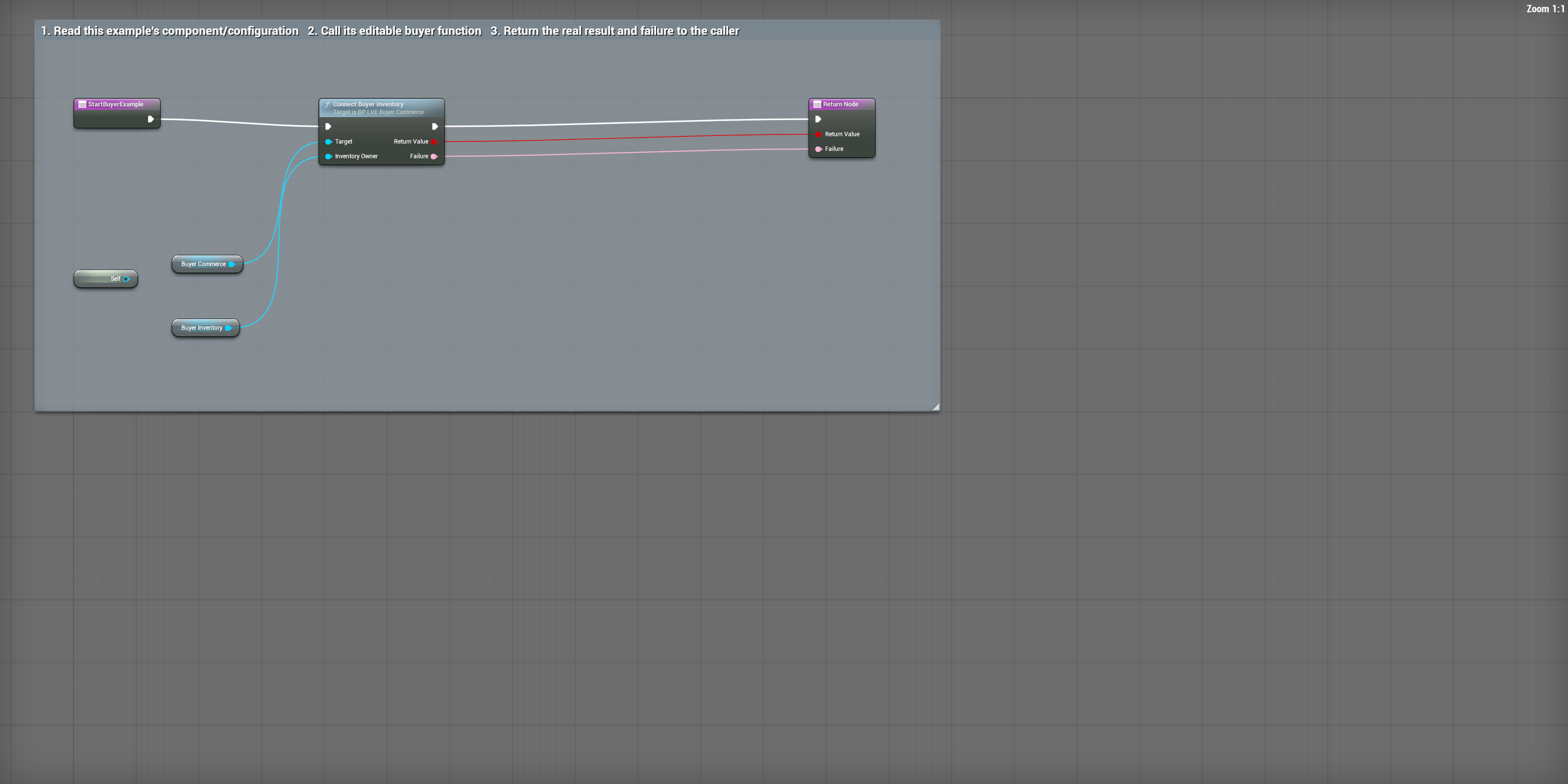
BP_LVE_BuyerStarter / StartBuyerExample
Open BP_LVE_BuyerStarter and select StartBuyerExample.
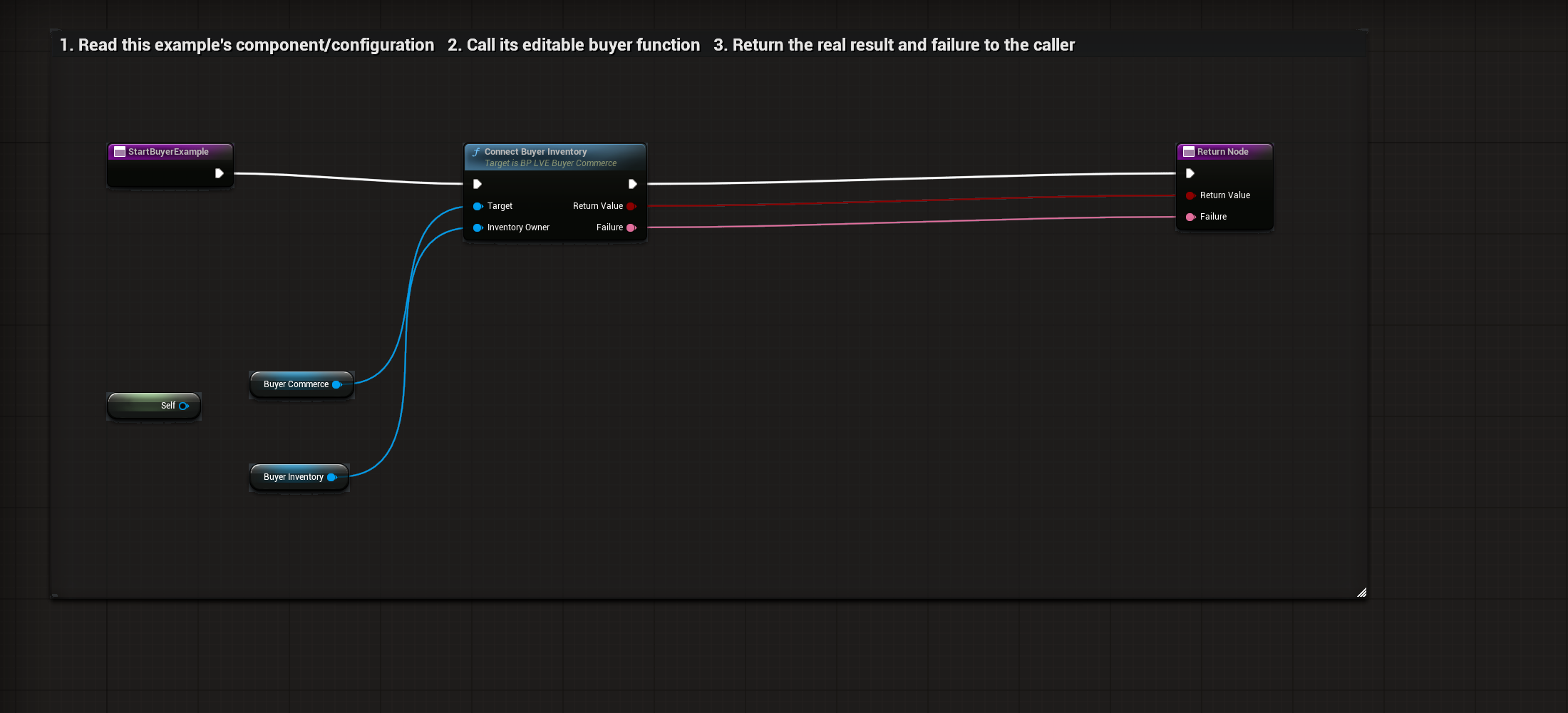
Select to enlarge. Full original capture remains available; display backgrounds are standardized for readability.
What to connect and what happens
- Open BP_LVE_BuyerStarter and select StartBuyerExample.
- Connect BuyerCommerce as the Target on Connect Buyer Inventory and BuyerInventory into Inventory Owner.
- Forward Return Value and Failure into the return node. The BeginPlay event handles that returned result.
- The spare disconnected Self node is unused; the connected component references determine the call.
Compile, save and check: Press Play. Startup should connect once. If configuration is rejected, read the returned Failure before allowing interaction.
02Connect once when play starts
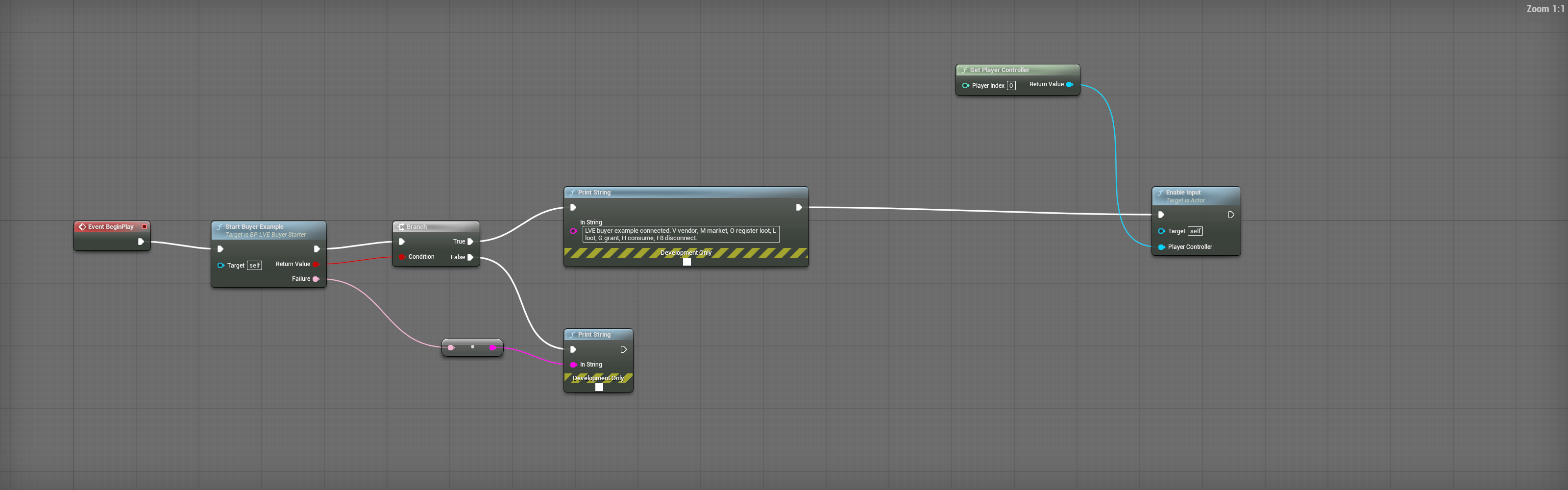
BP_LVE_BuyerStarter / EventGraph-BeginPlay
Event BeginPlay calls Start Buyer Example on Self.
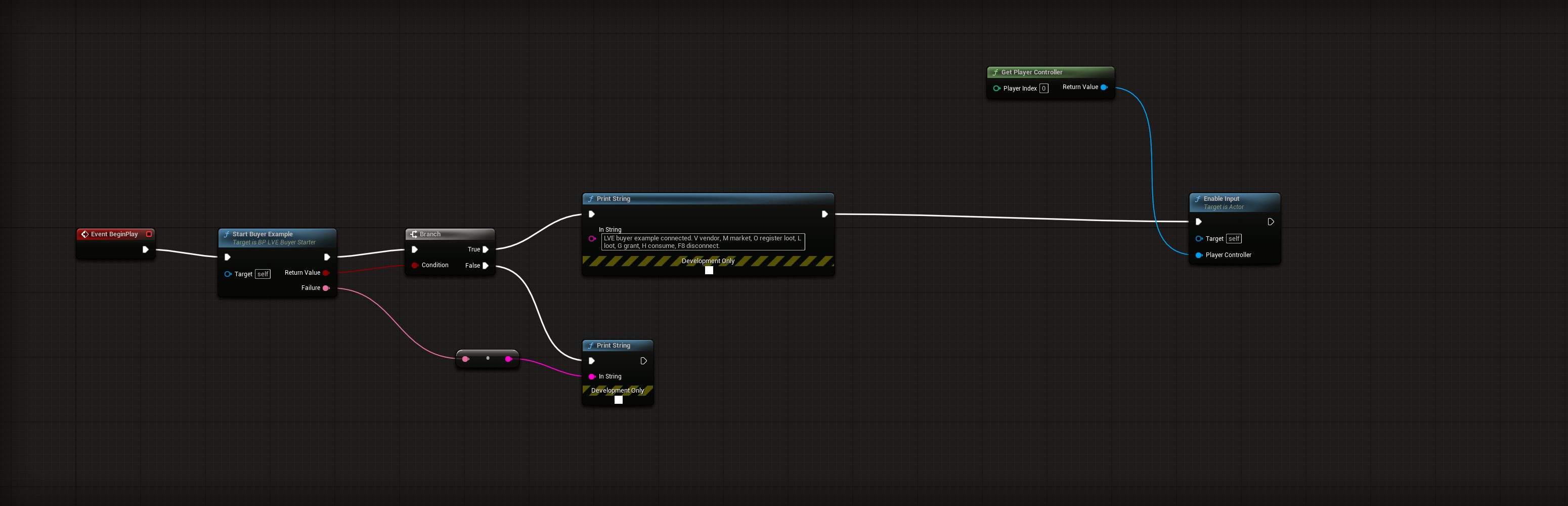
Select to enlarge. Full original capture remains available; display backgrounds are standardized for readability.
What to connect and what happens
- Event BeginPlay calls Start Buyer Example on Self.
- The returned Boolean feeds Branch Condition. True enables input for local player zero and reports startup; False displays Failure.
- BuyerInventory and BuyerCommerce must use the same currency. Configure those components before play.
- Use one keyboard-driven starter at a time. Its G/H/V/M/O/L/F8 keys are example bindings that your game can replace.
Compile, save and check: Press Play with matching currencies and valid components. Confirm startup connects once and the starter receives input. Rejected setup must show its returned reason.
03Set inventory currency and capacity
BP_LVE_BuyerInventory / ClassDefaults
Open BP_LVE_BuyerInventory and select Class Defaults.
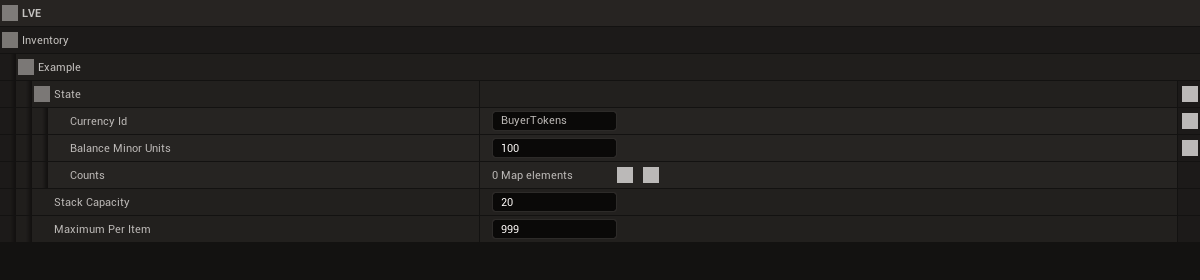
Select to enlarge. Full original capture remains available; display backgrounds are standardized for readability.
What to connect and what happens
- Open BP_LVE_BuyerInventory and select Class Defaults.
- State contains Currency Id, Balance Minor Units and owned item Counts. The standalone component defaults shown here are BuyerTokens, 100 and no starting counts.
- Stack Capacity 20 limits distinct stacks; Maximum Per Item 999 limits each item. Change these to your game’s rules.
- The starter overrides this component’s settings. Check the placed actor’s component too; class defaults alone do not describe every instance.
Compile, save and check: Compile and save after editing. Run the starter with matching currencies; check successful and refused transactions against the complete owned state.
04Configure the starter inventory instance
BP_LVE_BuyerStarter / BuyerInventory-Defaults
Open BP_LVE_BuyerStarter and select its BuyerInventory component.
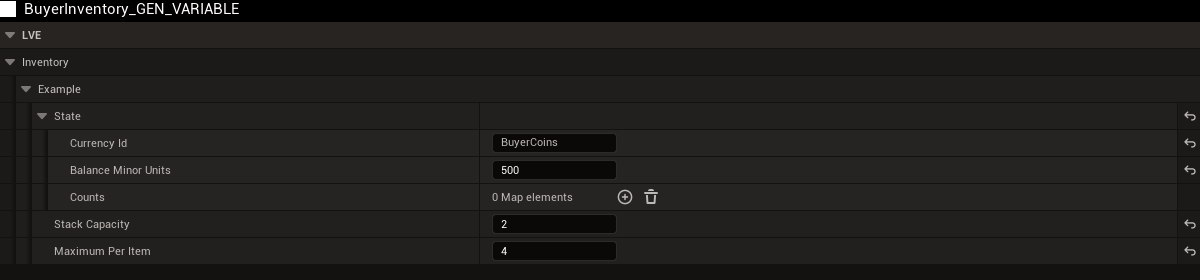
Select to enlarge. Full original capture remains available; display backgrounds are standardized for readability.
What to connect and what happens
- Open BP_LVE_BuyerStarter and select its BuyerInventory component.
- The saved starter override uses BuyerCoins, a balance of 500, Stack Capacity 2 and Maximum Per Item 4.
- These instance settings override BP_LVE_BuyerInventory’s standalone defaults.
- Keep this currency aligned with BuyerCommerce. Use G/H to check reward grants and consumption against these limits.
Compile, save and check: Compile and save after editing. Run the starter with matching currencies; check successful and refused transactions against the complete owned state.
05Add your own vendor and loot rows
BP_LVE_BuyerCommerce / ClassDefaults
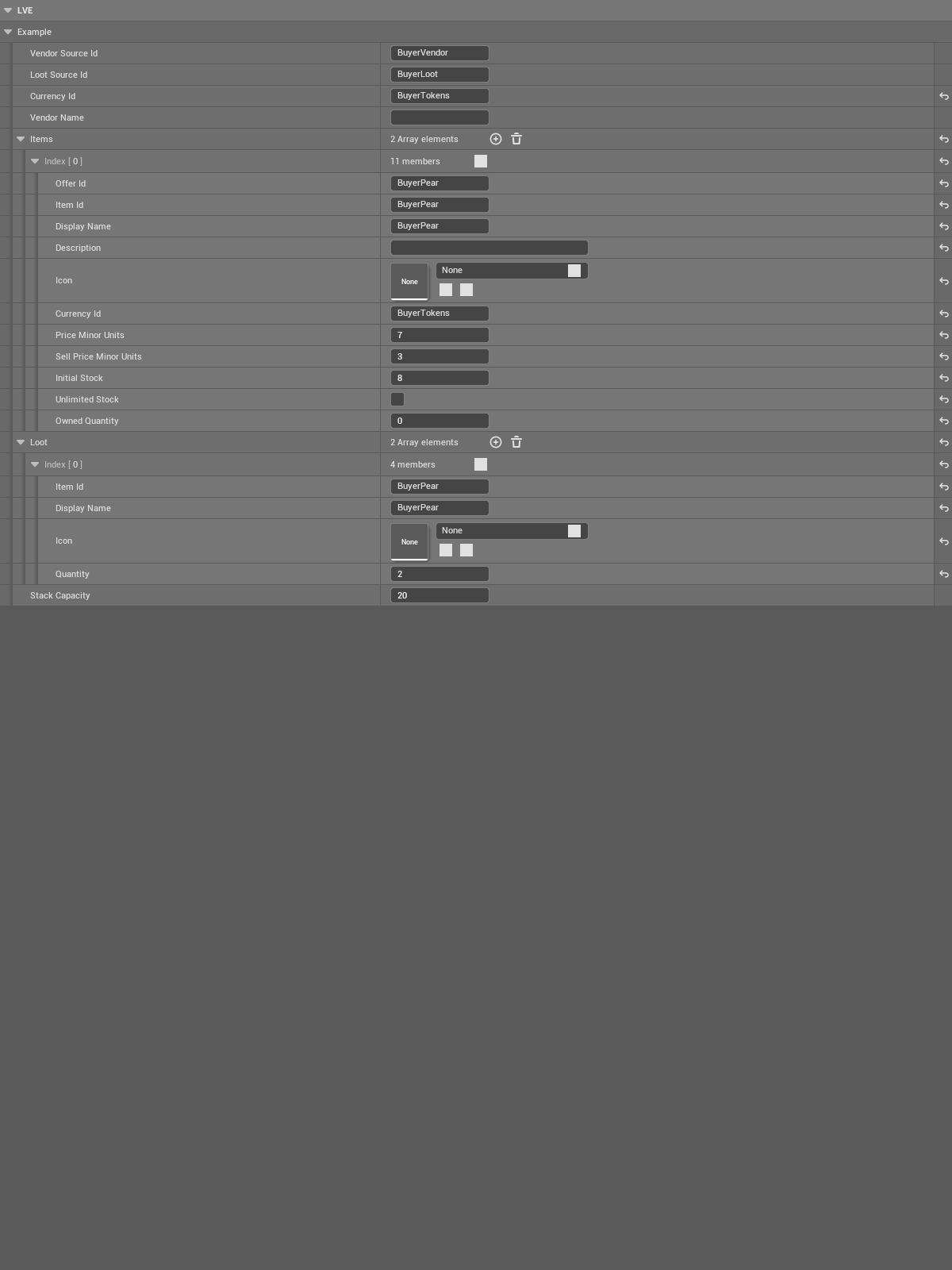
Open BP_LVE_BuyerCommerce and select Class Defaults. Expand Items to edit the vendor offer rows.
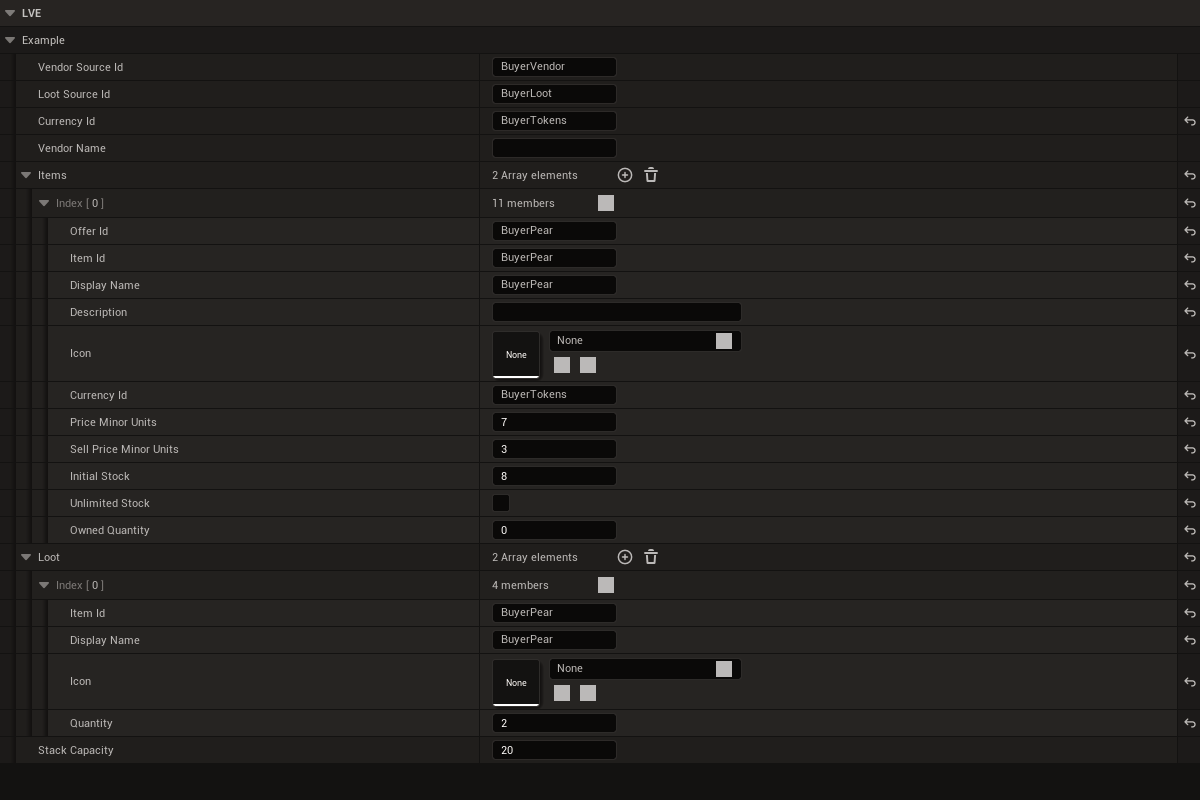
Select to enlarge. Full original capture remains available; display backgrounds are standardized for readability.
What to connect and what happens
- Open BP_LVE_BuyerCommerce and select Class Defaults. Expand Items to edit the vendor offer rows.
- Give each row stable Offer Id and Item Id, display text, Currency Id, prices and stock. The example BuyerPear costs 7, sells for 3 and starts with 8 stock.
- Expand Loot to choose separate source contents and quantities. The focused screenshot shows the first of two entries; expand the other entry in the editor.
- Set the component Currency Id to match its bound inventory. These rows are authoring data; the inventory owner still validates the actual transfer.
Compile, save and check: Compile and save after editing. Run the starter with matching currencies; check successful and refused transactions against the complete owned state.
06Configure the starter vendor instance
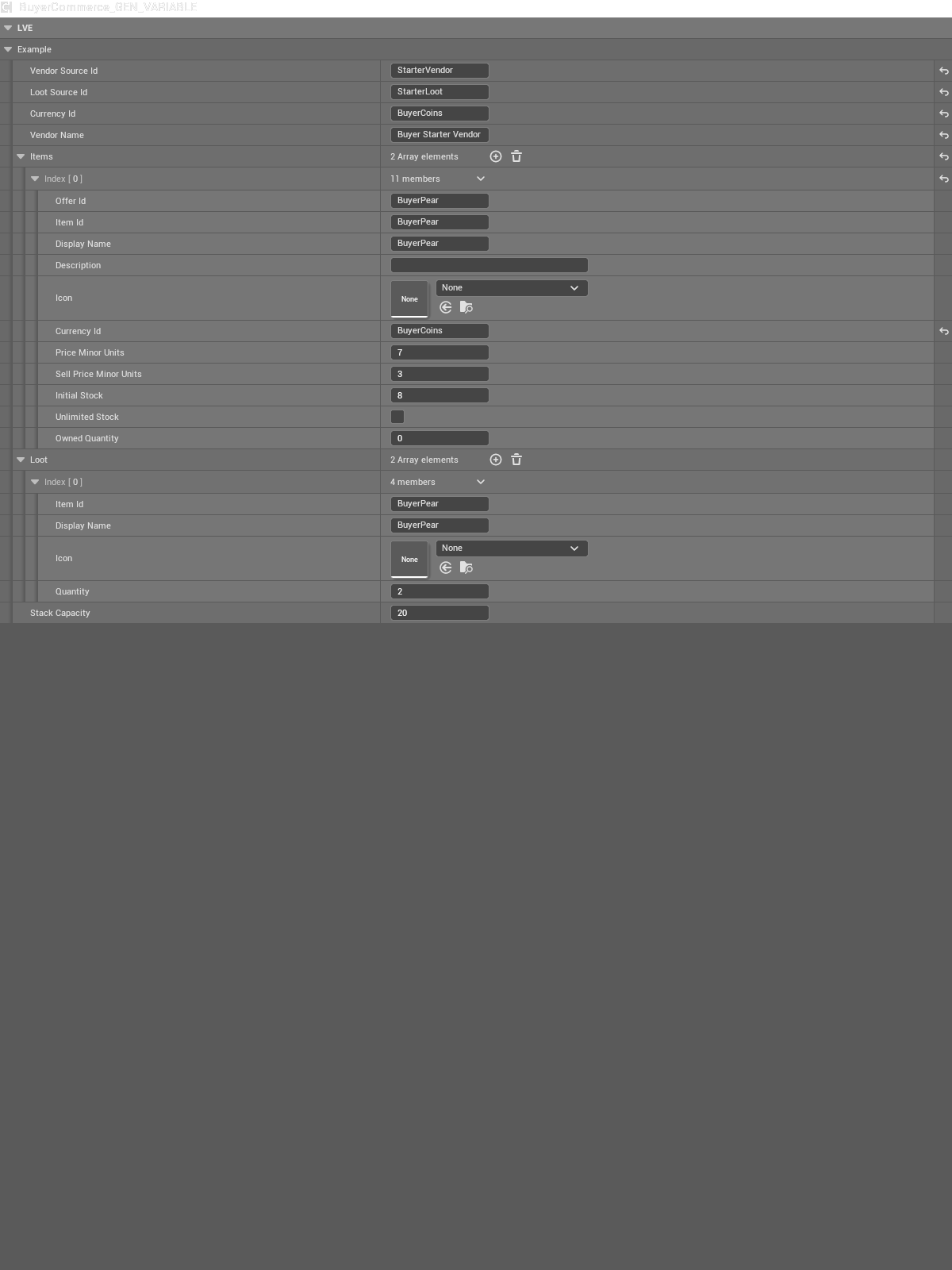
BP_LVE_BuyerStarter / BuyerCommerce-Defaults
Open BP_LVE_BuyerStarter and select BuyerCommerce.
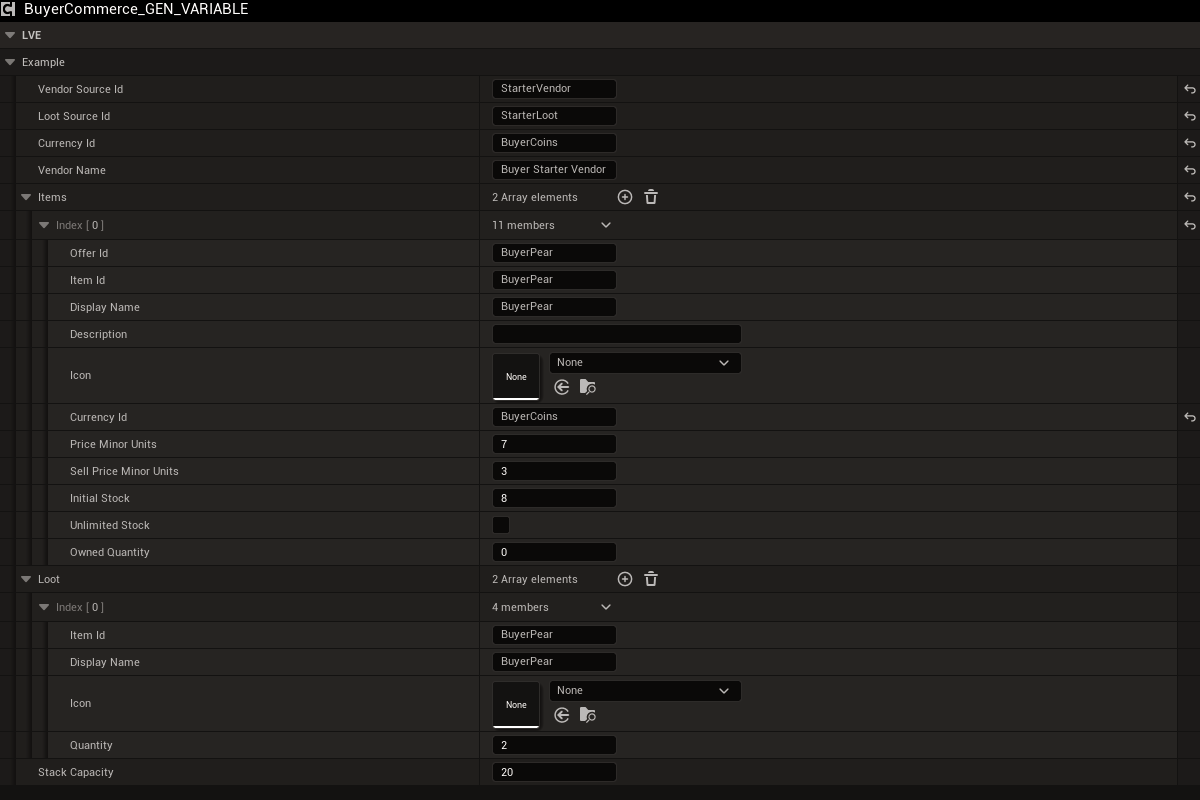
Select to enlarge. Full original capture remains available; display backgrounds are standardized for readability.
What to connect and what happens
- Open BP_LVE_BuyerStarter and select BuyerCommerce.
- This component uses BuyerCoins to match the starter inventory.
- Check each offer’s Currency Id as well as the component Currency Id, then edit Items, prices, stock and Loot for your game.
- The focused view preserves the first entry and array sizes. Expand every row you intend to ship.
Compile, save and check: Compile and save after editing. Run the starter with matching currencies; check successful and refused transactions against the complete owned state.
07Choose the starter reward and loot actor
BP_LVE_BuyerStarter / ClassDefaults
Select the starter’s Class Defaults to inspect its reward and example settings.

Select to enlarge. Full original capture remains available; display backgrounds are standardized for readability.
What to connect and what happens
- Select the starter’s Class Defaults to inspect its reward and example settings.
- Set RewardItemId to the stable ID that G grants and H consumes.
- On the placed actor in your third-person level, assign LootSource to a separate actor for the O/L example.
- Compile and save. The starter is an example interaction caller; production input and player feedback belong to your game.
Compile, save and check: Compile and save after editing. Run the starter with matching currencies; check successful and refused transactions against the complete owned state.
Blueprints: Connect your inventory
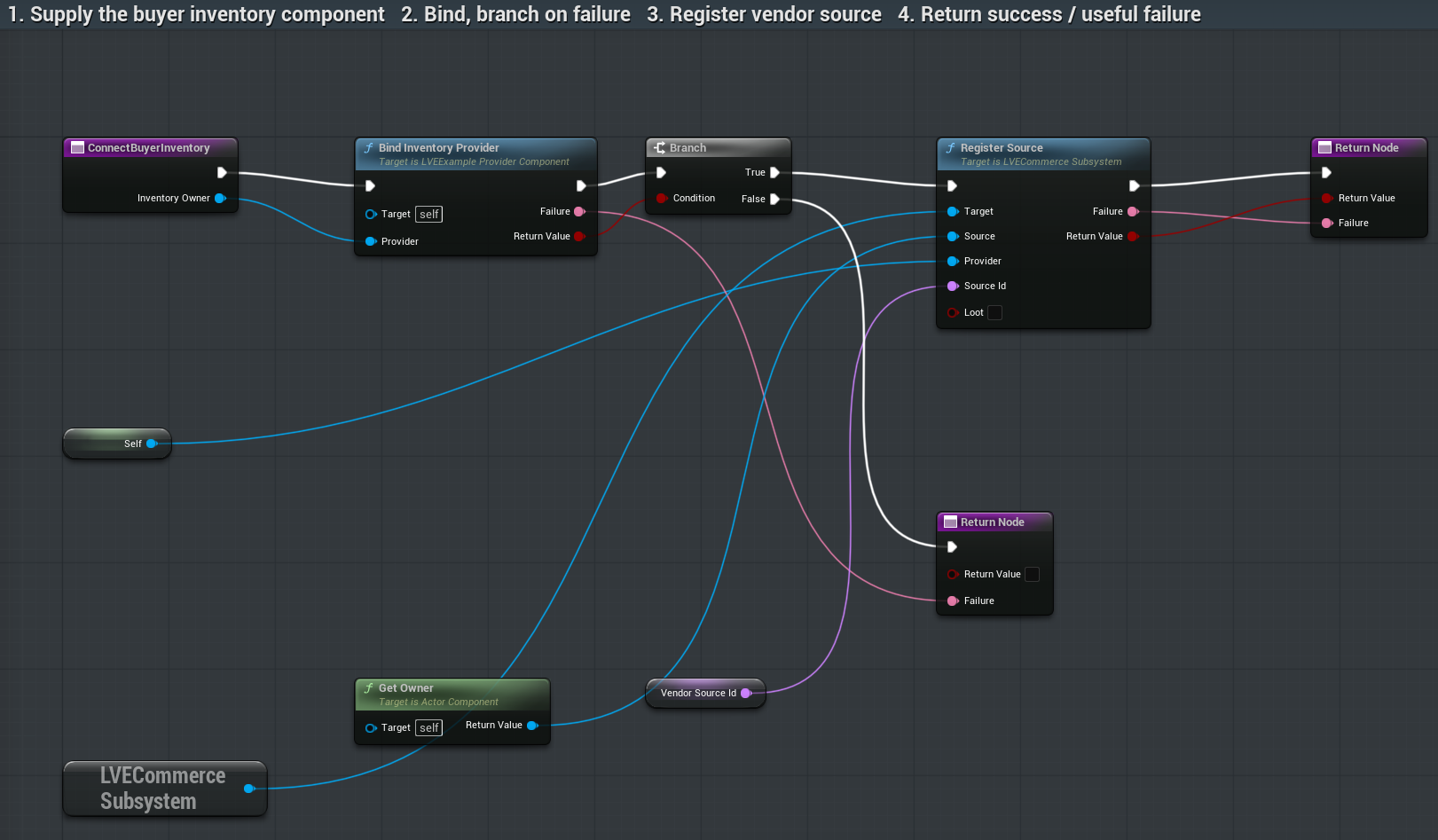
01Connect Buyer Inventory
BP_LVE_BuyerCommerce / ConnectBuyerInventory
Pass your player’s inventory component into Inventory Owner. Its reference goes to Provider on Bind Inventory Provider; Target is Self, this commerce component.
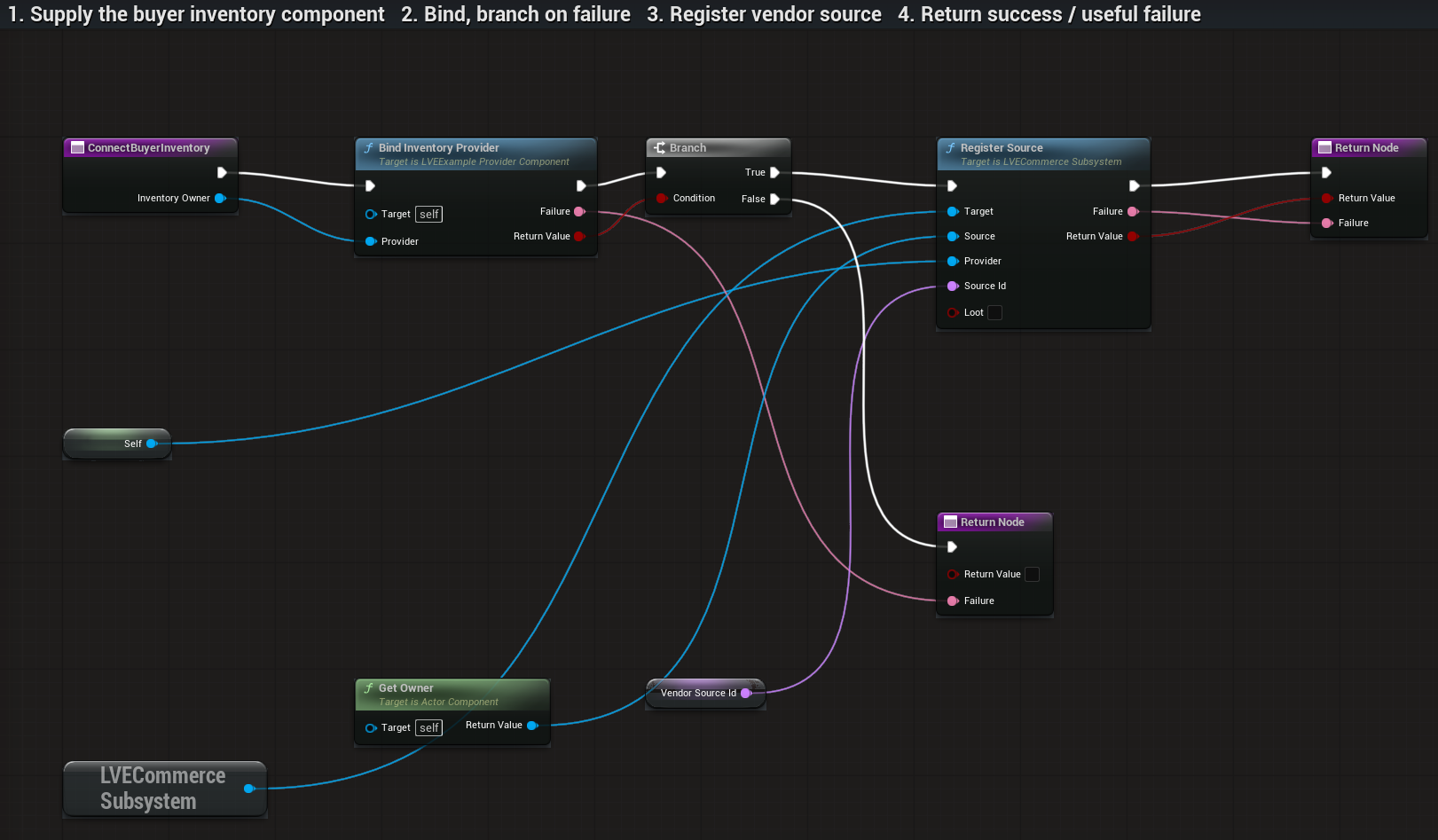
Select to enlarge. Full original capture remains available; display backgrounds are standardized for readability.
What to connect and what happens
- Pass your player’s inventory component into Inventory Owner. Its reference goes to Provider on Bind Inventory Provider; Target is Self, this commerce component.
- Connect Bind Inventory Provider’s Return Value to the Branch Condition. True continues to Register Source. False returns False and the binding Failure message.
- On Register Source, use LVECommerce Subsystem as Target, Get Owner as Source, and Self as Provider. Connect Vendor Source Id to Source Id. Leave Loot unchecked: this registers a vendor.
- Return Register Source’s Return Value and Failure to the caller. True means the inventory bound and vendor registered. On False, read Failure; registration failure can occur after binding.
Compile, save and check: Compile and Save the commerce component and your caller. At startup, call this function with the player inventory component, then branch on Return Value. True means both binding and vendor registration succeeded. Query Vendor using the same source actor to check the player wallet and counts. If False, show Failure and check the inventory reference, matching currency and existing source registration.
02Read Inventory
BP_LVE_BuyerInventory / ReadLVEInventory
Open BP_LVE_BuyerInventory and select ReadLVEInventory. Run the white execution wire from the function entry through Parent: ReadLVEInventory to the Return Node.

Select to enlarge. Full original capture remains available; display backgrounds are standardized for readability.
What to connect and what happens
- Open BP_LVE_BuyerInventory and select ReadLVEInventory. Run the white execution wire from the function entry through Parent: ReadLVEInventory to the Return Node.
- Connect Snapshot from the parent call to Snapshot on the Return Node. Connect the Boolean Return Value to its matching return pin too.
- Snapshot contains current item Counts, Currency Id and Balance Minor Units. True means the read succeeded; on False, the caller must not treat the snapshot as valid inventory state.
- The parent reads the included example inventory. Replace it with your own inventory owner’s read logic when using another system. Read should report state without granting, removing or spending anything.
- Use this returned snapshot as Expected for a later Commit LVE Inventory call. Create Desired from a copy and change only the intended values. A later commit must reject the request if the owner’s state changed meanwhile.
Compile, save and check: Compile and Save the inventory component and your caller. Call Read LVE Inventory with the active player inventory component as Target, then branch on Return Value. On True, break Snapshot and check your starting counts, currency and wallet. Read twice without a transaction: state must remain unchanged. On False, stop the operation and check the owner reference and component lifetime. This callback has a Boolean result, not a separate Failure text pin.
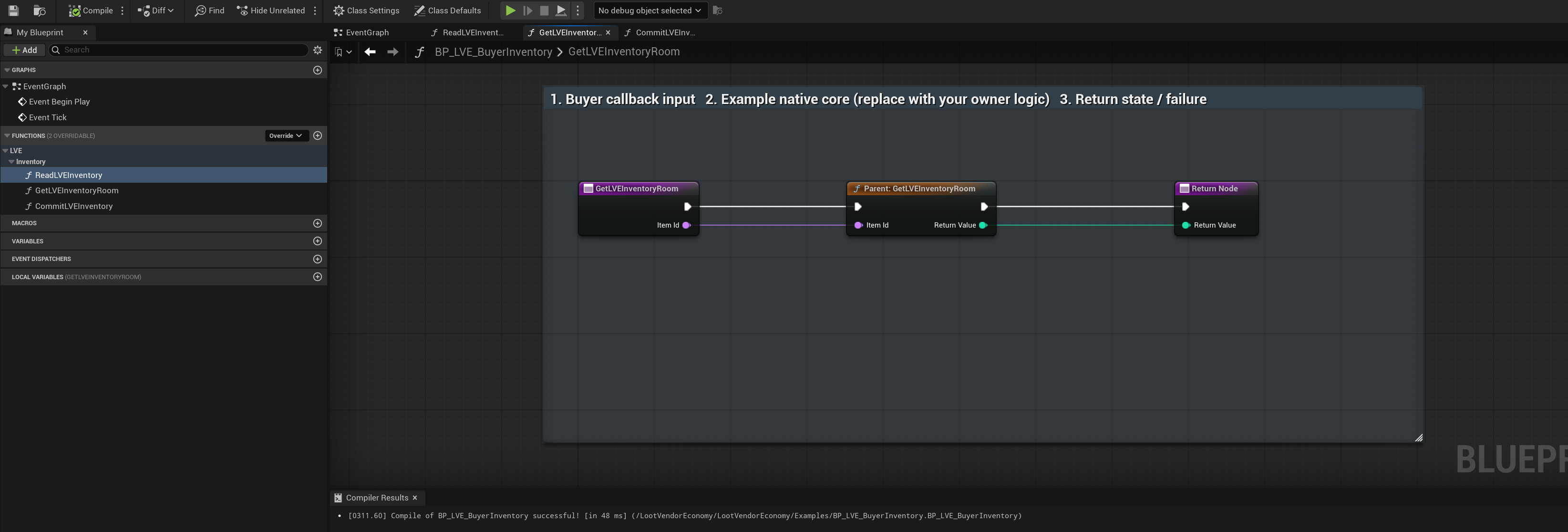
03Inventory Room
BP_LVE_BuyerInventory / GetLVEInventoryRoom
Open BP_LVE_BuyerInventory and select GetLVEInventoryRoom. Pass the item’s stable Item Id when checking how many more units the inventory can receive.
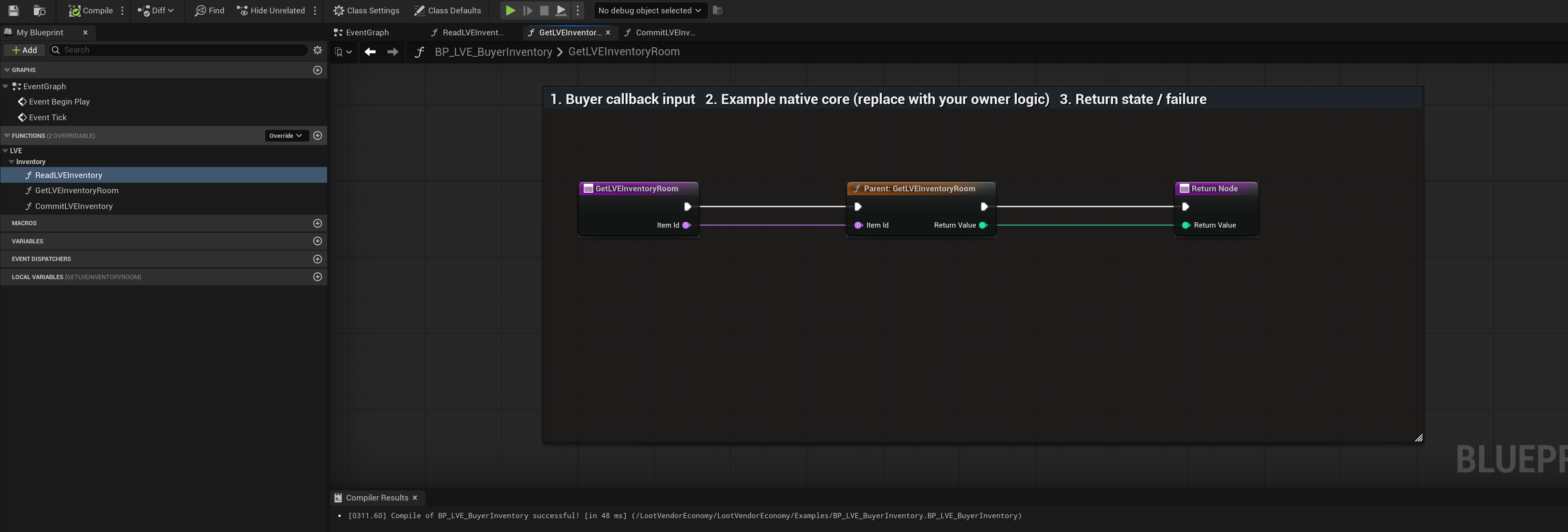
Select to enlarge. Full original capture remains available; display backgrounds are standardized for readability.
What to connect and what happens
- Open BP_LVE_BuyerInventory and select GetLVEInventoryRoom. Pass the item’s stable Item Id when checking how many more units the inventory can receive.
- Connect Item Id to the matching pin on Parent: GetLVEInventoryRoom. Run the white execution wire from the entry through the parent call to the Return Node.
- Connect the parent’s Return Value to the Return Node. This returns room for additional units of this item; zero means it cannot receive more.
- This graph uses the native example inventory’s capacity rules. For your own inventory, replace the parent call with your game’s capacity check. Commit must also check capacity before changing state.
Compile, save and check: Compile and Save the inventory component and your caller. Call the function with a valid item ID: Return Value is the number of additional units it can receive. Fill the item or all stack slots, then check it returns zero where the owner capacity rules forbid a gain. Room does not grant items; Commit must recheck capacity.
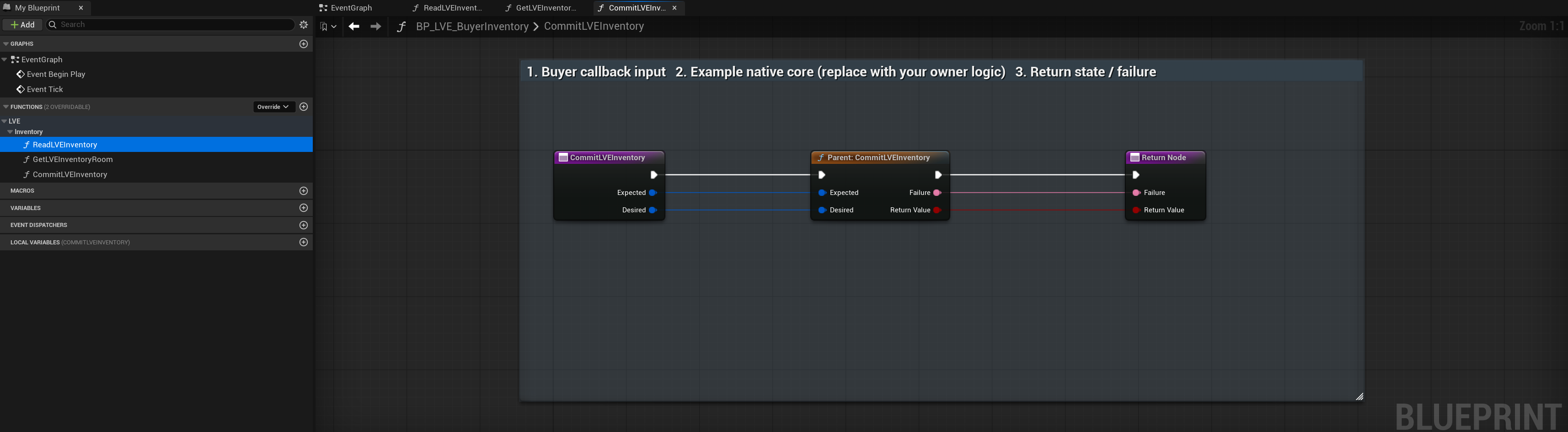
04Commit Inventory
BP_LVE_BuyerInventory / CommitLVEInventory
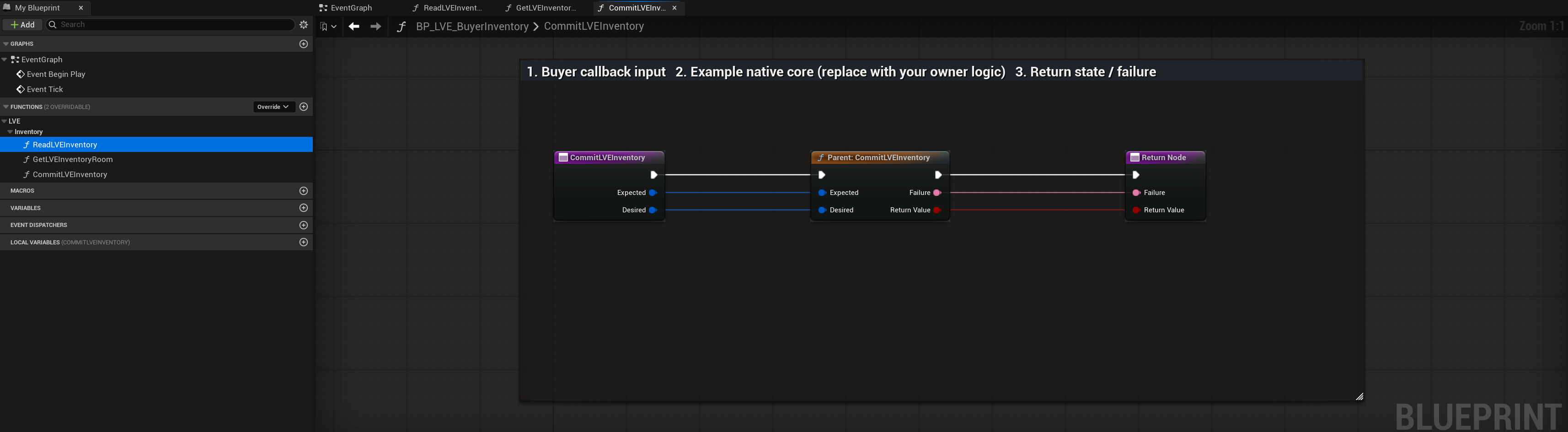
Open BP_LVE_BuyerInventory and select CommitLVEInventory. Expected is the complete snapshot read before the change. Desired is the complete state wanted after the change, including counts and wallet.
Select to enlarge. Full original capture remains available; display backgrounds are standardized for readability.
What to connect and what happens
- Open BP_LVE_BuyerInventory and select CommitLVEInventory. Expected is the complete snapshot read before the change. Desired is the complete state wanted after the change, including counts and wallet.
- Connect Expected and Desired to their matching pins on Parent: CommitLVEInventory. Run the white execution wire through that call to the Return Node.
- Forward Failure and Return Value to the matching return pins. True means the complete change committed. False means it was rejected; read Failure and leave inventory unchanged.
- The parent implements the example inventory. For your own logic, check Expected still matches current state and validate all desired values and capacity. Apply the whole change together or reject without changing anything.
- Commerce already commits its item and money changes through this callback. Do not grant a purchased item a second time after a successful transaction.
Compile, save and check: Compile and Save. Read the current inventory, copy that snapshot into Desired and change the intended count while keeping the wallet/currency correct. Pass the original snapshot as Expected. On True, read back and check the complete desired state. With a stale Expected snapshot or excessive quantity, expect False, useful Failure text and no inventory change. Never grant the same item again after a successful commerce receipt.
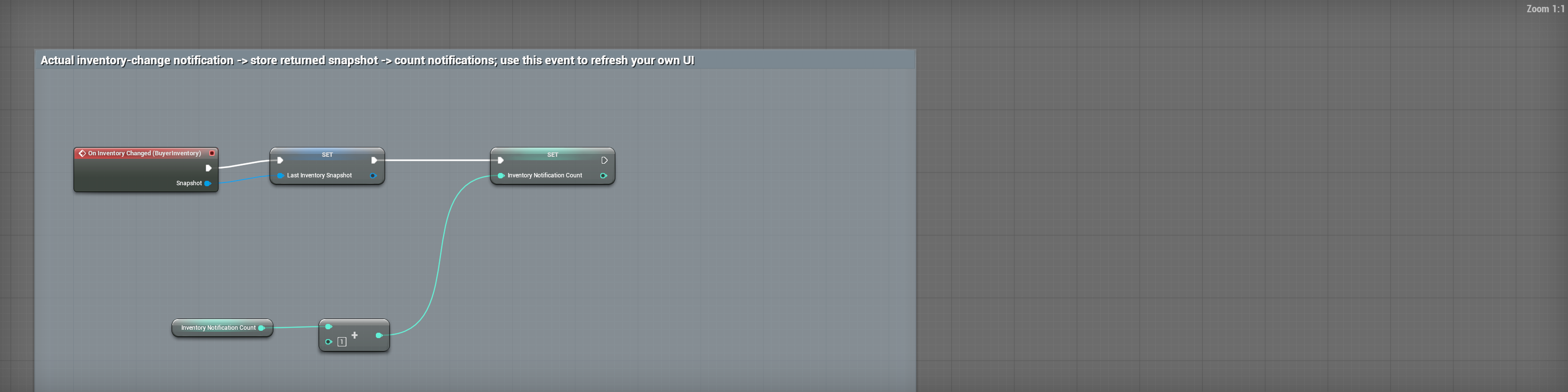
05Refresh your display from committed state
BP_LVE_BuyerStarter / EventGraph-InventoryChanged
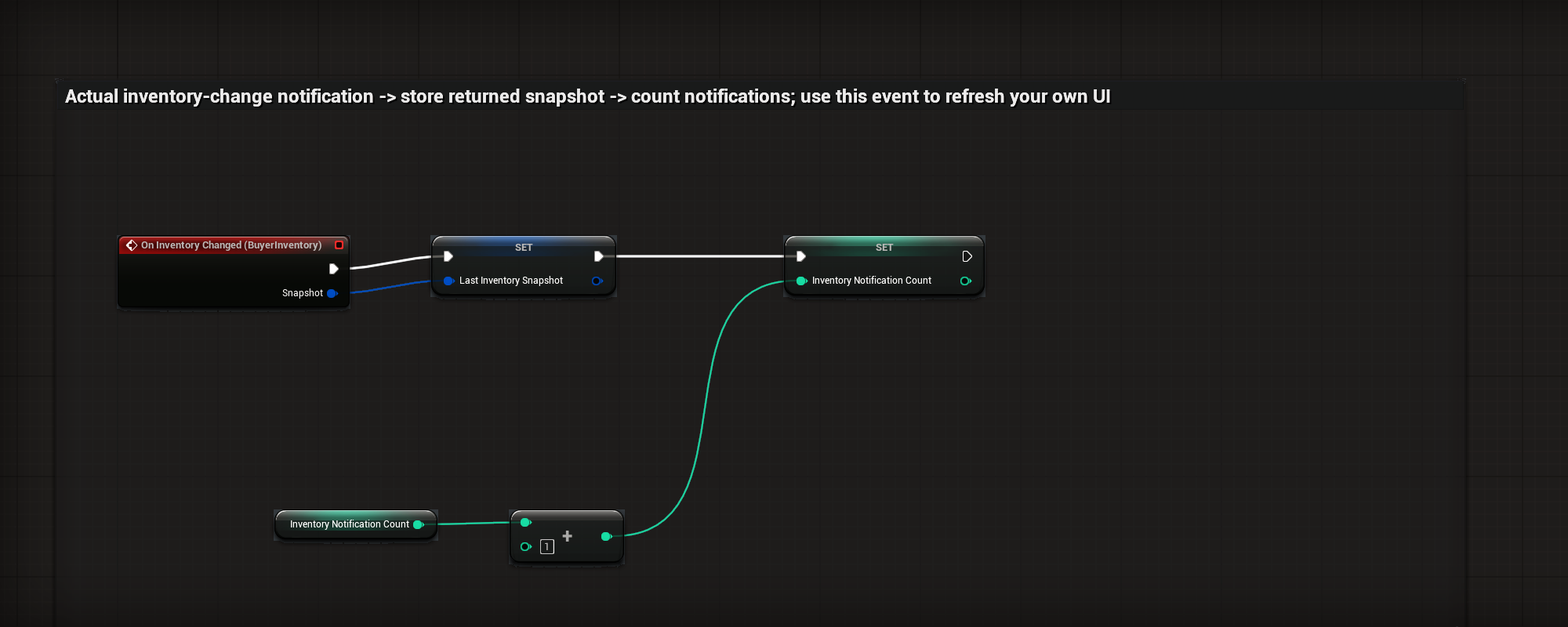
Open the EventGraph and find the component-bound On Inventory Changed event.
Select to enlarge. Full original capture remains available; display backgrounds are standardized for readability.
What to connect and what happens
- Open the EventGraph and find the component-bound On Inventory Changed event.
- Connect Snapshot into Set Last Inventory Snapshot.
- The example then adds one to Inventory Notification Count and stores it.
- Use this committed snapshot to refresh your UI. The notification handler must not grant another copy of the item.
Compile, save and check: Grant or consume an item and compare the notification snapshot with the owned state. One accepted purchase sends one committed notification; TAKE ALL sends one per accepted stack. Refresh the display without granting another item.
Blueprints: Vendor and loot interactions
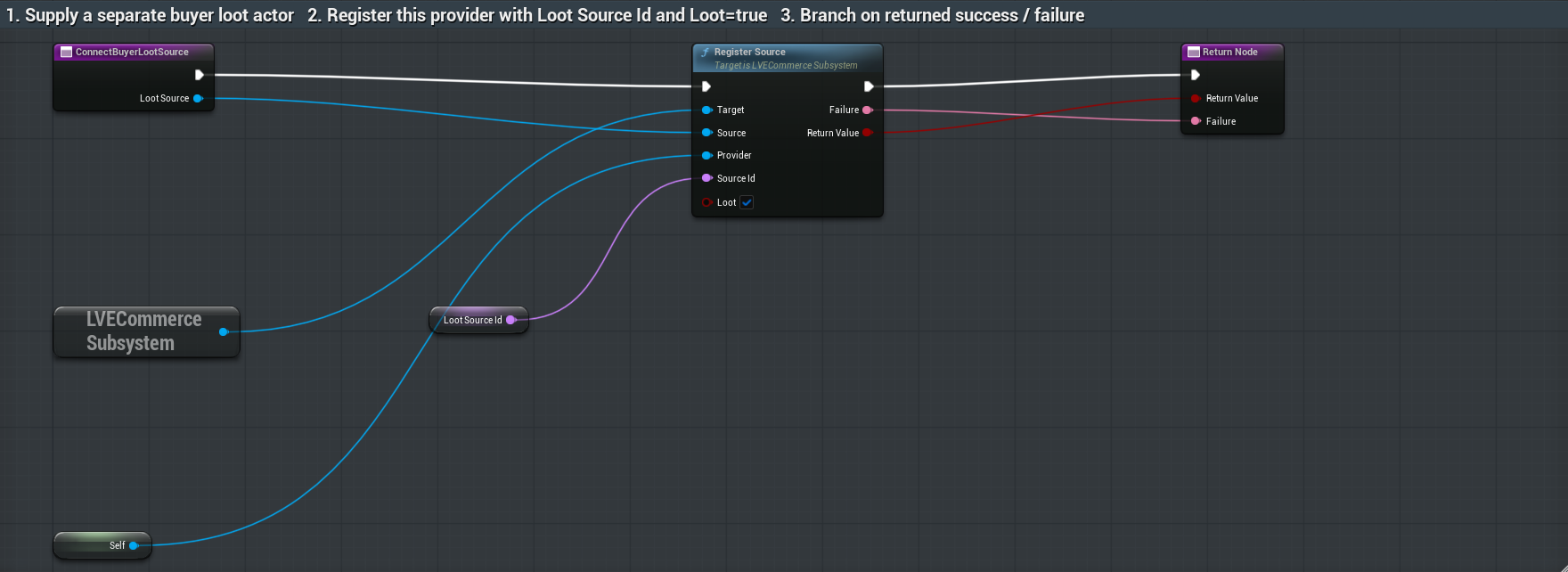
01Connect Buyer Loot Source
BP_LVE_BuyerCommerce / ConnectBuyerLootSource
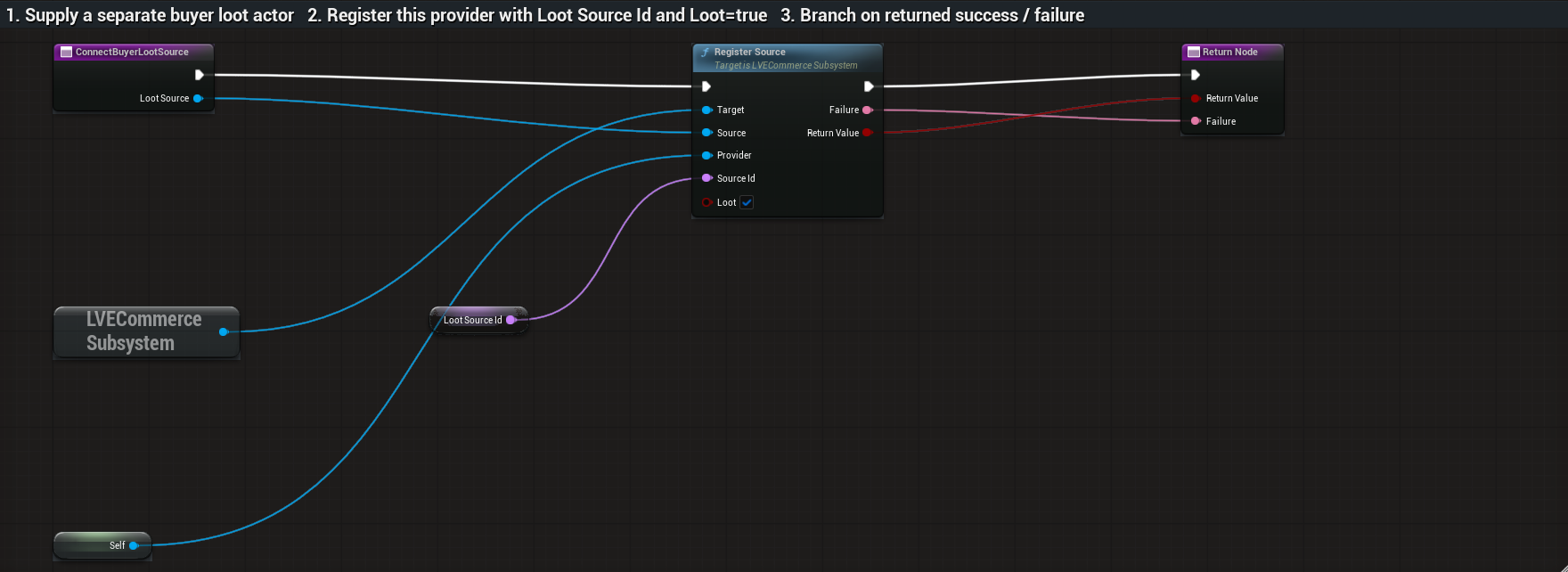
Pass your separate loot actor into Loot Source. Connect that reference to Source on Register Source.
Select to enlarge. Full original capture remains available; display backgrounds are standardized for readability.
What to connect and what happens
- Pass your separate loot actor into Loot Source. Connect that reference to Source on Register Source.
- Use LVECommerce Subsystem as Target and Self as Provider. Connect Loot Source Id to Source Id. Tick Loot so LVE treats this actor as a loot source.
- Run the white execution wire from the entry through Register Source to the Return Node. Forward Return Value and Failure to their matching return pins.
- True means the loot actor registered. False returns the reason. The component’s Loot entries supply its contents; registering the actor does not automatically open a loot window or grant items.
Compile, save and check: Compile and Save. Call this function with your separate loot actor, then branch on Return Value. Query Loot using that same actor and check the authored item IDs and quantities. On False, show Failure and check the actor, provider and source ID. A successful registration does not open a window or transfer items by itself.
02Query Vendor
BP_LVE_BuyerCommerce / QueryLVEVendor
Open BP_LVE_BuyerCommerce and select QueryLVEVendor. Source Id identifies the vendor being queried; connect it to Source Id on Parent: QueryLVEVendor.

Select to enlarge. Full original capture remains available; display backgrounds are standardized for readability.
What to connect and what happens
- Open BP_LVE_BuyerCommerce and select QueryLVEVendor. Source Id identifies the vendor being queried; connect it to Source Id on Parent: QueryLVEVendor.
- Run the white execution wire from the function entry through the parent call to the Return Node. Connect the parent’s Return Value to the return pin.
- The returned vendor snapshot contains source/currency IDs, offers, wallet balance, revision and buyback history. With a bound inventory, player counts and wallet come from that owner.
- The parent is the supplied nonpersistent example core. To use your own backend, replace it with your owner’s query logic and return the complete snapshot. This query should not grant items or spend money.
- For gameplay callers, use Query Vendor on LVECommerce Subsystem with the registered source actor. It checks the provider result and returns success/failure. The callback shown here returns a struct; it has no separate Failure pin.
Compile, save and check: Compile and Save. After inventory binding and vendor registration, call Query Vendor on LVECommerce Subsystem using the registered actor. Check the returned source ID matches Vendor Source Id, the offers match Items, and wallet/counts match your inventory. A wrong source ID or unavailable inventory should be refused through the registry; show its Failure message.
03Query Loot
BP_LVE_BuyerCommerce / QueryLVELoot
Open BP_LVE_BuyerCommerce and select QueryLVELoot. Connect Source Id from the function entry to Source Id on Parent: QueryLVELoot.

Select to enlarge. Full original capture remains available; display backgrounds are standardized for readability.
What to connect and what happens
- Open BP_LVE_BuyerCommerce and select QueryLVELoot. Connect Source Id from the function entry to Source Id on Parent: QueryLVELoot.
- Run the white execution wire through the parent call to the Return Node. Connect the parent’s Return Value to the return pin.
- The returned loot snapshot identifies the source and its current item stacks, quantities and revision. Reading it does not take any item.
- The parent reads the example provider’s Loot entries. Replace it with your own loot owner’s query logic when integrating another system. Return current contents, not a speculative transfer.
- For gameplay callers, use Query Loot on LVECommerce Subsystem with the registered loot actor and branch on its returned success/failure. This callback itself returns a snapshot with no separate Failure pin.
Compile, save and check: Compile and Save. Register the separate loot actor, then call Query Loot on LVECommerce Subsystem with that actor. Check Source Id, quantities and revision. Query again without a transfer: quantities must be unchanged. A missing or incorrectly registered actor must return failure rather than silently showing unrelated demo loot.
04Commit Commerce Operation
BP_LVE_BuyerCommerce / CommitLVEOperation
Open BP_LVE_BuyerCommerce and select CommitLVEOperation. Connect Request to Request on Parent: CommitLVEOperation. The request supplies operation ID, operation type, source/item/currency IDs, quantity, observed revision and quoted total.

Select to enlarge. Full original capture remains available; display backgrounds are standardized for readability.
What to connect and what happens
- Open BP_LVE_BuyerCommerce and select CommitLVEOperation. Connect Request to Request on Parent: CommitLVEOperation. The request supplies operation ID, operation type, source/item/currency IDs, quantity, observed revision and quoted total.
- Run the white execution wire through the parent call to the Return Node. Connect the parent’s Return Value to the return pin.
- The result carries Succeeded, Failure Reason, Message, committed quantity, currency change and new revision. Callers must check Succeeded and show Message on failure.
- The parent validates and commits the example transaction. Your replacement must keep item, wallet, stock, buyback and receipt changes consistent, reject stale/invalid requests and avoid a second grant on receipt replay.
- Gameplay callers submit through Commit on LVECommerce Subsystem using the registered source actor. After success, refresh current state; do not independently grant or debit the item or money again.
Compile, save and check: Compile and Save. Query current state, construct a valid request with a new operation ID and submit it through the registry Commit node. Check Succeeded, read Message on failure, and query state again after success. Repeat the exact accepted operation ID and payload: the receipt must replay without another grant or debit. A stale revision, excessive quantity or changed replay payload must be rejected.
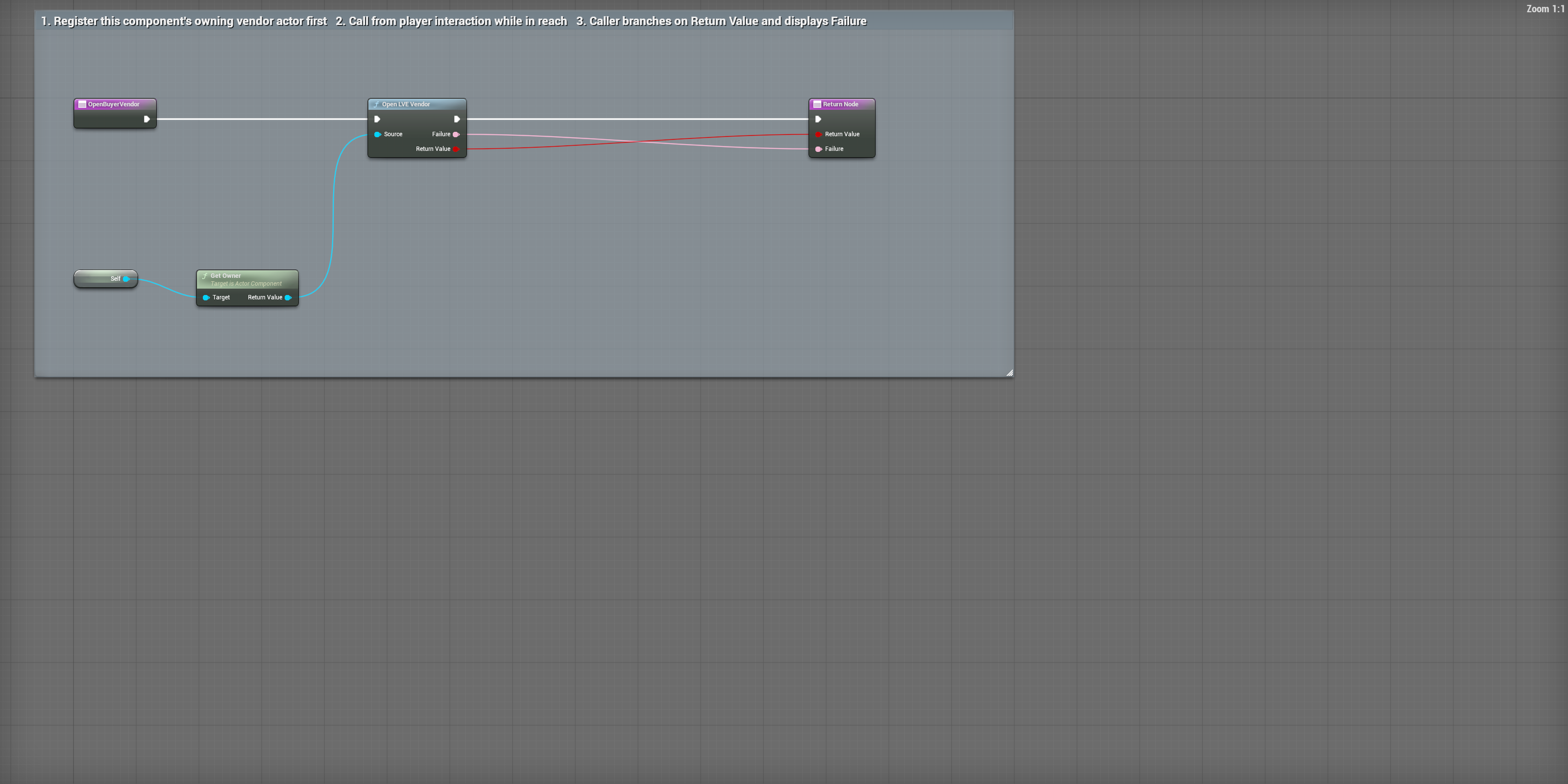
05Open your vendor
BP_LVE_BuyerCommerce / OpenBuyerVendor
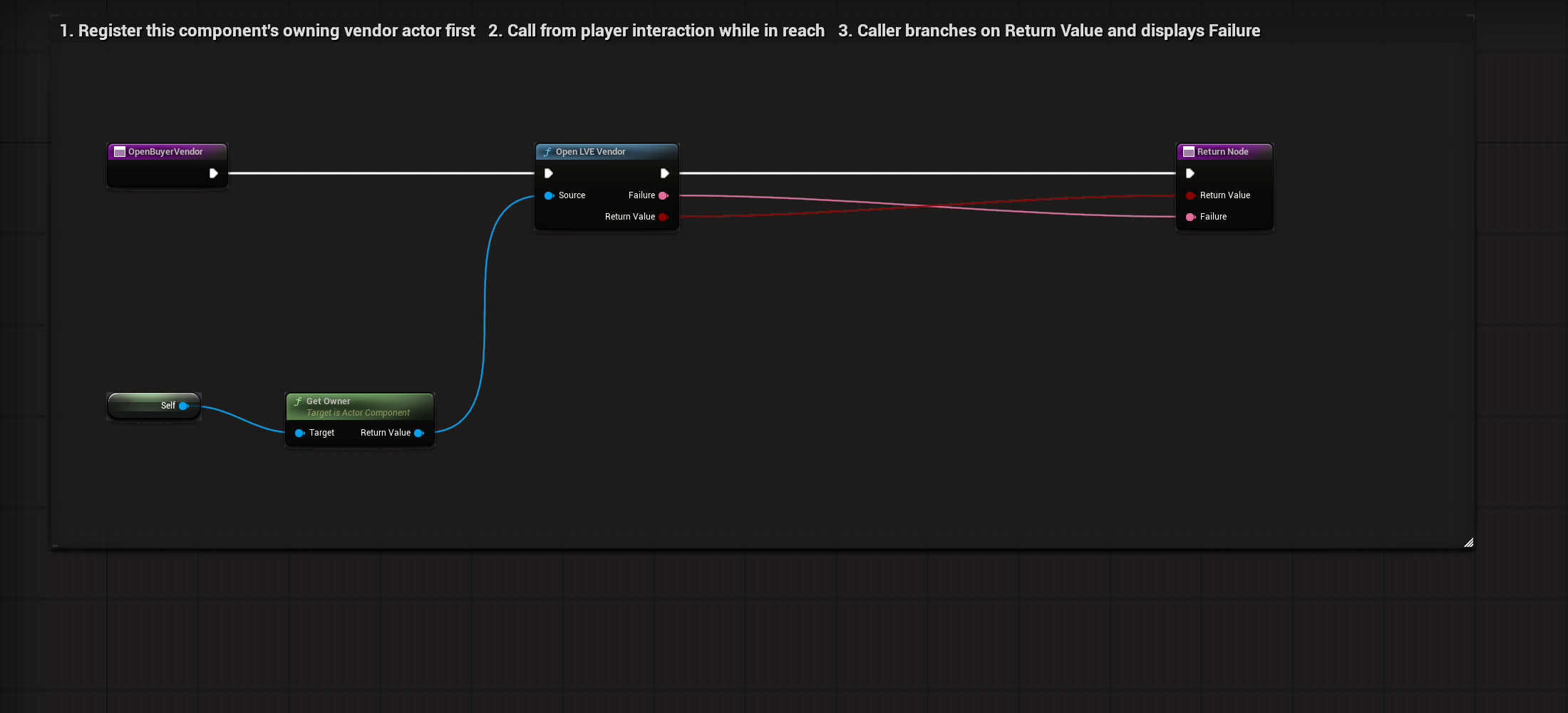
Connect the buyer inventory and register this component’s owning actor first.
Select to enlarge. Full original capture remains available; display backgrounds are standardized for readability.
What to connect and what happens
- Connect the buyer inventory and register this component’s owning actor first.
- The graph reads Get Owner and passes it into the Actor pin on Open LVE Vendor. Self is this component.
- Forward Return Value and Failure into the return pins. The player-input caller branches on the result and displays useful refusal text.
- Call from the intended local player interaction while in reach. Market UI opening is separate from server account authentication.
Compile, save and check: Press V in your third-person level. The vendor opens when player, source and range checks allow it. Otherwise display the returned Failure and leave inventory unchanged.
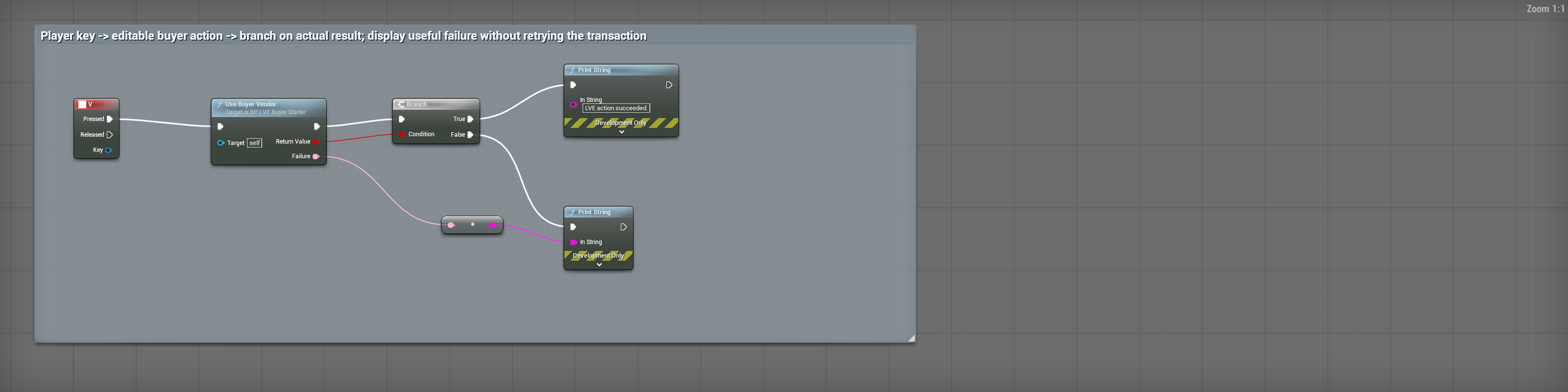
06V: check the actual action result
BP_LVE_BuyerStarter / EventGraph-VendorInput
Open the EventGraph and find the V keyboard event. Pressed calls Use Buyer Vendor; Target is Self, the starter actor.
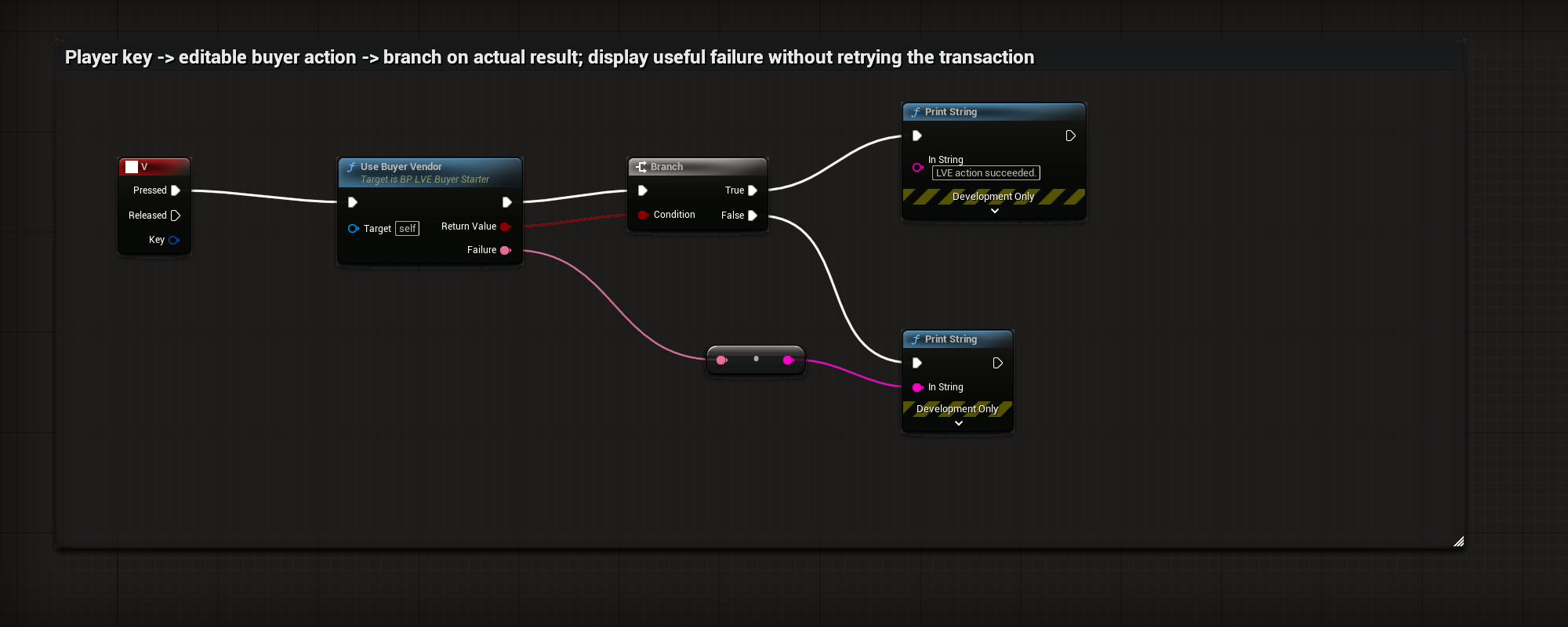
Select to enlarge. Full original capture remains available; display backgrounds are standardized for readability.
What to connect and what happens
- Open the EventGraph and find the V keyboard event. Pressed calls Use Buyer Vendor; Target is Self, the starter actor.
- Connect the action’s Boolean Return Value into Branch Condition.
- True prints the success message. False converts the returned Failure text into the failure Print String input.
- Neither branch retries or independently grants a transaction. Replace the development-only Print String nodes with your game’s player feedback.
Compile, save and check: Press V in play and inspect the returned result and owned state. Display Failure on refusal. Use the interface close/cancel action to leave a surface; F8 ends the commerce connection.
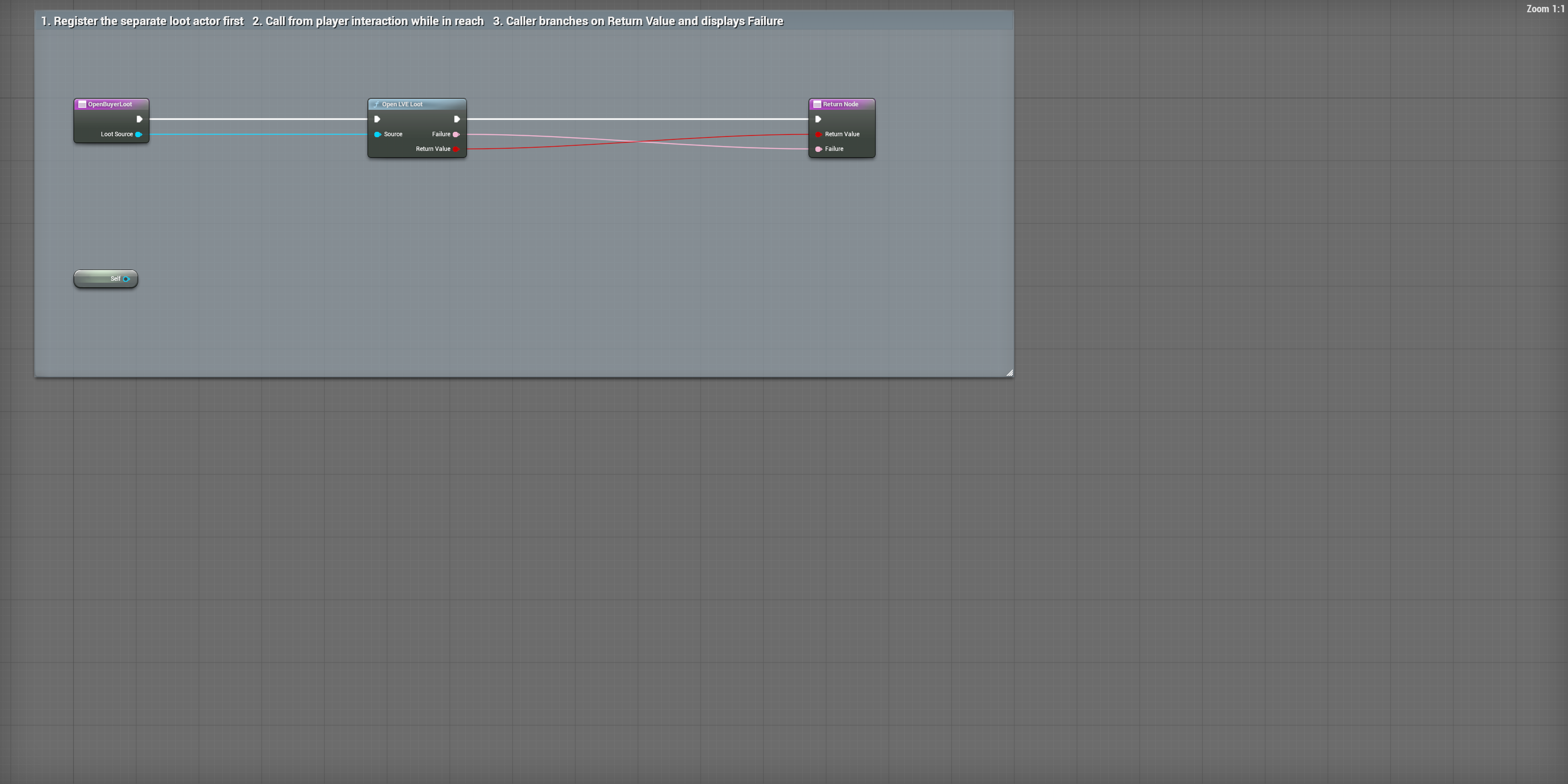
07Open a separate loot actor
BP_LVE_BuyerCommerce / OpenBuyerLoot
Register a separate loot actor with ConnectBuyerLootSource before opening it.
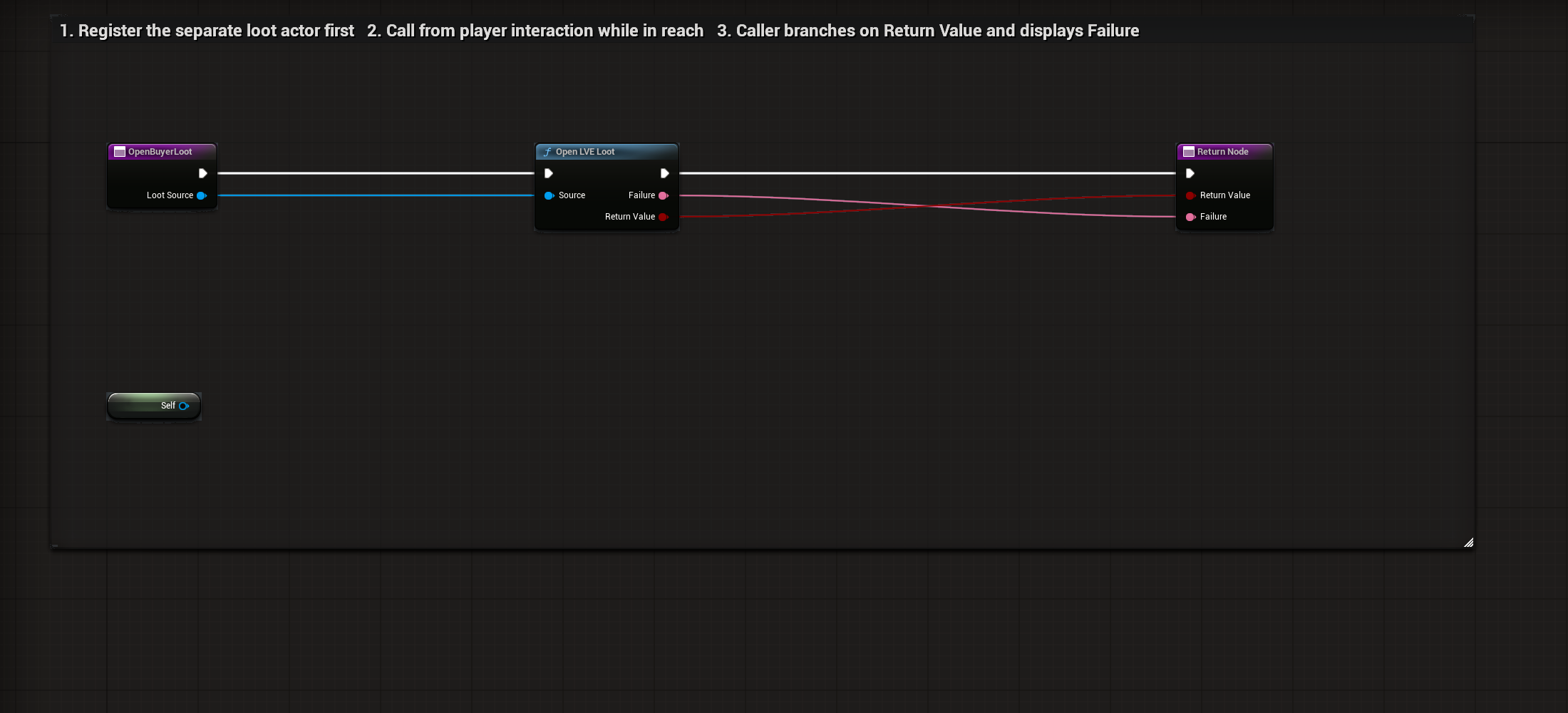
Select to enlarge. Full original capture remains available; display backgrounds are standardized for readability.
What to connect and what happens
- Register a separate loot actor with ConnectBuyerLootSource before opening it.
- Pass that actor into Loot Source. Connect Loot Source to Actor on Open LVE Loot.
- Return its Return Value and Failure to the caller. The L input example branches on the result.
- TAKE ALL transfers each non-empty stack separately. Each accepted stack produces one inventory-change notification. If a later stack is refused, earlier transfers remain; inspect the returned status and remaining loot.
- Loot snapshots do not publish a wallet balance. Use the normal interface close/cancel action when finished; unregister the separate source during owner cleanup.
Compile, save and check: Set the starter LootSource to a separate actor, press O to register it, then L while interaction checks allow it. Refused setup must show useful text and must not transfer items.
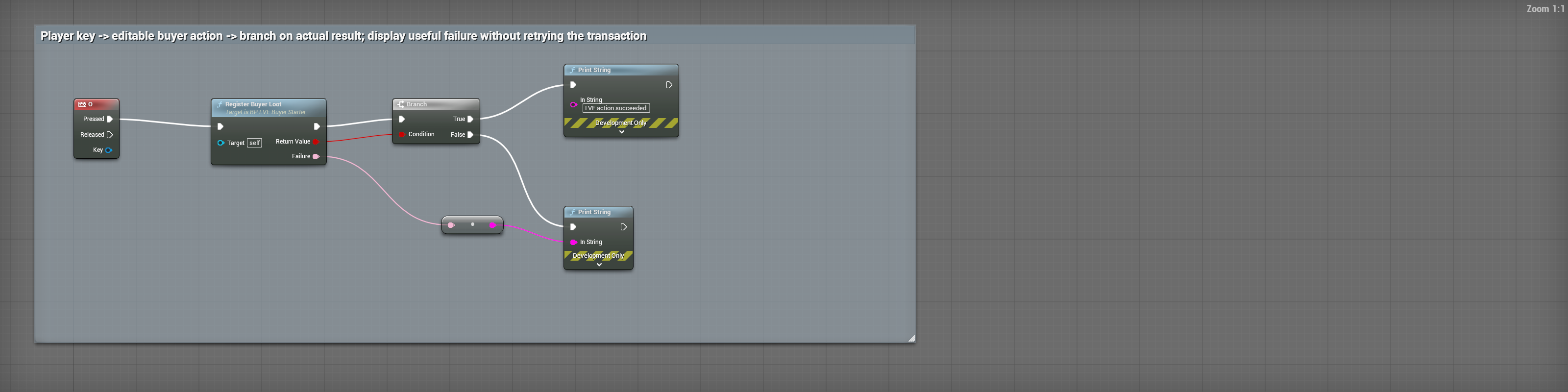
08O: check the actual action result
BP_LVE_BuyerStarter / EventGraph-RegisterLootInput
Open the EventGraph and find the O keyboard event. Pressed calls Register Buyer Loot; Target is Self, the starter actor.
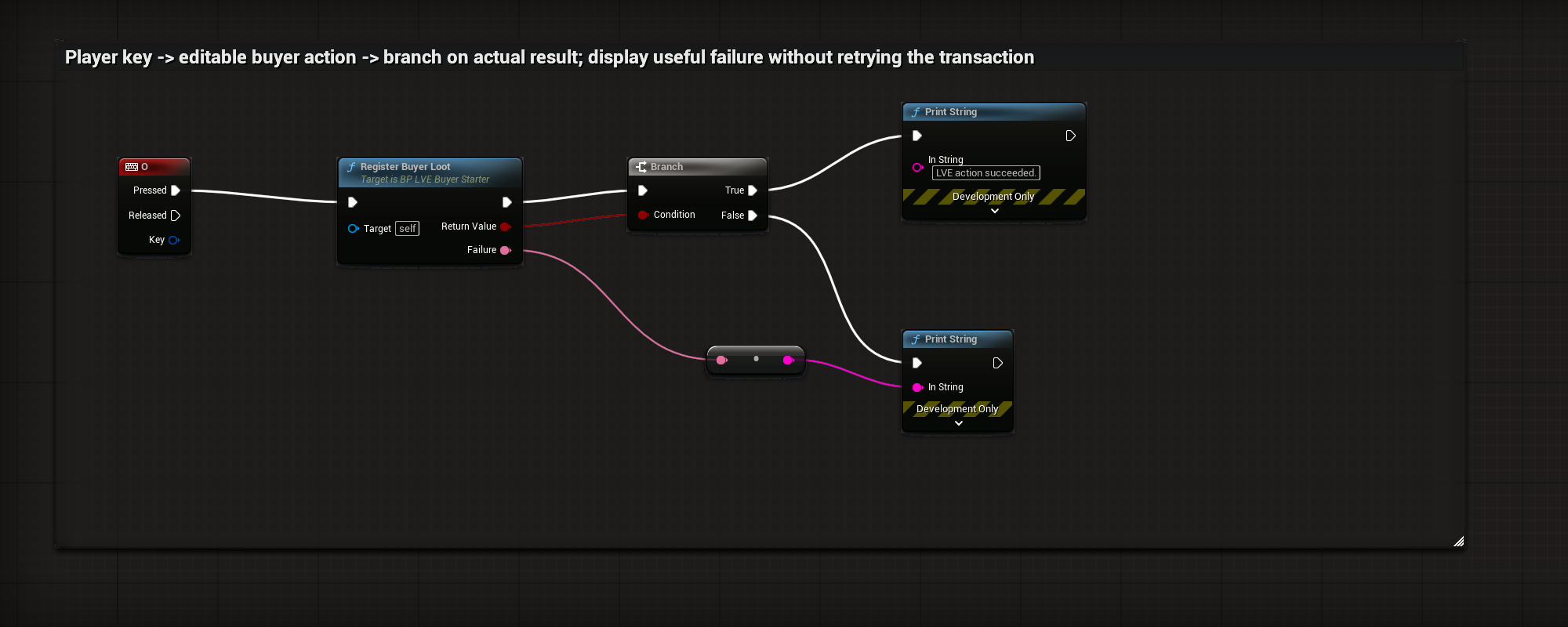
Select to enlarge. Full original capture remains available; display backgrounds are standardized for readability.
What to connect and what happens
- Open the EventGraph and find the O keyboard event. Pressed calls Register Buyer Loot; Target is Self, the starter actor.
- Connect the action’s Boolean Return Value into Branch Condition.
- True prints the success message. False converts the returned Failure text into the failure Print String input.
- Neither branch retries or independently grants a transaction. Replace the development-only Print String nodes with your game’s player feedback.
Compile, save and check: Press O in play and inspect the returned result and owned state. Display Failure on refusal. Use the interface close/cancel action to leave a surface; F8 ends the commerce connection.
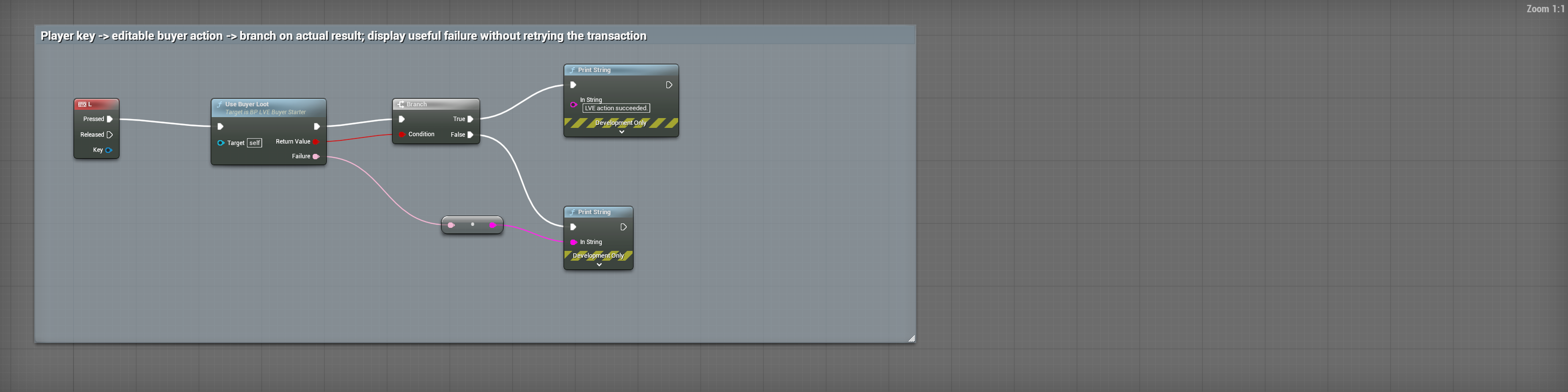
09L: check the actual action result
BP_LVE_BuyerStarter / EventGraph-LootInput
Open the EventGraph and find the L keyboard event. Pressed calls Use Buyer Loot; Target is Self, the starter actor.
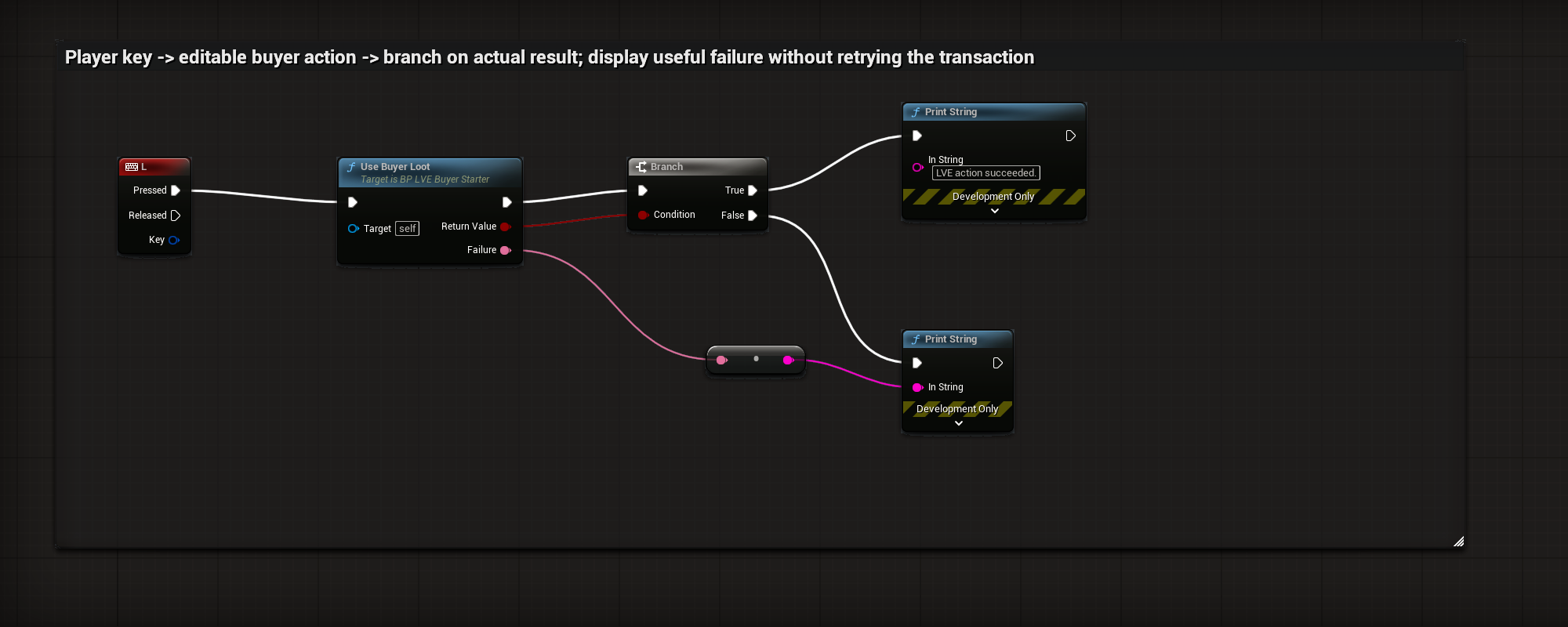
Select to enlarge. Full original capture remains available; display backgrounds are standardized for readability.
What to connect and what happens
- Open the EventGraph and find the L keyboard event. Pressed calls Use Buyer Loot; Target is Self, the starter actor.
- Connect the action’s Boolean Return Value into Branch Condition.
- True prints the success message. False converts the returned Failure text into the failure Print String input.
- Neither branch retries or independently grants a transaction. Replace the development-only Print String nodes with your game’s player feedback.
Compile, save and check: Press L in play and inspect the returned result and owned state. Display Failure on refusal. Use the interface close/cancel action to leave a surface; F8 ends the commerce connection.
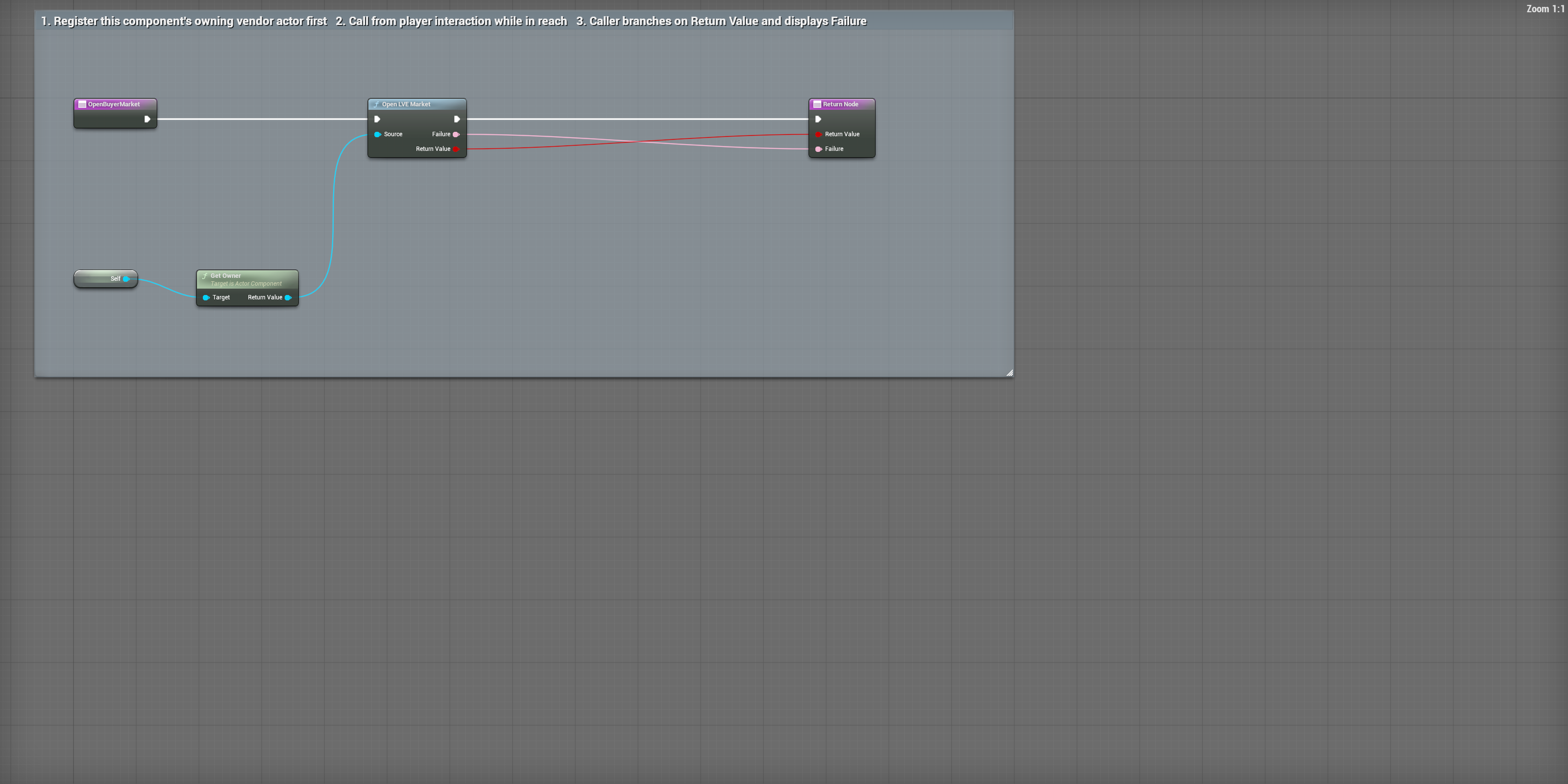
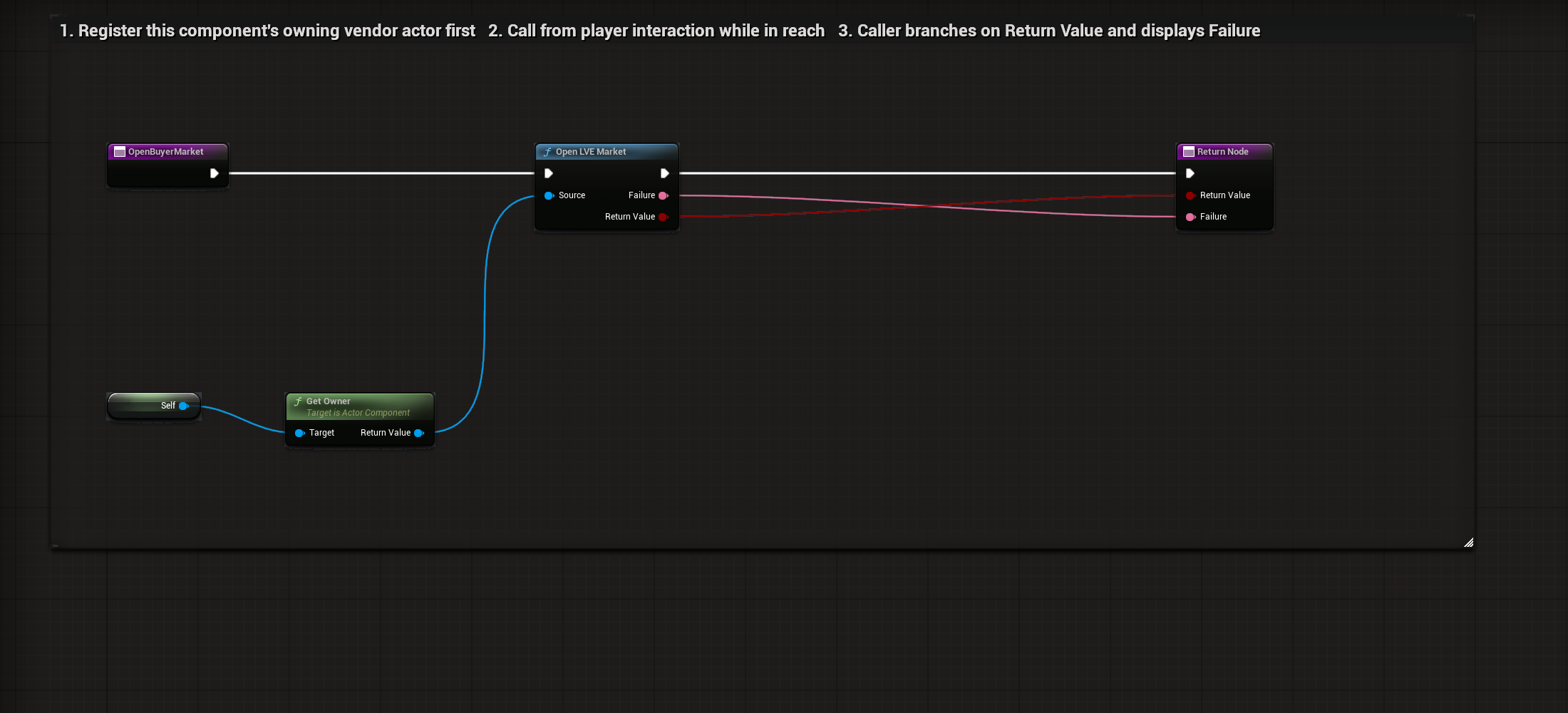
10Open the market interface
BP_LVE_BuyerCommerce / OpenBuyerMarket
Connect the buyer inventory and register this component’s owning actor first.
Select to enlarge. Full original capture remains available; display backgrounds are standardized for readability.
What to connect and what happens
- Connect the buyer inventory and register this component’s owning actor first.
- The graph reads Get Owner and passes it into the Actor pin on Open LVE Market. Self is this component.
- Forward Return Value and Failure into the return pins. The player-input caller branches on the result and displays useful refusal text.
- Call from the intended local player interaction while in reach. Market UI opening is separate from server account authentication.
Compile, save and check: Press M in your third-person level. The local market preview opens when interaction checks allow it. Read Failure on refusal. Opening this interface does not authenticate an auction account.
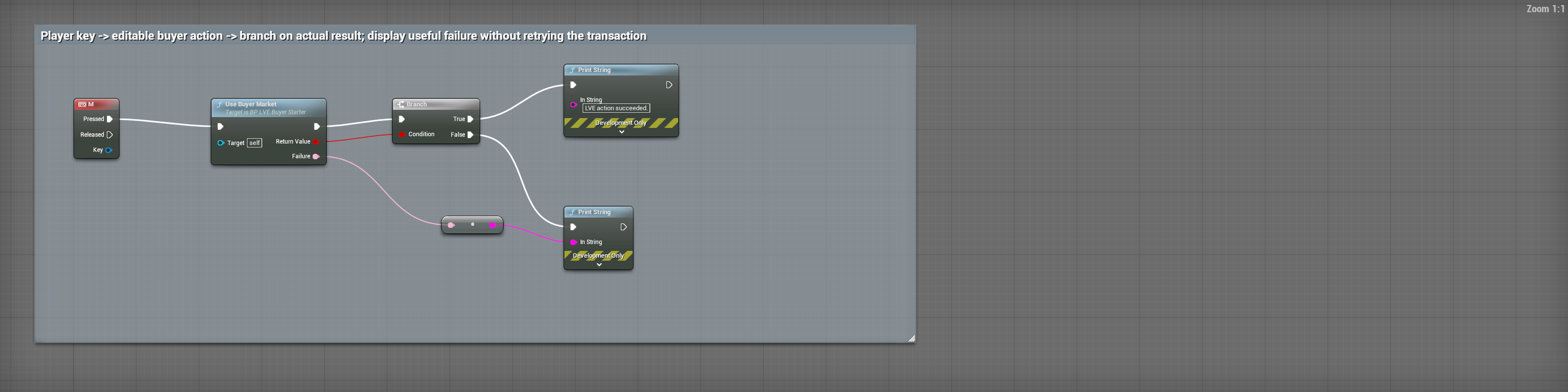
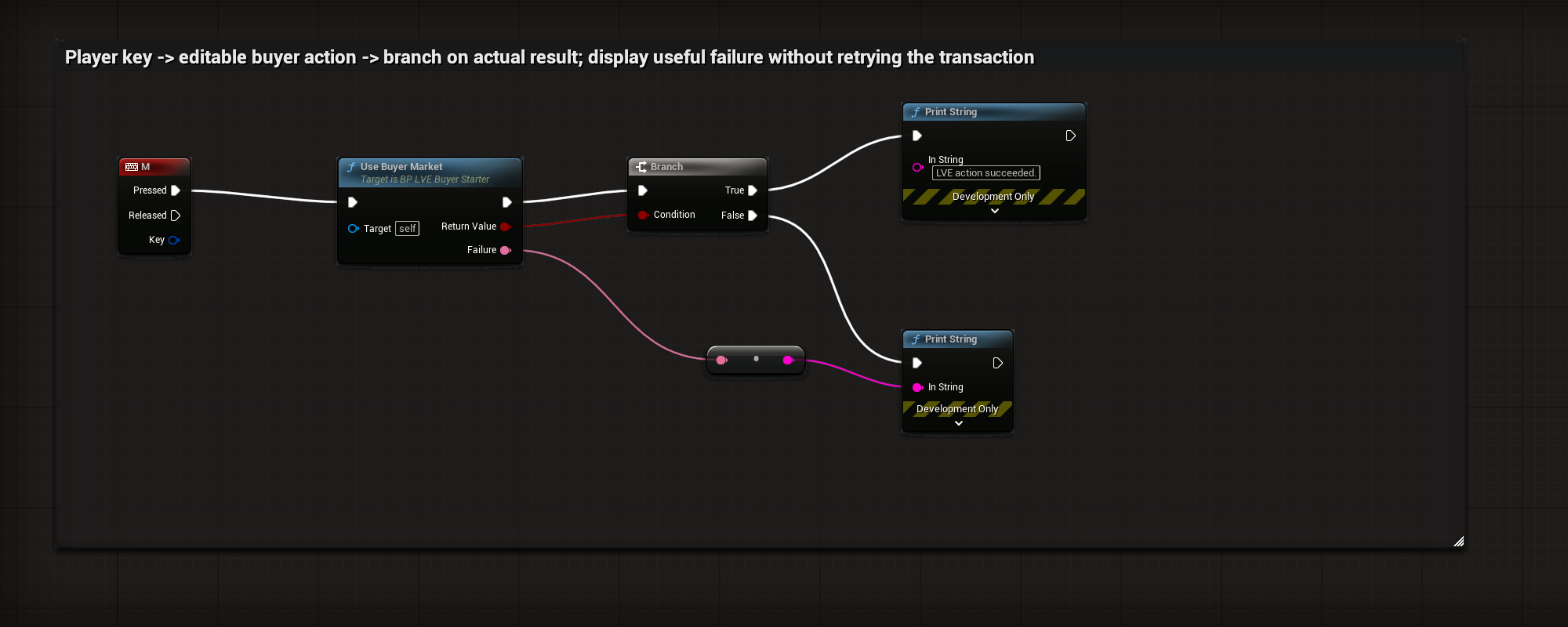
11M: check the actual action result
BP_LVE_BuyerStarter / EventGraph-MarketInput
Open the EventGraph and find the M keyboard event. Pressed calls Use Buyer Market; Target is Self, the starter actor.
Select to enlarge. Full original capture remains available; display backgrounds are standardized for readability.
What to connect and what happens
- Open the EventGraph and find the M keyboard event. Pressed calls Use Buyer Market; Target is Self, the starter actor.
- Connect the action’s Boolean Return Value into Branch Condition.
- True prints the success message. False converts the returned Failure text into the failure Print String input.
- Neither branch retries or independently grants a transaction. Replace the development-only Print String nodes with your game’s player feedback.
Compile, save and check: Press M in play and inspect the returned result and owned state. Display Failure on refusal. Use the interface close/cancel action to leave a surface; F8 ends the commerce connection.
Blueprints: Add and remove gameplay items
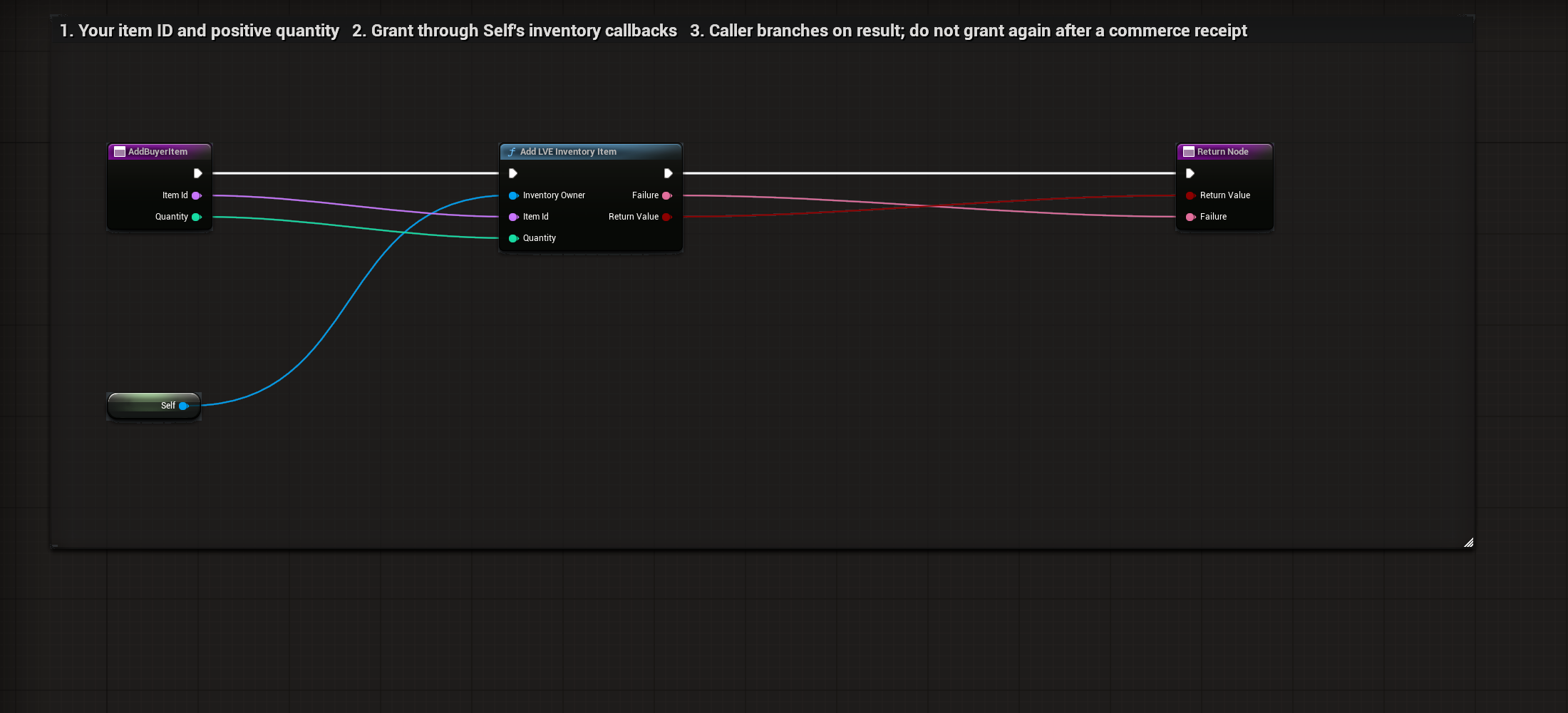
01Add your own gameplay item
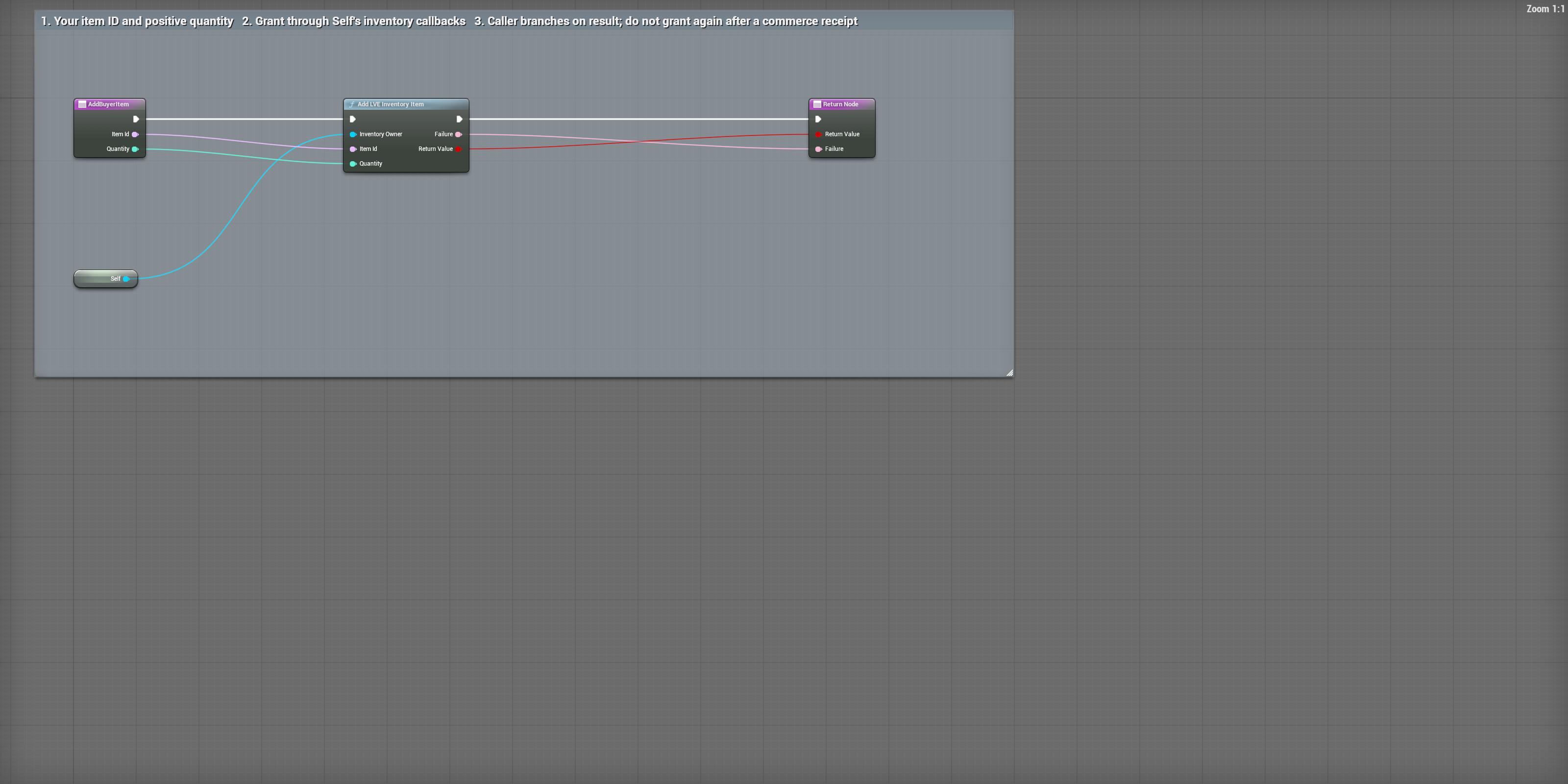
BP_LVE_BuyerInventory / AddBuyerItem
Pass your stable Item Id and a positive Quantity into AddBuyerItem.
Select to enlarge. Full original capture remains available; display backgrounds are standardized for readability.
What to connect and what happens
- Pass your stable Item Id and a positive Quantity into AddBuyerItem.
- The saved graph connects Self to Inventory Owner on Add LVE Inventory Item. Item Id and Quantity go to their matching pins.
- Return Value and Failure go to the matching return pins. This function returns the result; its caller must branch on it. See the G input example below.
- Use this for host gameplay rewards. A purchase or loot operation already transfers its items; do not grant another copy from its receipt.
Compile, save and check: With the starter connected, press G four times and inspect the owned inventory. A fifth grant must refuse at the item limit without changing counts or wallet.
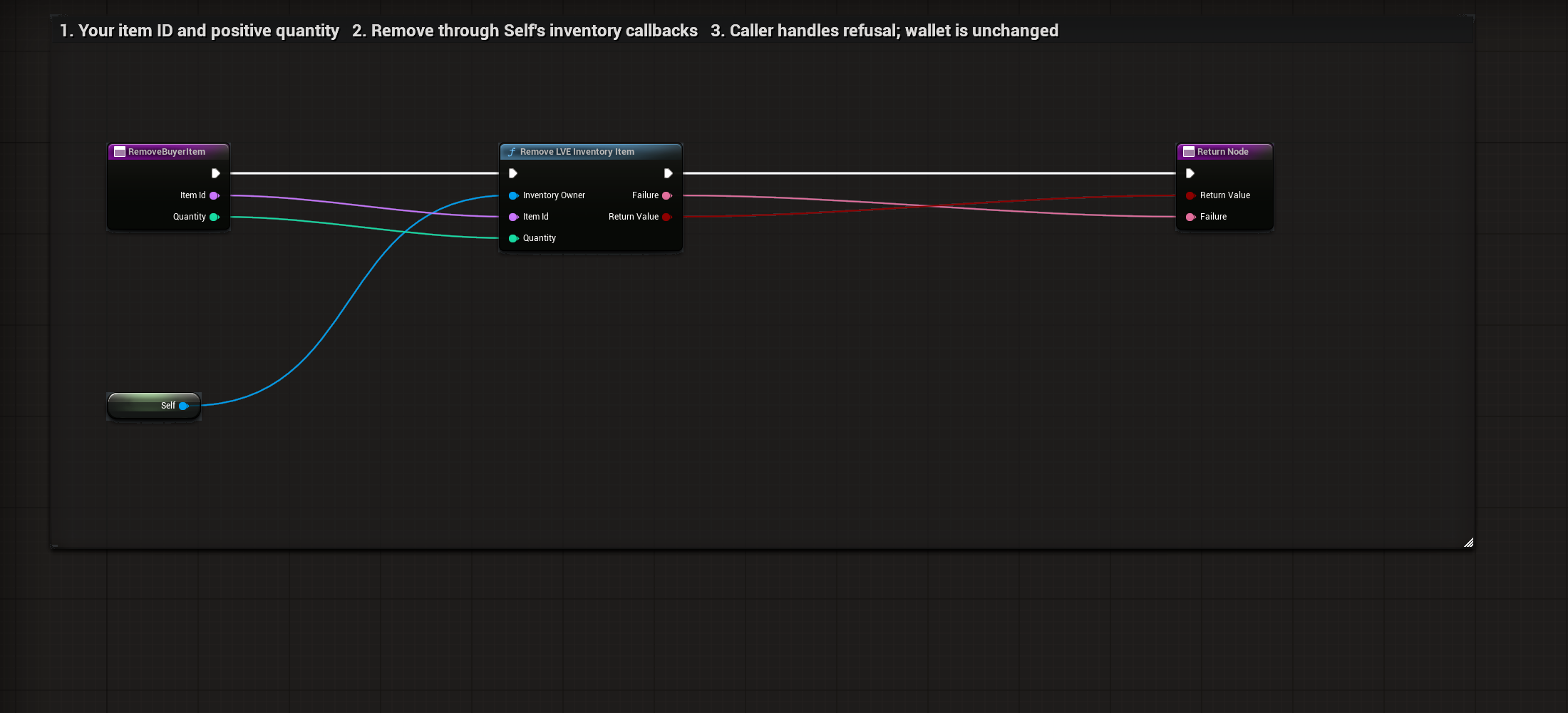
02Remove an owned gameplay item
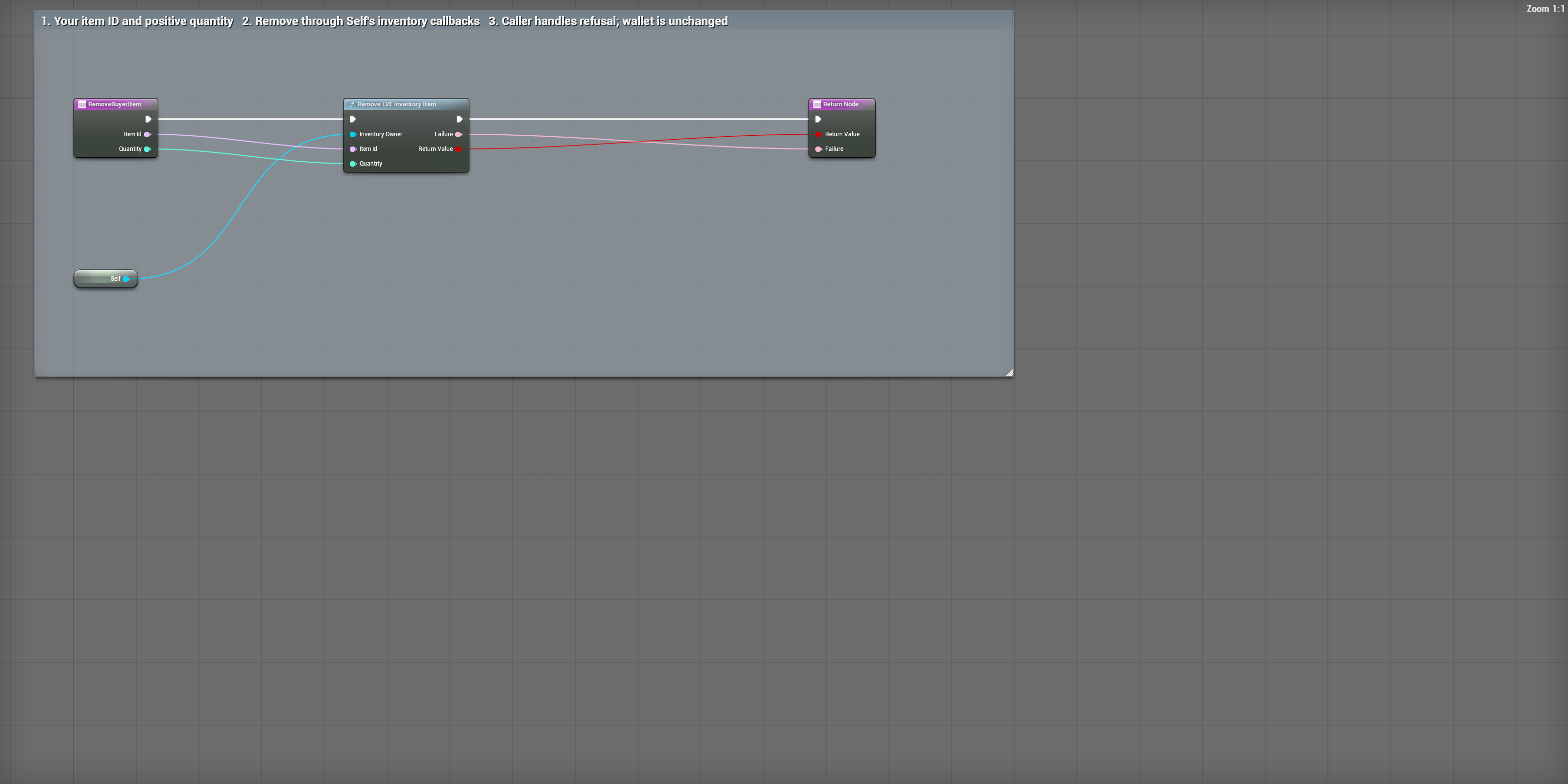
BP_LVE_BuyerInventory / RemoveBuyerItem
Pass the stable Item Id and a positive Quantity into RemoveBuyerItem.
Select to enlarge. Full original capture remains available; display backgrounds are standardized for readability.
What to connect and what happens
- Pass the stable Item Id and a positive Quantity into RemoveBuyerItem.
- Self goes into Inventory Owner on Remove LVE Inventory Item. Item Id and Quantity connect to their matching pins.
- Forward Return Value and Failure. The caller branches on that Boolean; a missing item or excessive quantity is refused.
- This changes the inventory through its atomic owner callback. It is separate from the demo bag ITEMS toggle; neither operation should change the wallet.
Compile, save and check: Grant an item, remove one, then try removing more than you own. Inspect the complete state: refusal must preserve both counts and wallet.
03Choose an item for a gameplay reward
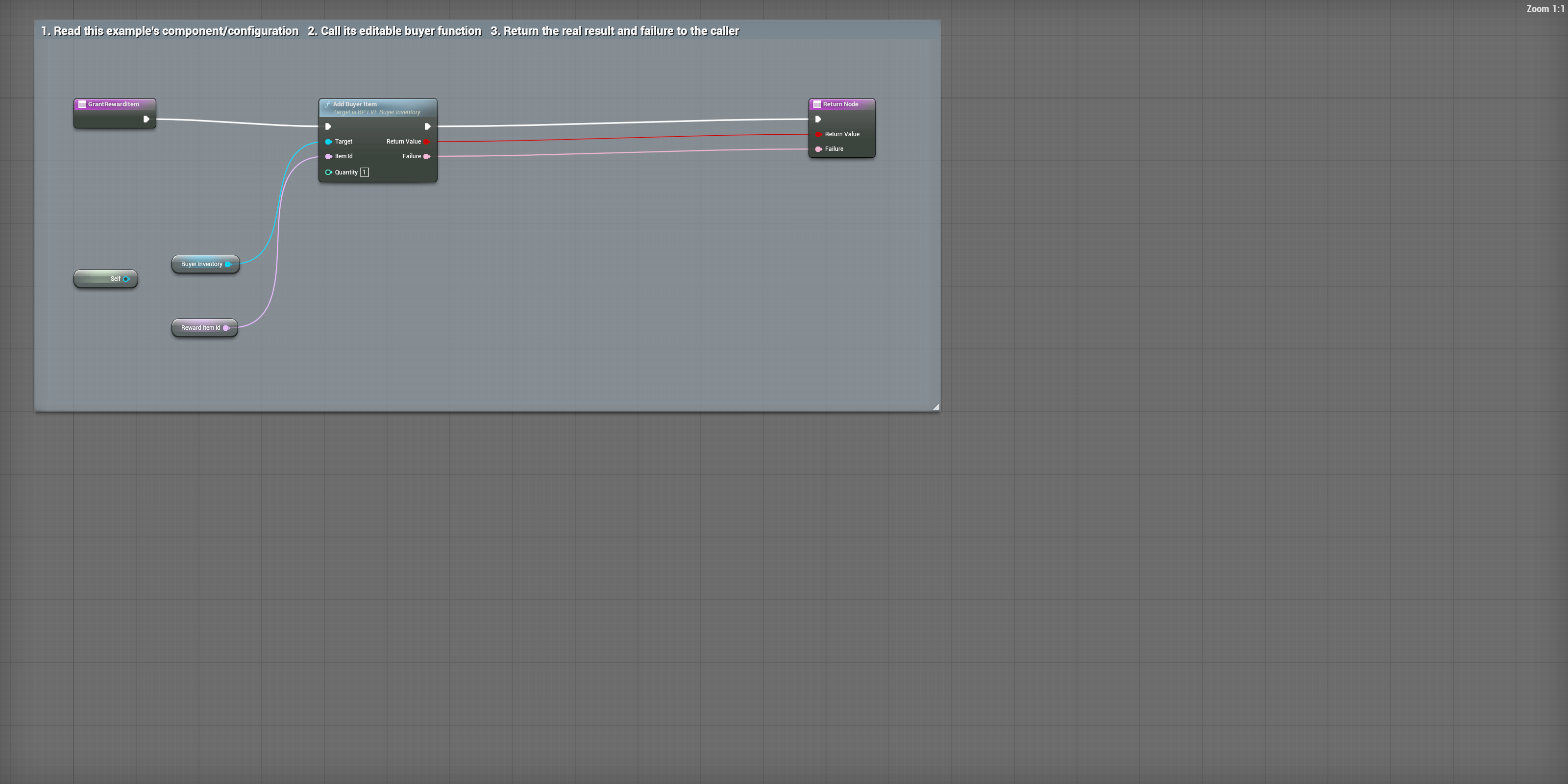
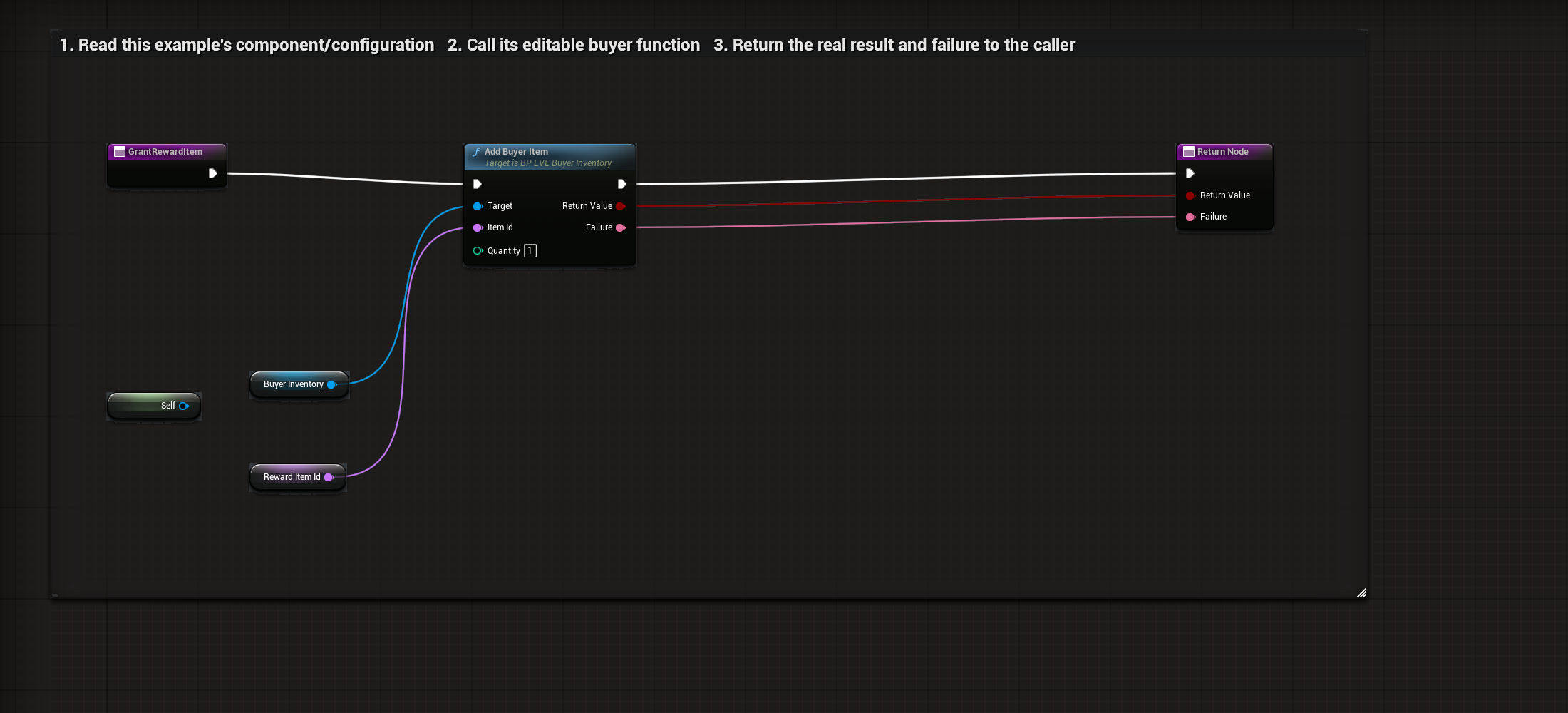
BP_LVE_BuyerStarter / GrantRewardItem
Set the starter’s editable RewardItemId to your game’s item ID.
Select to enlarge. Full original capture remains available; display backgrounds are standardized for readability.
What to connect and what happens
- Set the starter’s editable RewardItemId to your game’s item ID.
- Use BuyerInventory as Target on Add Buyer Item. Connect Reward Item Id to Item Id and use Quantity 1.
- Return the actual Boolean and Failure message. This wrapper does not itself branch.
- The G key event below shows how the caller handles both paths.
Compile, save and check: Grant up to the configured per-item maximum. Capacity refusal must preserve counts and wallet.
04Consume one gameplay item
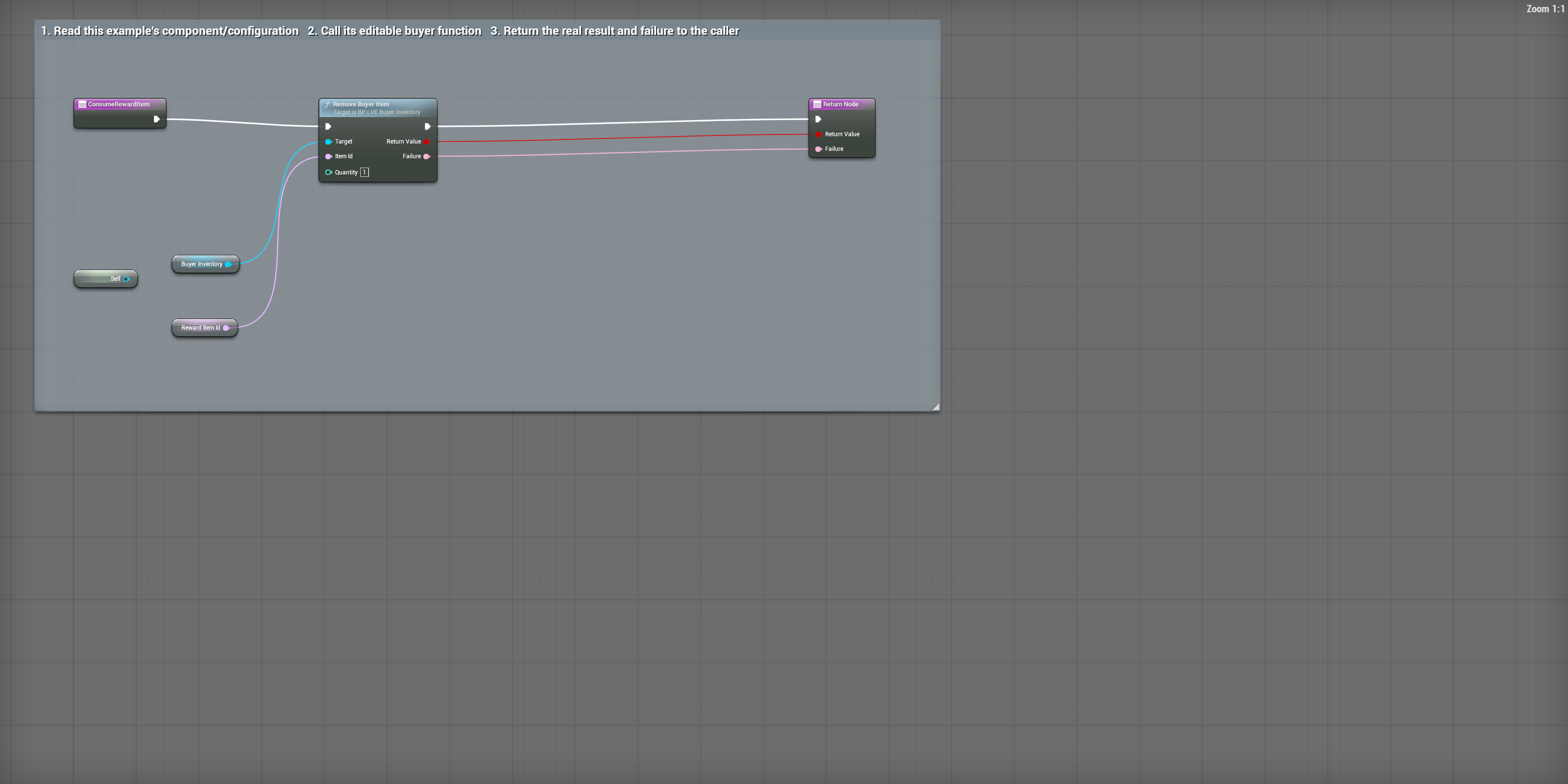
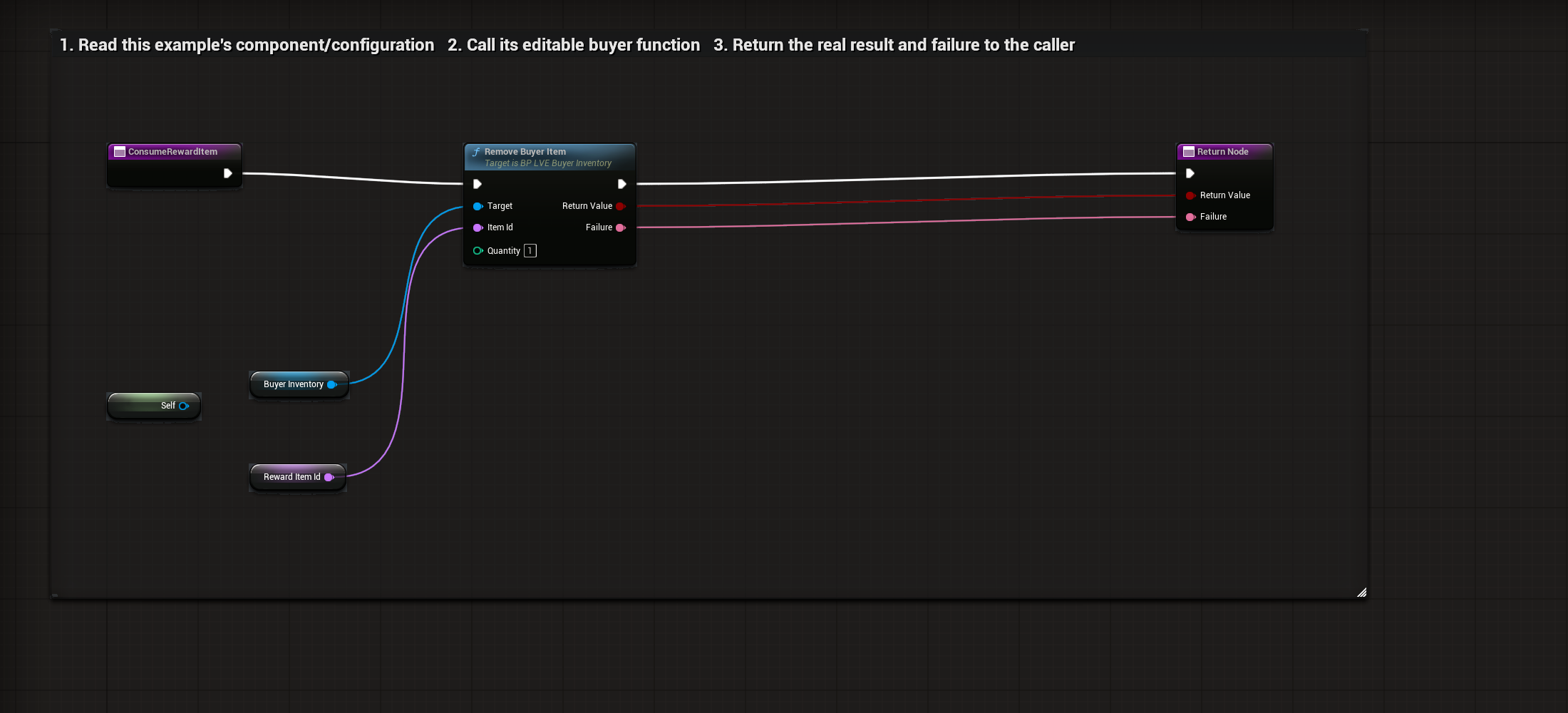
BP_LVE_BuyerStarter / ConsumeRewardItem
Use the same RewardItemId as the item you granted.
Select to enlarge. Full original capture remains available; display backgrounds are standardized for readability.
What to connect and what happens
- Use the same RewardItemId as the item you granted.
- Connect BuyerInventory as Target on Remove Buyer Item, Reward Item Id into Item Id and Quantity 1.
- Forward Return Value and Failure into the return node. The H key caller handles success/refusal.
- Removing an absent item must refuse without reducing another item or changing the wallet.
Compile, save and check: After four G presses, press H once: expected count is three. This is gameplay consumption, separate from the demo bag ITEMS toggle.
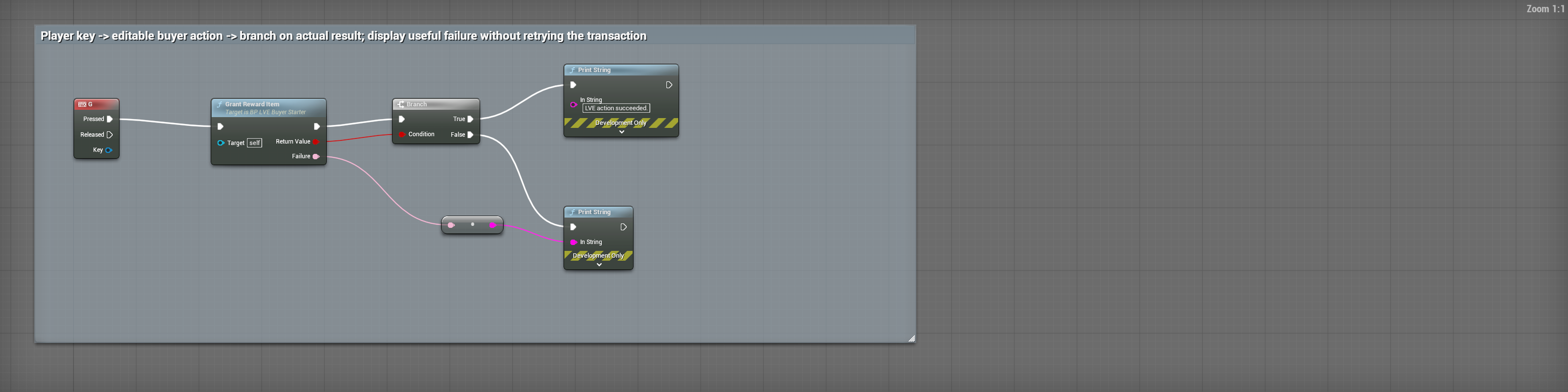
05G: check the actual action result
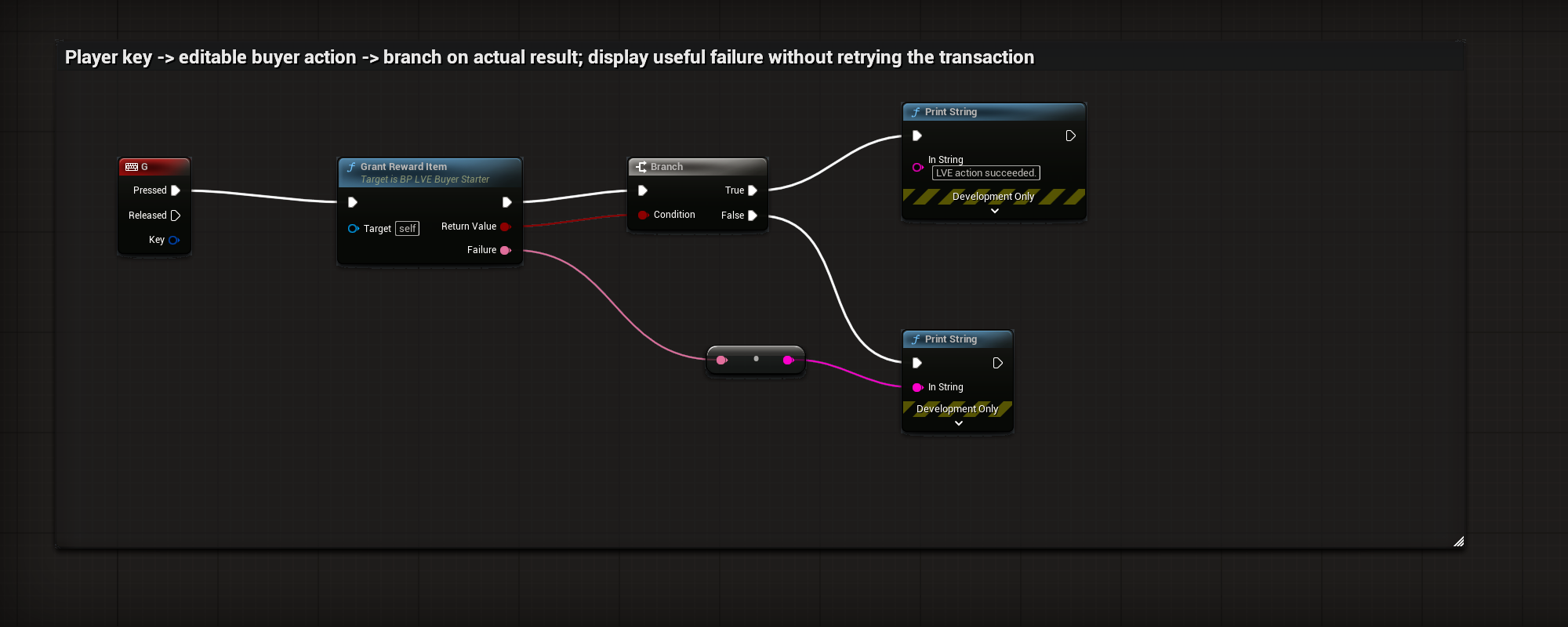
BP_LVE_BuyerStarter / EventGraph-GrantInput
Open the EventGraph and find the G keyboard event. Pressed calls Grant Reward Item; Target is Self, the starter actor.
Select to enlarge. Full original capture remains available; display backgrounds are standardized for readability.
What to connect and what happens
- Open the EventGraph and find the G keyboard event. Pressed calls Grant Reward Item; Target is Self, the starter actor.
- Connect the action’s Boolean Return Value into Branch Condition.
- True prints the success message. False converts the returned Failure text into the failure Print String input.
- Neither branch retries or independently grants a transaction. Replace the development-only Print String nodes with your game’s player feedback.
Compile, save and check: Press G in play and inspect the returned result and owned state. Display Failure on refusal. Use the interface close/cancel action to leave a surface; F8 ends the commerce connection.
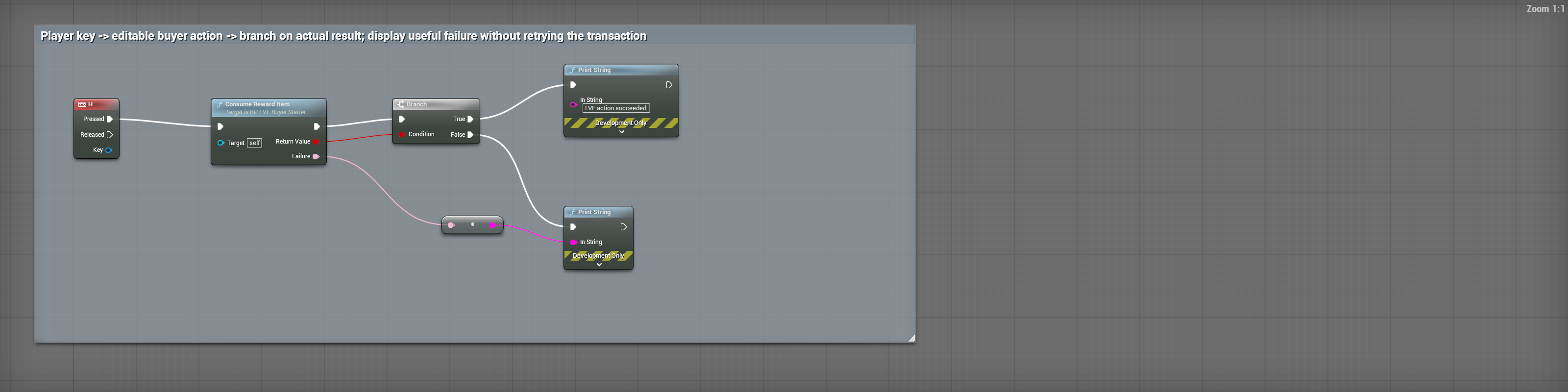
06H: check the actual action result
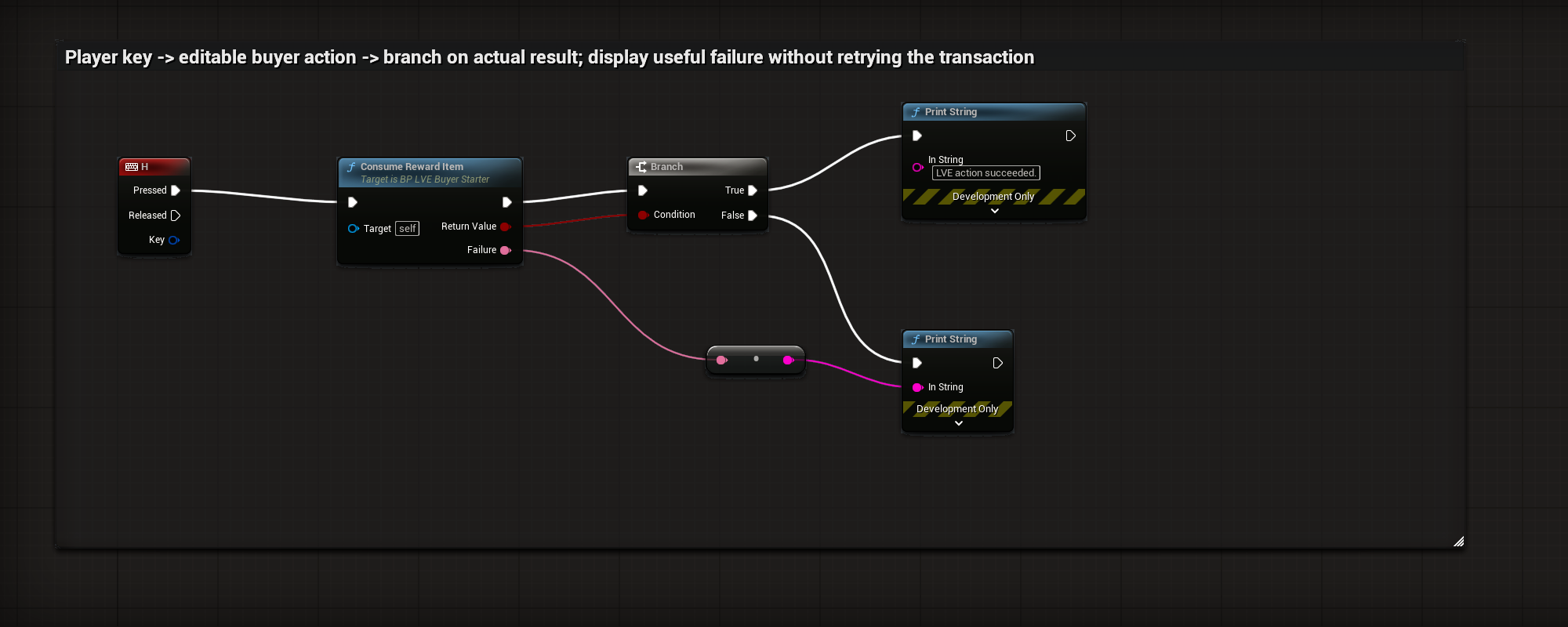
BP_LVE_BuyerStarter / EventGraph-ConsumeInput
Open the EventGraph and find the H keyboard event. Pressed calls Consume Reward Item; Target is Self, the starter actor.
Select to enlarge. Full original capture remains available; display backgrounds are standardized for readability.
What to connect and what happens
- Open the EventGraph and find the H keyboard event. Pressed calls Consume Reward Item; Target is Self, the starter actor.
- Connect the action’s Boolean Return Value into Branch Condition.
- True prints the success message. False converts the returned Failure text into the failure Print String input.
- Neither branch retries or independently grants a transaction. Replace the development-only Print String nodes with your game’s player feedback.
Compile, save and check: Press H in play and inspect the returned result and owned state. Display Failure on refusal. Use the interface close/cancel action to leave a surface; F8 ends the commerce connection.
Blueprints: Trusted auction integration
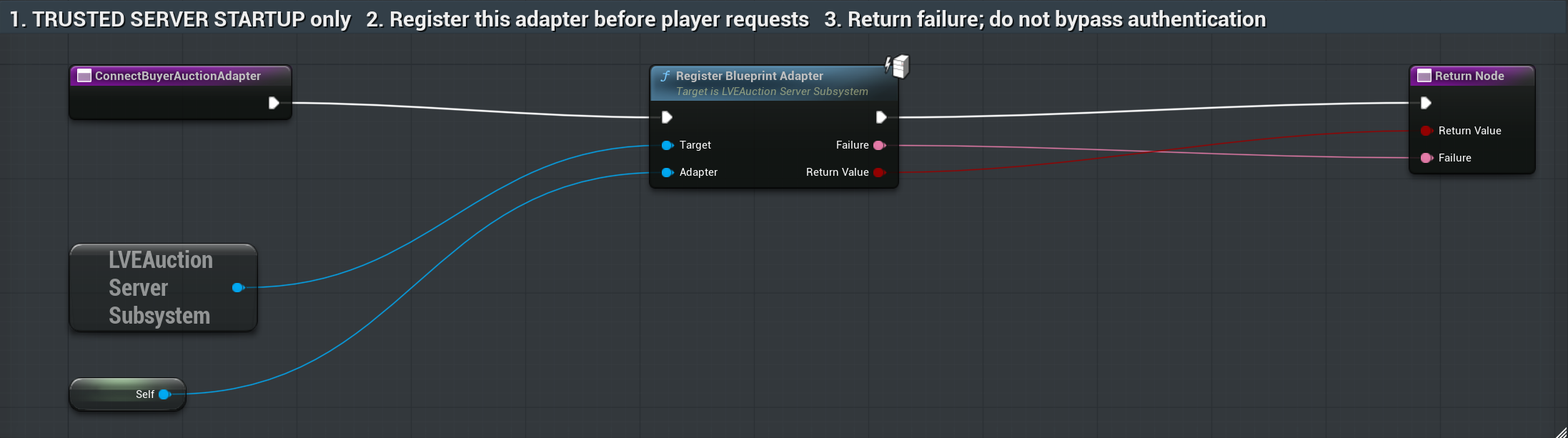
01Connect Buyer Auction Adapter
BP_LVE_BuyerCommerce / ConnectBuyerAuctionAdapter
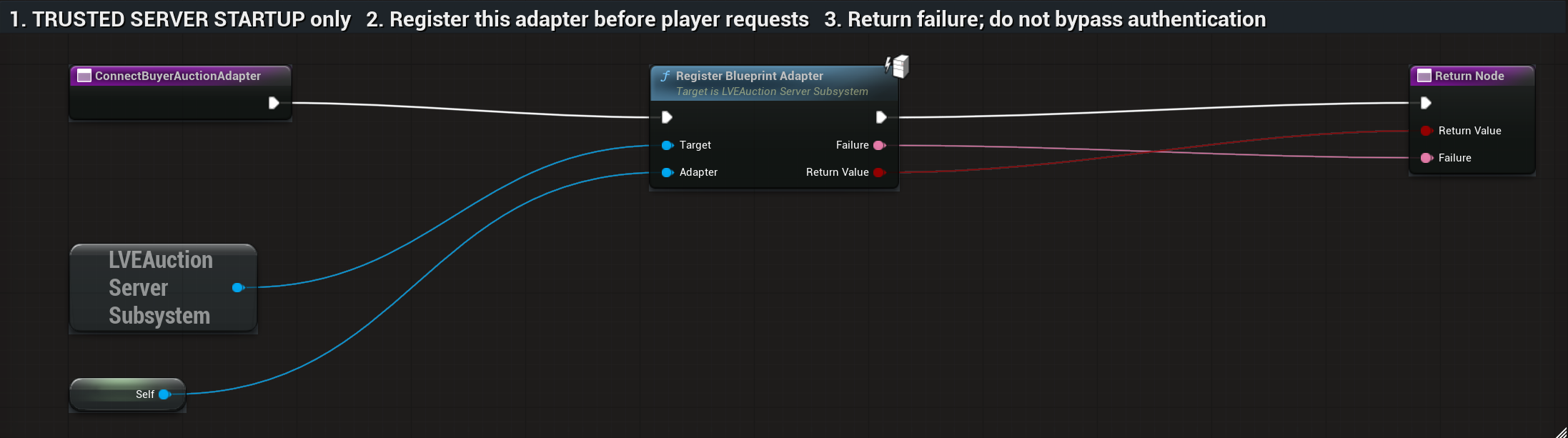
Call this setup function on the trusted server at startup, before accepting player auction requests.
Select to enlarge. Full original capture remains available; display backgrounds are standardized for readability.
What to connect and what happens
- Call this setup function on the trusted server at startup, before accepting player auction requests.
- Use LVEAuction Server Subsystem as Target on Register Blueprint Adapter. Connect Self to Adapter: this commerce component supplies the auction callbacks.
- Connect the white execution wire from the function entry through Register Blueprint Adapter to the Return Node. Forward Return Value and Failure to the matching return pins.
- True means the adapter registered; False includes the reason. This function connects the adapter. Your game still needs its authenticated player-request path; registration does not authenticate players.
Compile, save and check: Compile and Save. From trusted server startup, call this function before player requests, then branch on Return Value. True means the adapter registered; False must show Failure. Check the server subsystem reference and adapter lifetime. Registration alone is not authentication or a complete player request test.
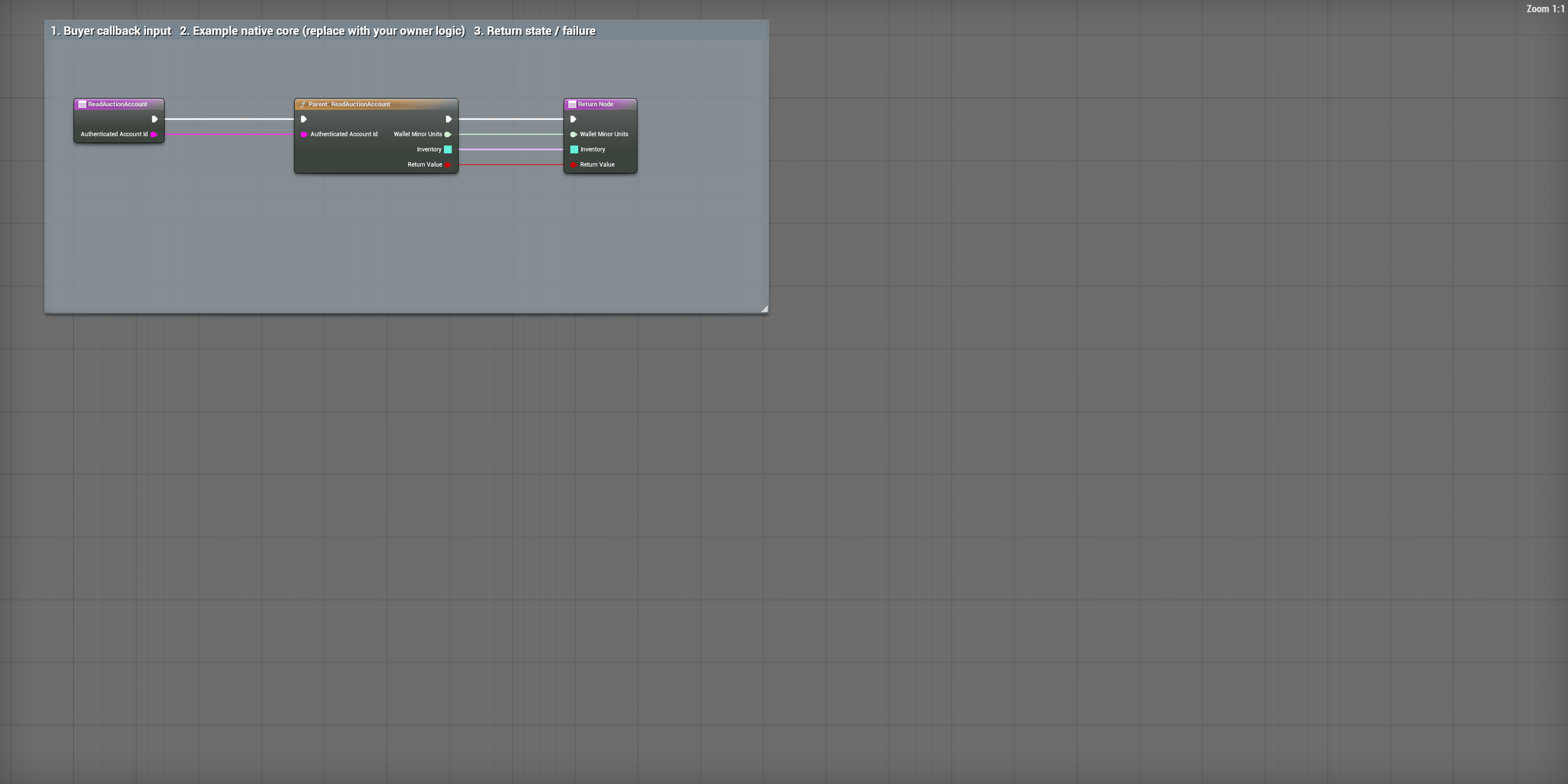
02Read a trusted auction account
BP_LVE_BuyerCommerce / ReadAuctionAccount
Register this adapter on the trusted server before accepting player requests.
Select to enlarge. Full original capture remains available; display backgrounds are standardized for readability.
What to connect and what happens
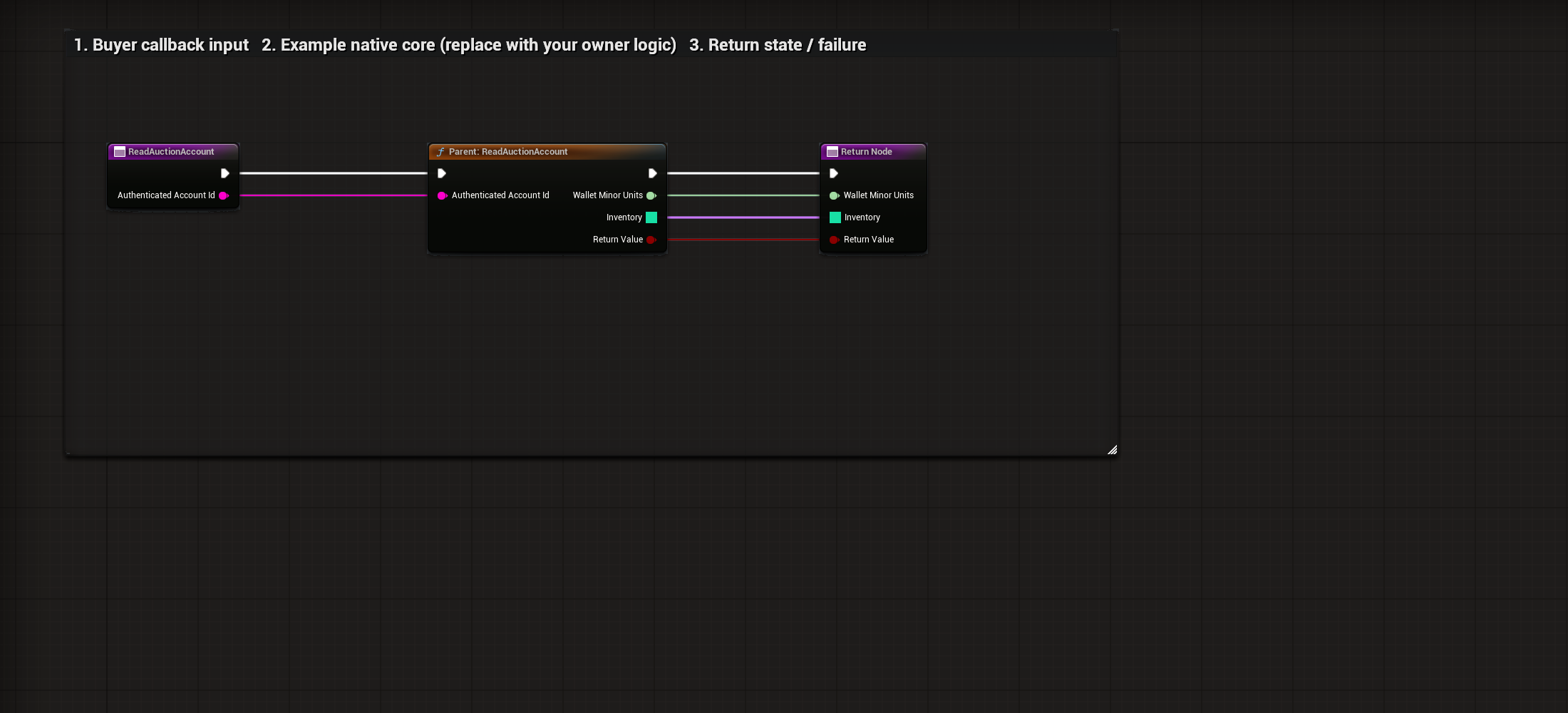
- Register this adapter on the trusted server before accepting player requests.
- Pass the server-authenticated account ID into Authenticated Account Id on the parent call.
- Connect Wallet Minor Units, Inventory and Return Value to their matching return pins.
- The included parent supplies the example backend. For production, replace it with the game’s trusted account storage; do not trust a client-supplied account ID.
Compile, save and check: Read a known authenticated account and check its wallet and item counts. Branch on Return Value; a failed read must not be treated as a valid empty account.
03Read a page of auction listings
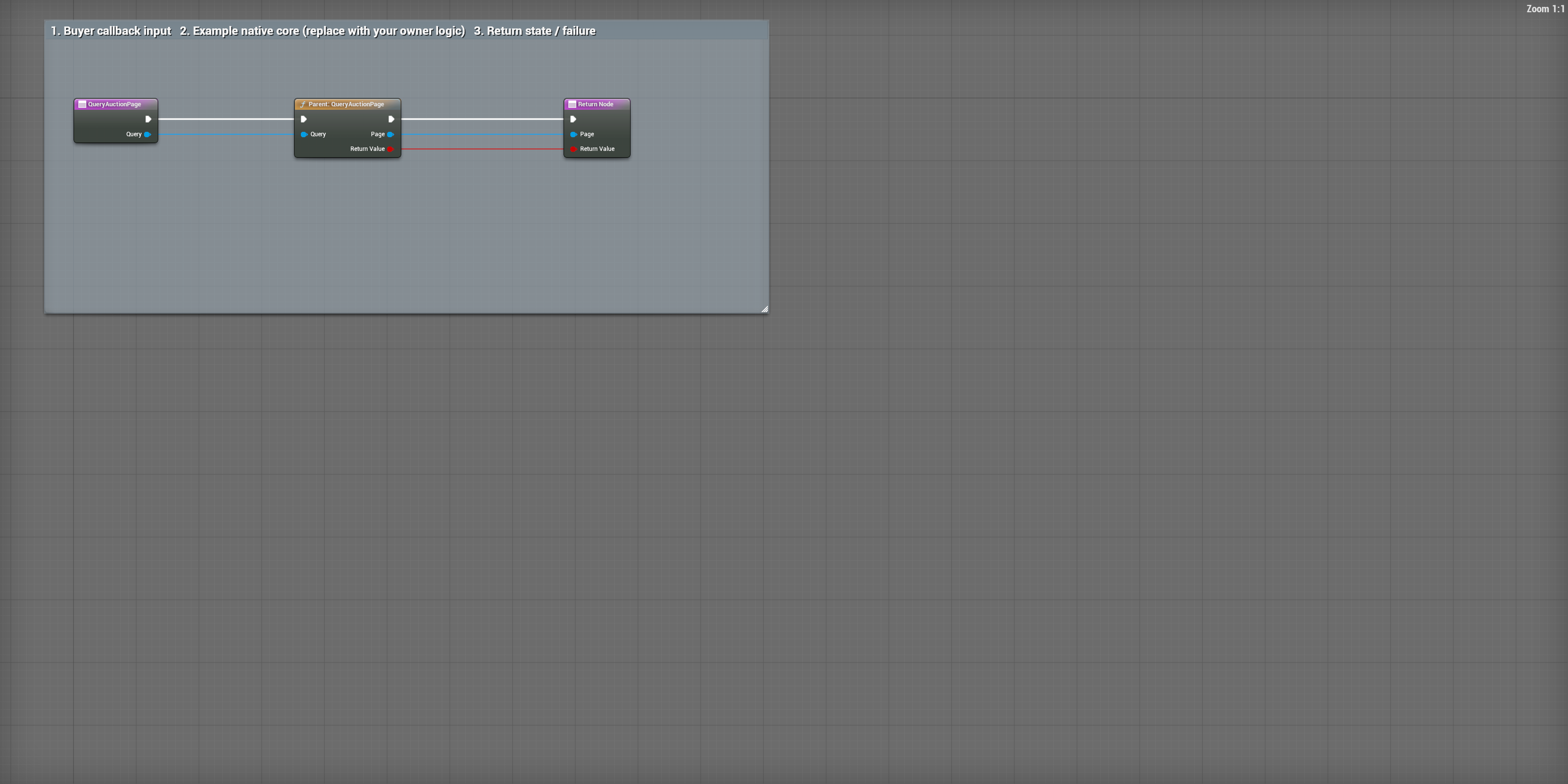
BP_LVE_BuyerCommerce / QueryAuctionPage
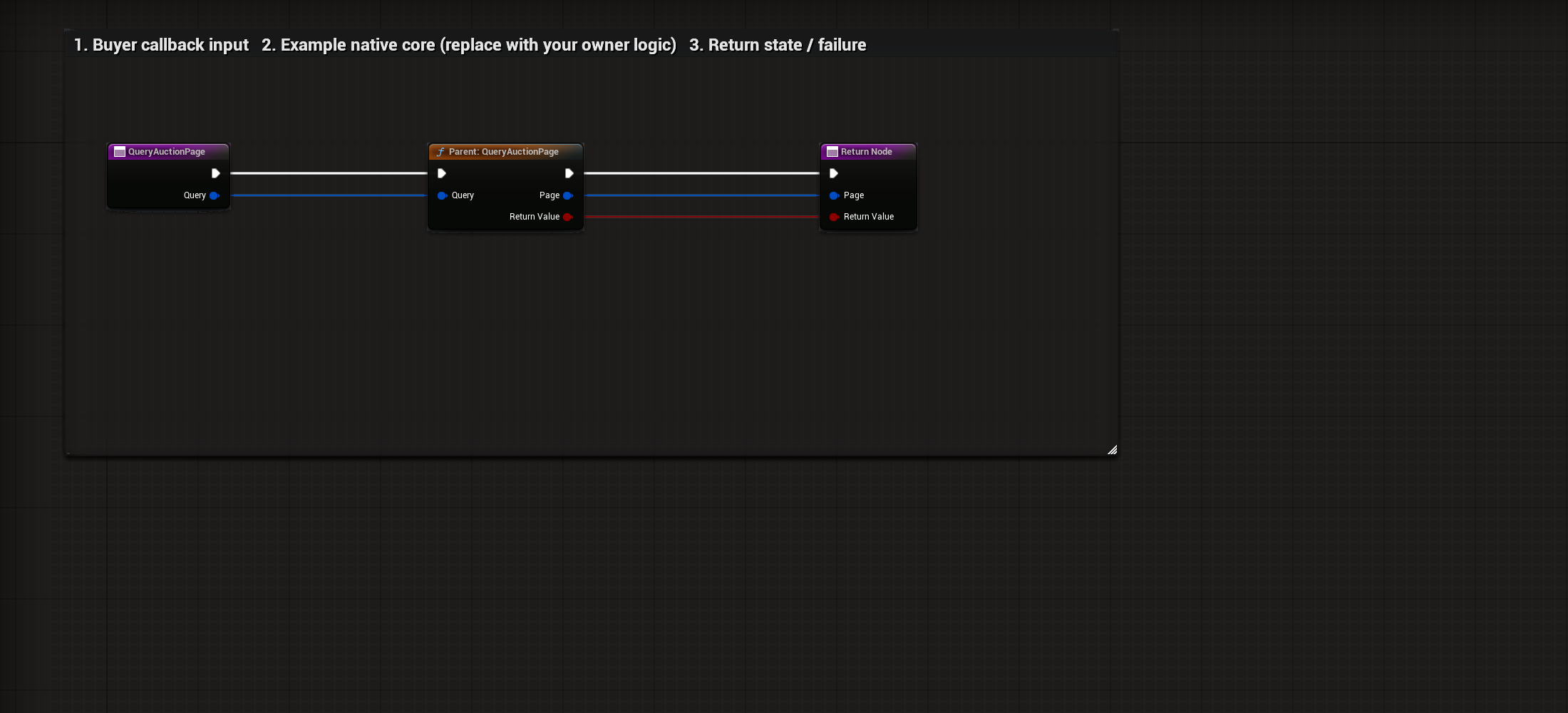
Pass the incoming Query structure into Query on Parent: QueryAuctionPage.
Select to enlarge. Full original capture remains available; display backgrounds are standardized for readability.
What to connect and what happens
- Pass the incoming Query structure into Query on Parent: QueryAuctionPage.
- Follow the white execution wire through the parent call to the Return Node.
- Connect Page and Boolean Return Value into their matching return pins.
- Replace the example parent call with your server’s page query when using another backend. Reading a page must not spend money or grant items.
Compile, save and check: Check a valid query and an invalid/refused query. Read Page only after success. Account authorization remains part of the server request path.
04Commit an authenticated auction request
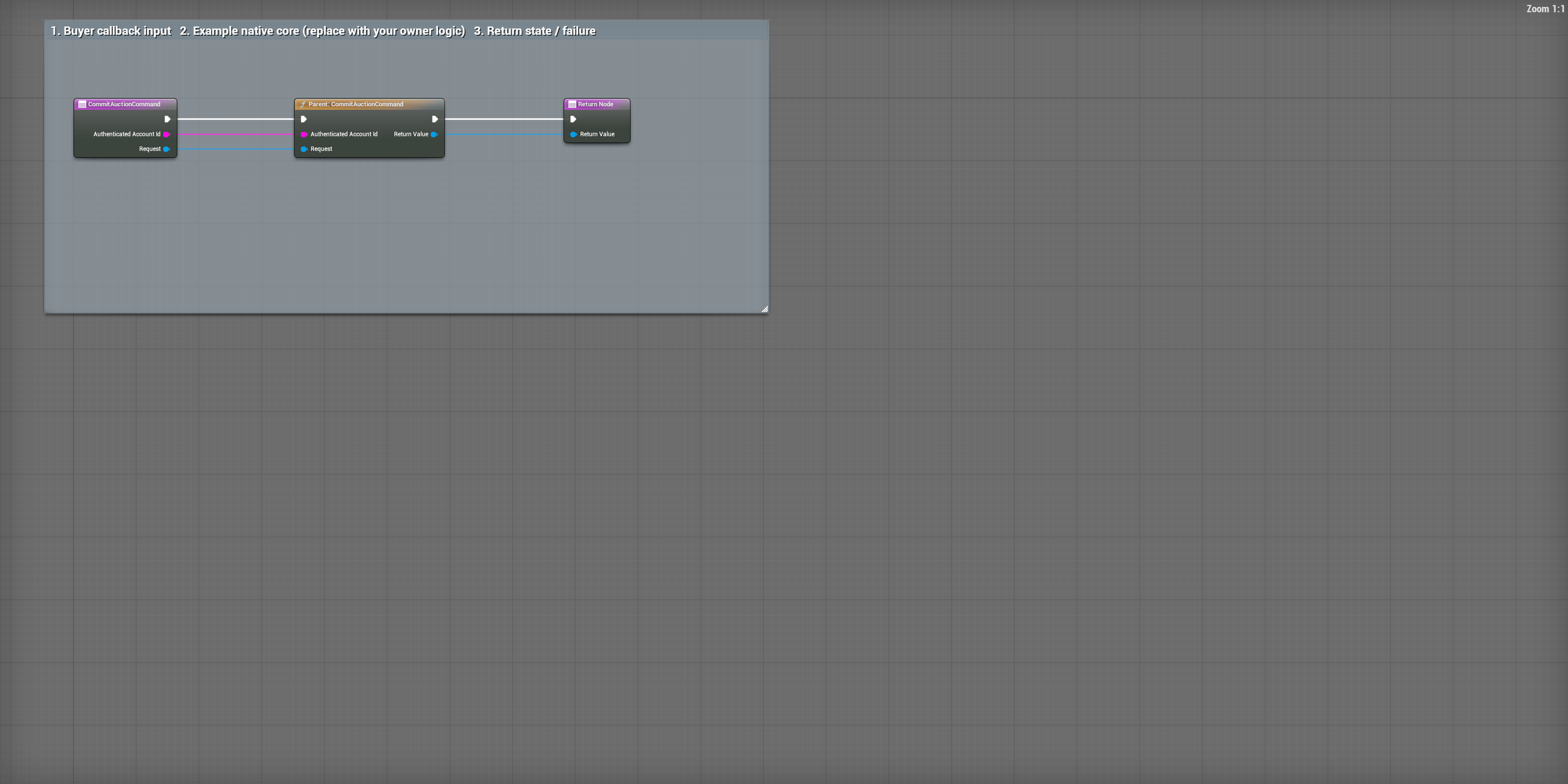
BP_LVE_BuyerCommerce / CommitAuctionCommand
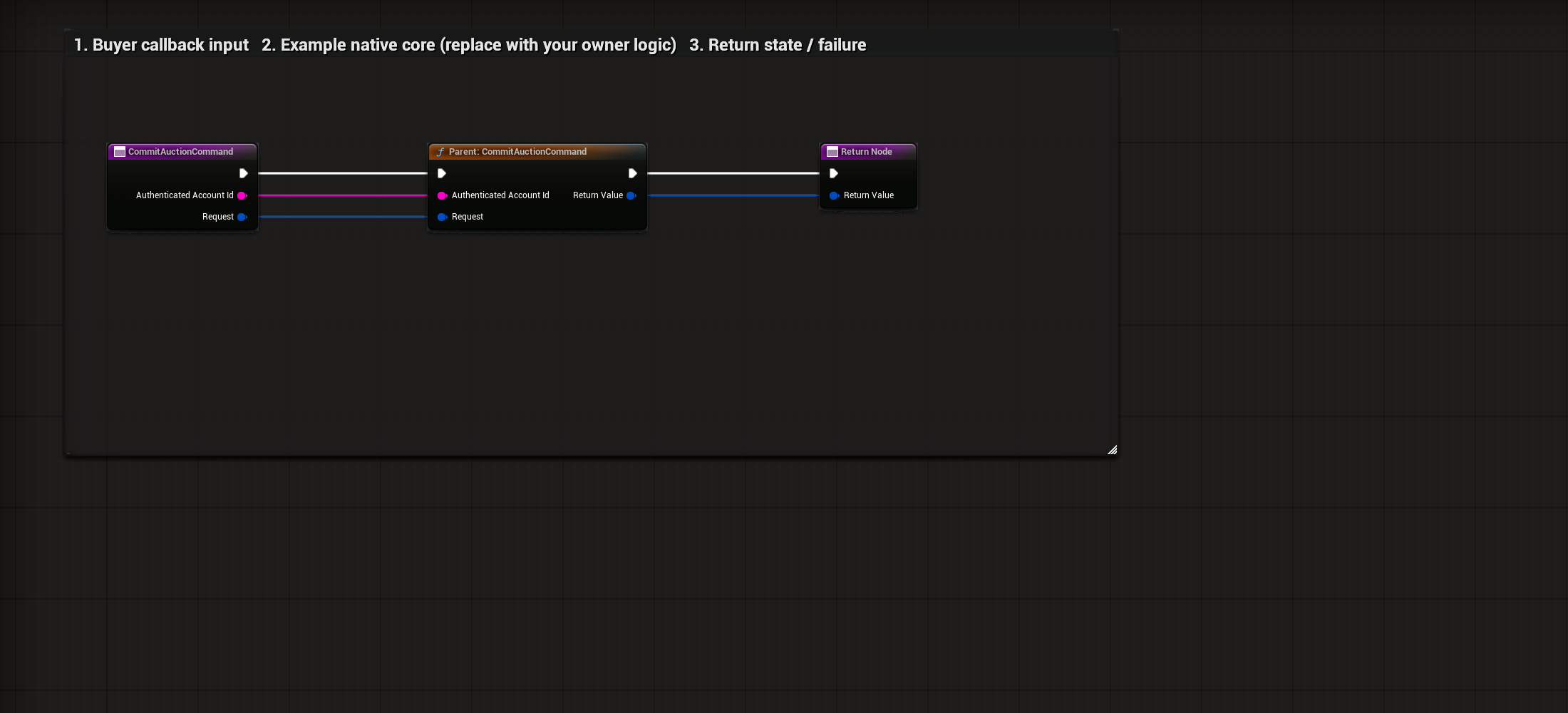
Take the account ID from trusted server authentication and pass it into Authenticated Account Id.
Select to enlarge. Full original capture remains available; display backgrounds are standardized for readability.
What to connect and what happens
- Take the account ID from trusted server authentication and pass it into Authenticated Account Id.
- Connect Request to Request on Parent: CommitAuctionCommand.
- Forward the returned result structure into Return Value. The caller checks its success/failure details.
- The parent is the example backend. Production storage must keep wallet, items, listing state and replay handling consistent.
Compile, save and check: Send a valid authenticated request, then replay its operation ID. Verify that replay does not grant or charge again. Forged account requests must be refused by the server path.
05Expire listings on the server
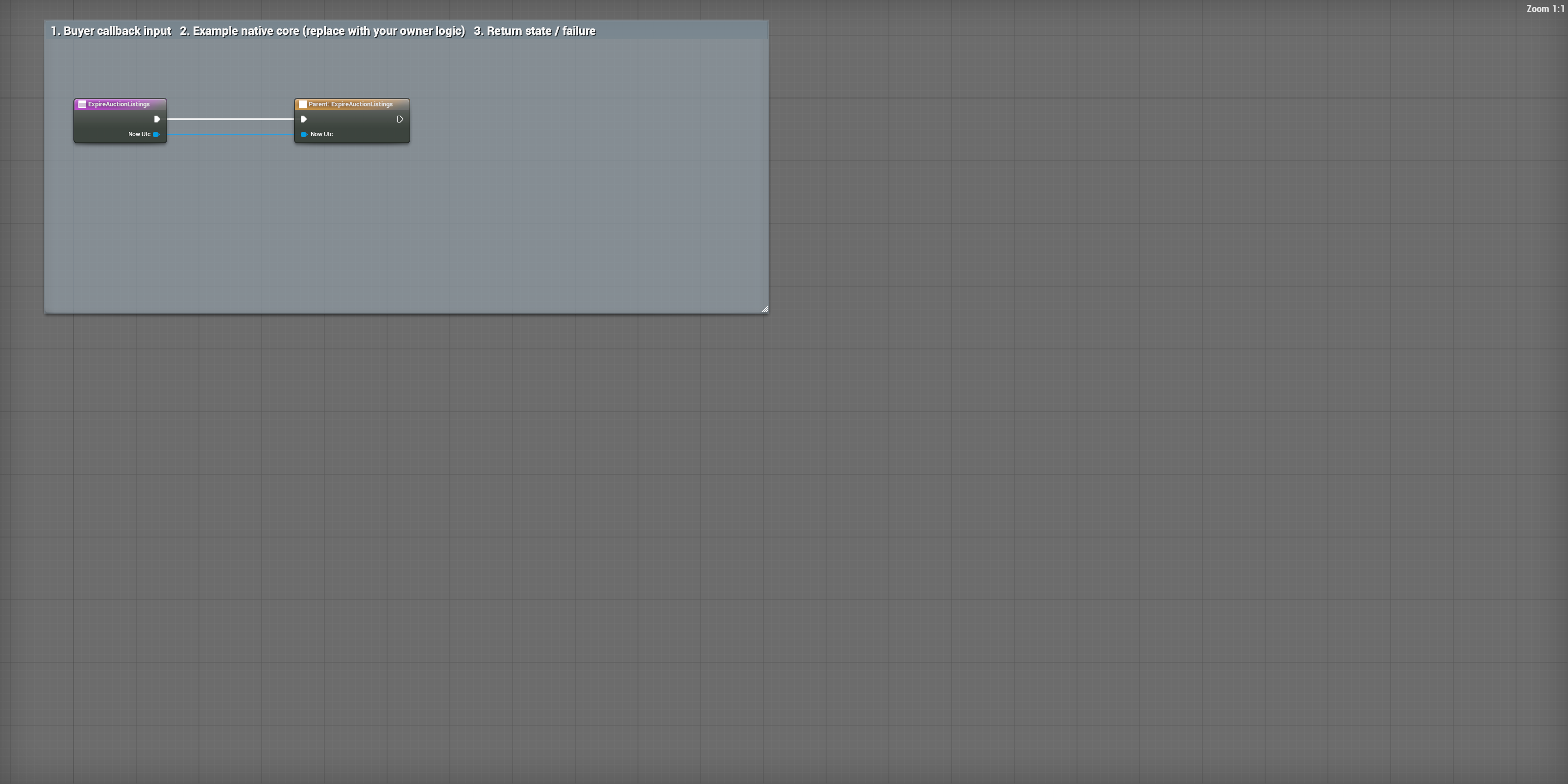
BP_LVE_BuyerCommerce / ExpireAuctionListings
Call this maintenance callback from the trusted server’s auction schedule.
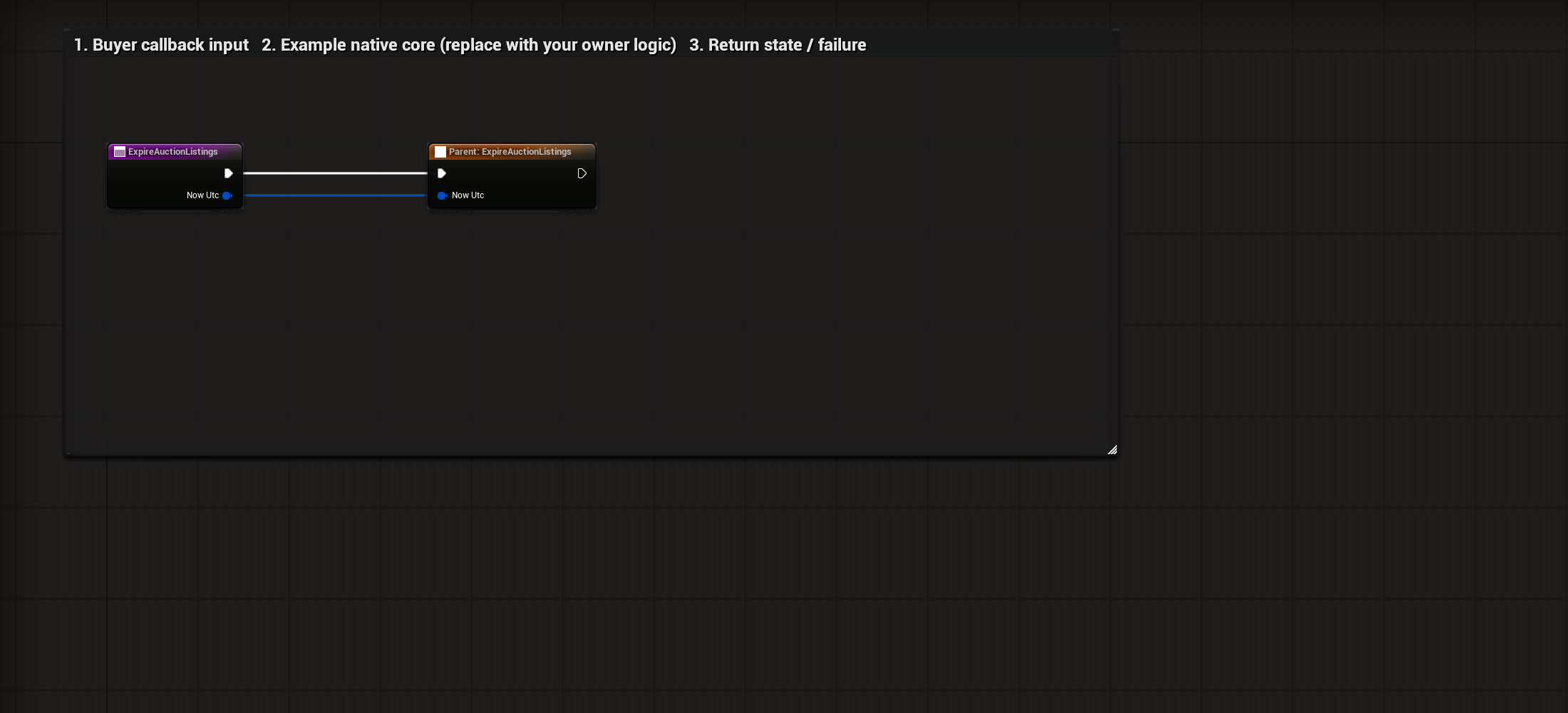
Select to enlarge. Full original capture remains available; display backgrounds are standardized for readability.
What to connect and what happens
- Call this maintenance callback from the trusted server’s auction schedule.
- Connect Now Utc into the matching pin on Parent: ExpireAuctionListings.
- The white wire calls the parent once. This callback has no Boolean or failure output; do not invent a success pin.
- For another backend, replace the parent with its expiry handling and verify account/listing effects through the server’s returned state.
Compile, save and check: Advance the trusted server’s test time across a listing expiry and inspect the backend state. This callback does not authenticate a player.
Blueprints: Disconnect and clean up
01Disconnect Buyer Inventory
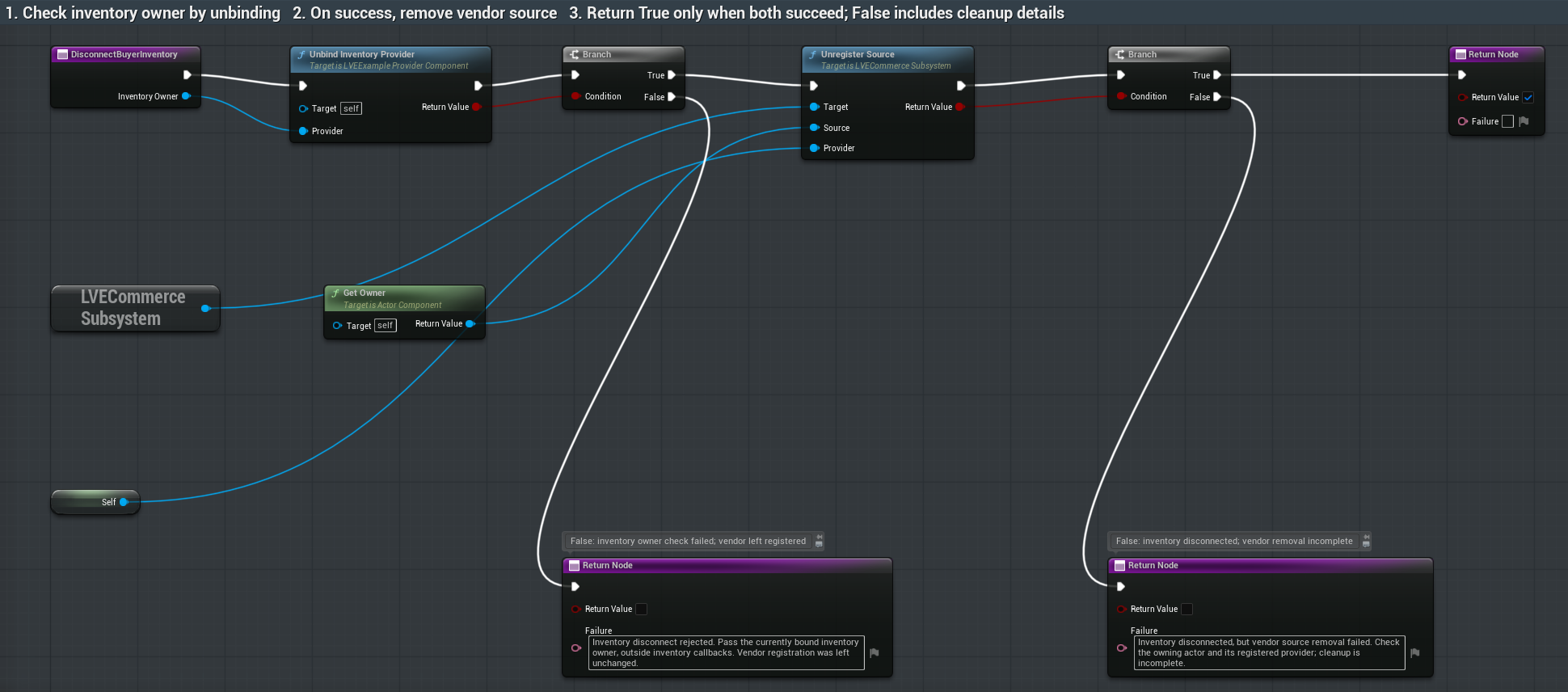
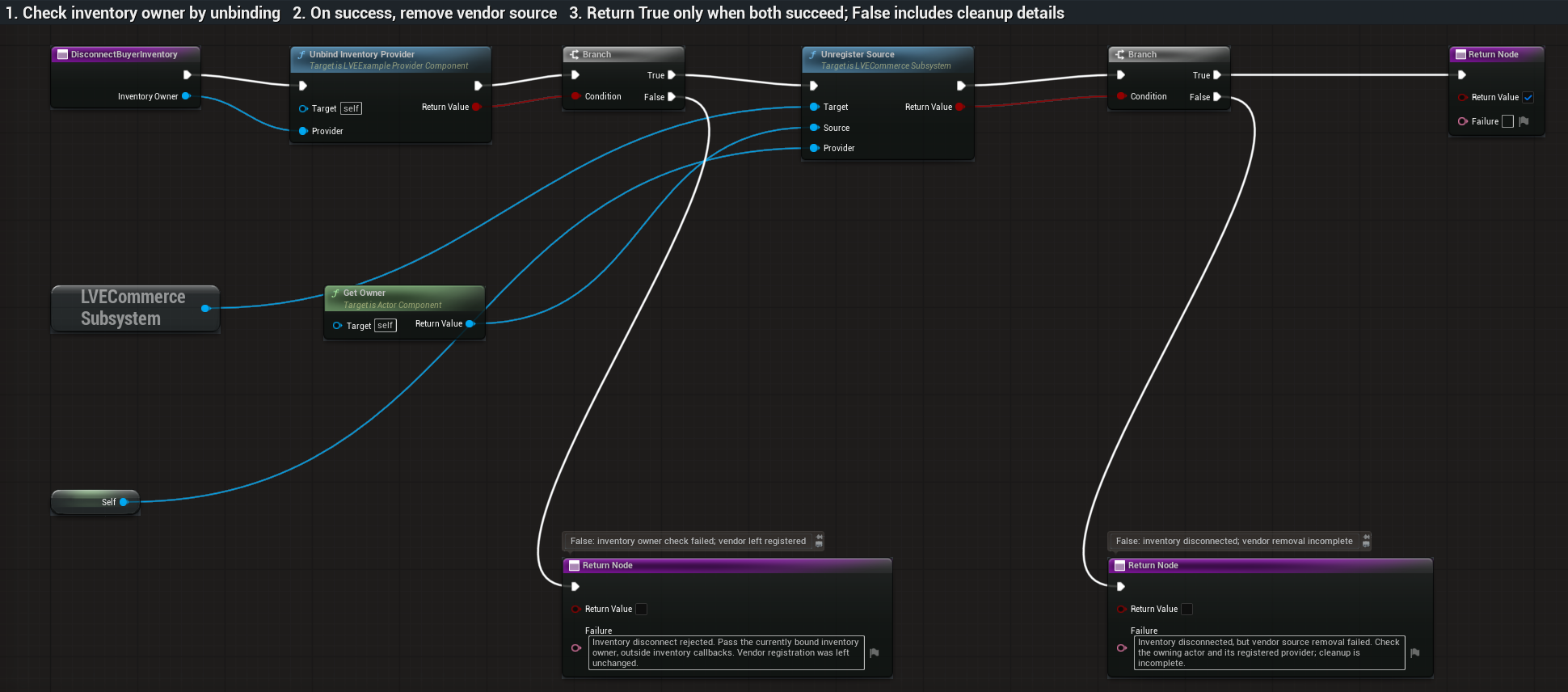
BP_LVE_BuyerCommerce / DisconnectBuyerInventory
Pass the currently bound inventory component into Inventory Owner. Connect it to Provider on Unbind Inventory Provider; Target is Self.
Select to enlarge. Full original capture remains available; display backgrounds are standardized for readability.
What to connect and what happens
- Pass the currently bound inventory component into Inventory Owner. Connect it to Provider on Unbind Inventory Provider; Target is Self.
- Feed Unbind Inventory Provider’s Return Value into the first Branch. False returns a cleanup message and leaves the vendor registered. True continues to Unregister Source.
- On Unregister Source, use LVECommerce Subsystem as Target, Get Owner as Source, and Self as Provider. Feed its Return Value into the second Branch.
- The second Branch returns True only when vendor removal also succeeds. False means the inventory disconnected but vendor removal failed; read Failure and resolve the incomplete cleanup.
- Call outside inventory callbacks when disconnecting this vendor. This graph removes the vendor registration; it does not unregister a separately connected loot actor or the auction adapter.
Compile, save and check: Compile and Save. Call with the current inventory component outside inventory callbacks. True means the inventory disconnected and vendor registration was removed. A wrong owner must return False and leave the vendor registered. A source-removal failure after unbind must return False and explain that cleanup is incomplete. Remove separately registered loot actors in their own cleanup path.
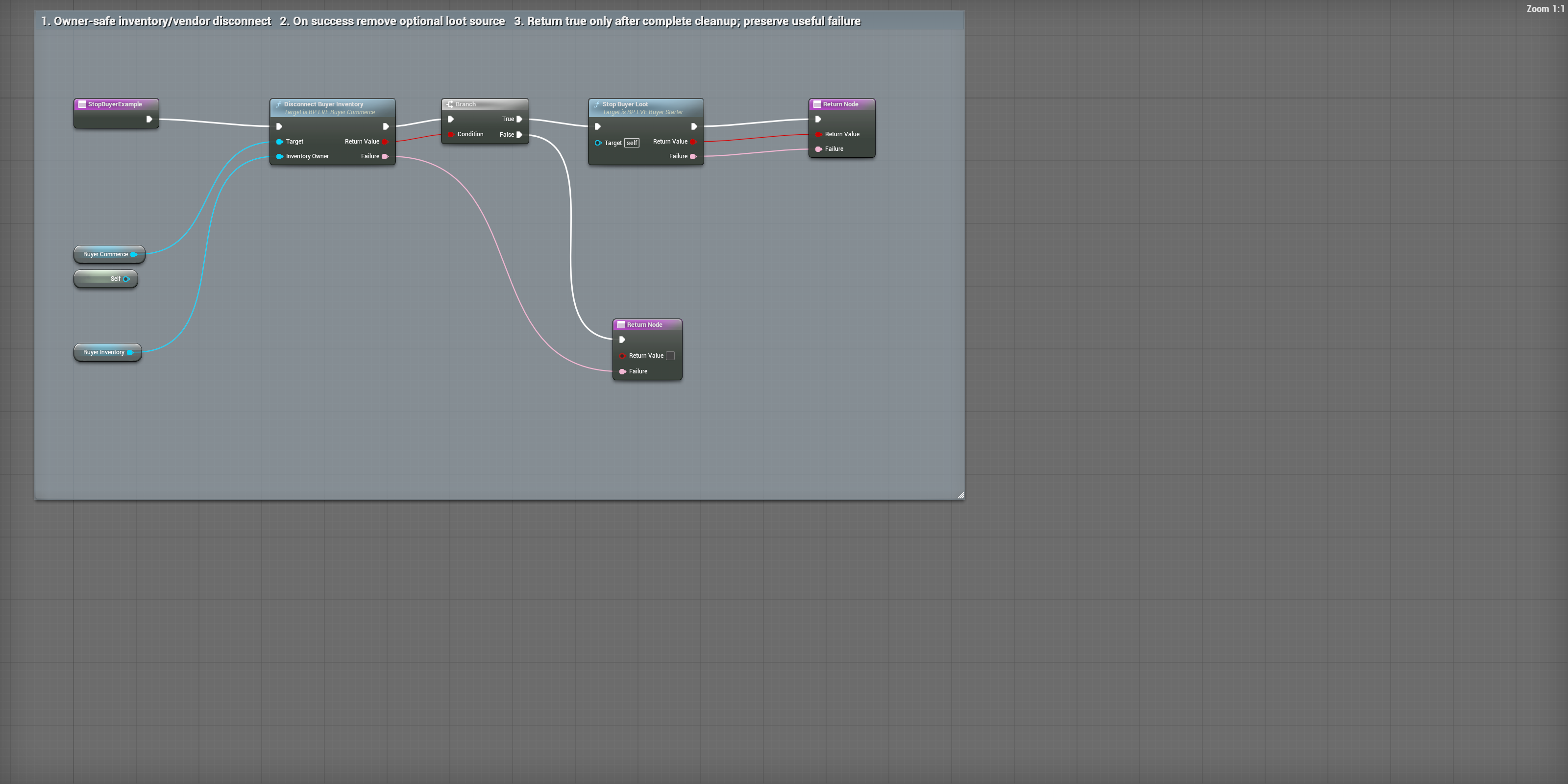
02Disconnect the owner and both source actors
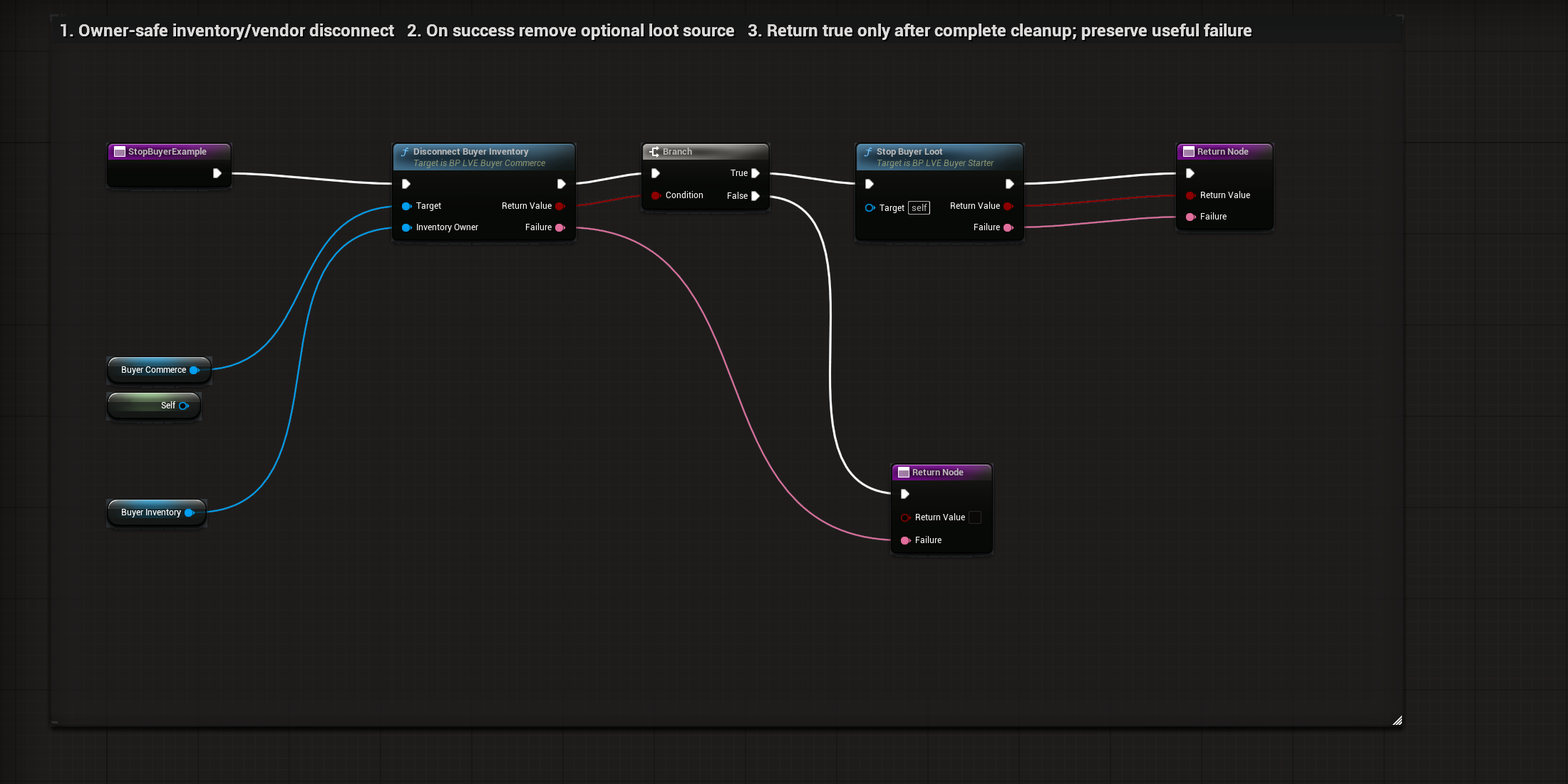
BP_LVE_BuyerStarter / StopBuyerExample
BuyerCommerce is the Target on Disconnect Buyer Inventory; BuyerInventory is Inventory Owner.
Select to enlarge. Full original capture remains available; display backgrounds are standardized for readability.
What to connect and what happens
- BuyerCommerce is the Target on Disconnect Buyer Inventory; BuyerInventory is Inventory Owner.
- Feed its Return Value into Branch Condition. False returns the disconnect Failure without removing a different owner.
- True calls Stop Buyer Loot on Self. Return its Boolean and Failure so success means all required cleanup finished.
- The vendor and separate loot actor are distinct registrations. Disconnecting the vendor alone does not remove the loot actor.
Compile, save and check: Press F8 after vendor and loot registration. Both sources must be removed. Wrong-owner refusal leaves the existing vendor registration intact.
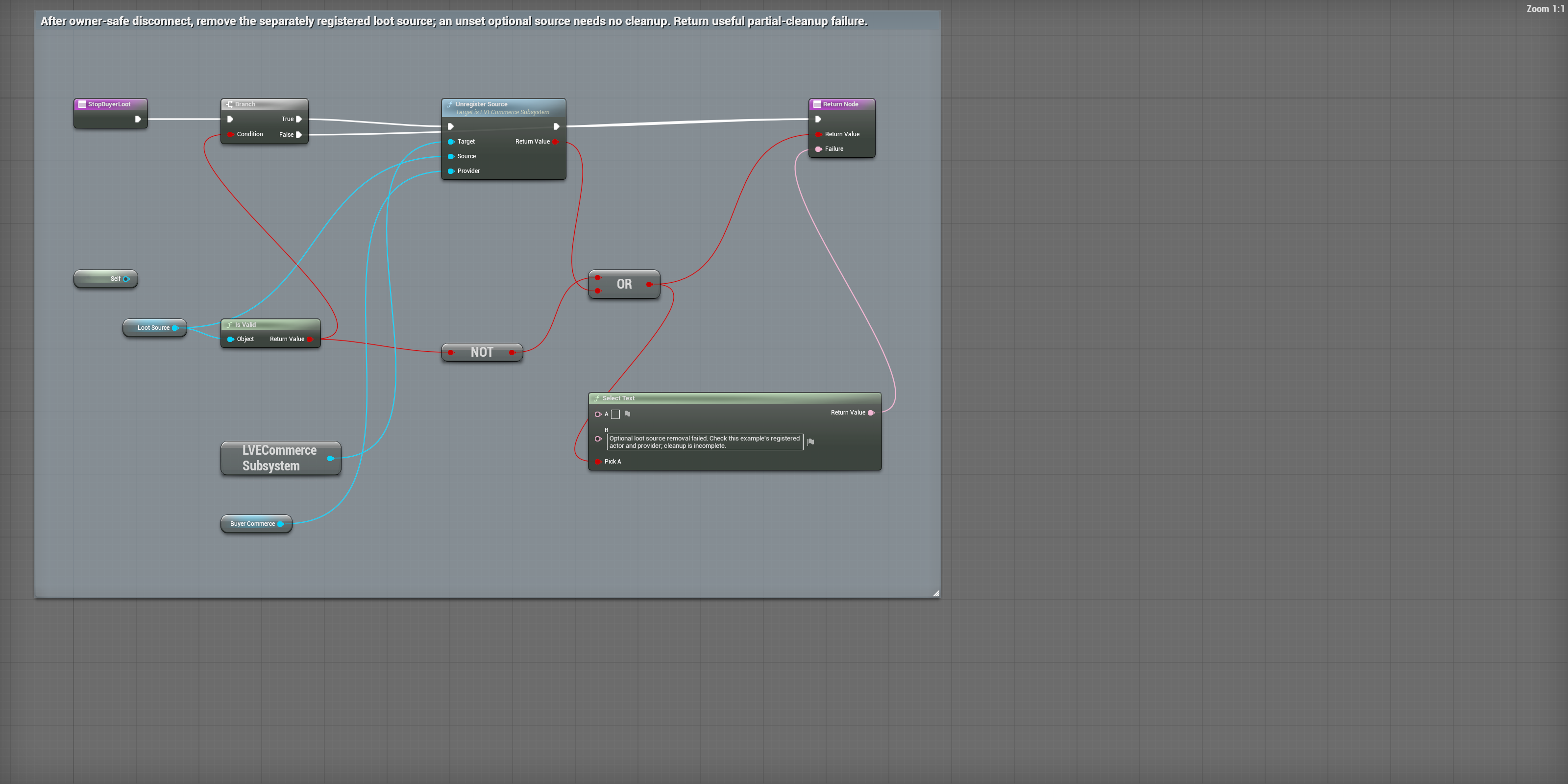
03Remove the separately registered loot source
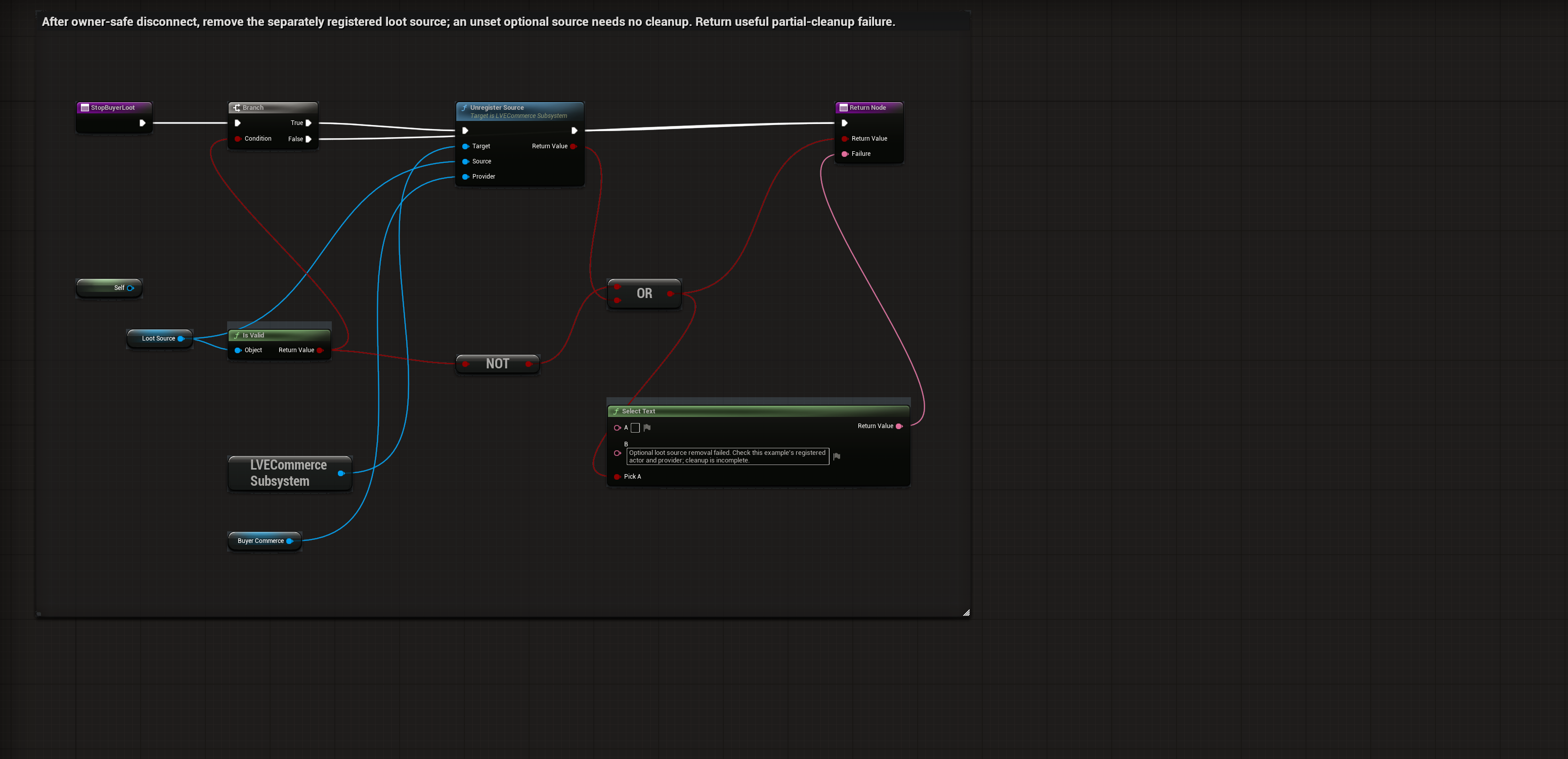
BP_LVE_BuyerStarter / StopBuyerLoot
Use the stored LootSource actor as Source and BuyerCommerce as Provider on Unregister Source.
Select to enlarge. Full original capture remains available; display backgrounds are standardized for readability.
What to connect and what happens
- Use the stored LootSource actor as Source and BuyerCommerce as Provider on Unregister Source.
- Check the returned Boolean and return useful cleanup details when removal fails.
- A starter without a configured loot actor has no separate source to remove.
- Remove only the source owned by this provider. Do not clear another provider’s registration.
Compile, save and check: Register the separate source with O, then stop the example. Querying that actor afterward must report that it is unavailable.
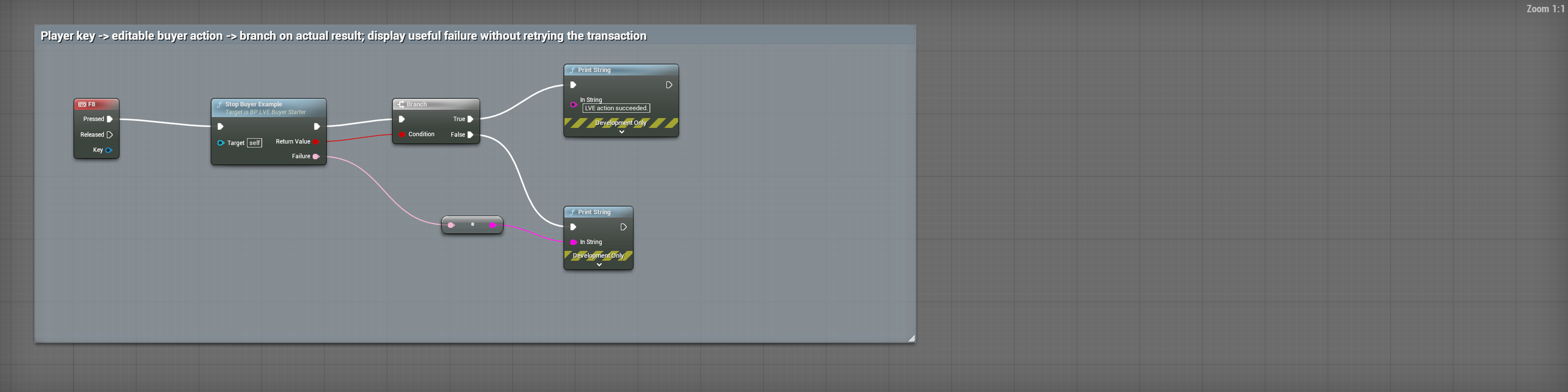
04F8: check the actual action result
BP_LVE_BuyerStarter / EventGraph-DisconnectInput
Open the EventGraph and find the F8 keyboard event. Pressed calls Stop Buyer Example; Target is Self, the starter actor.
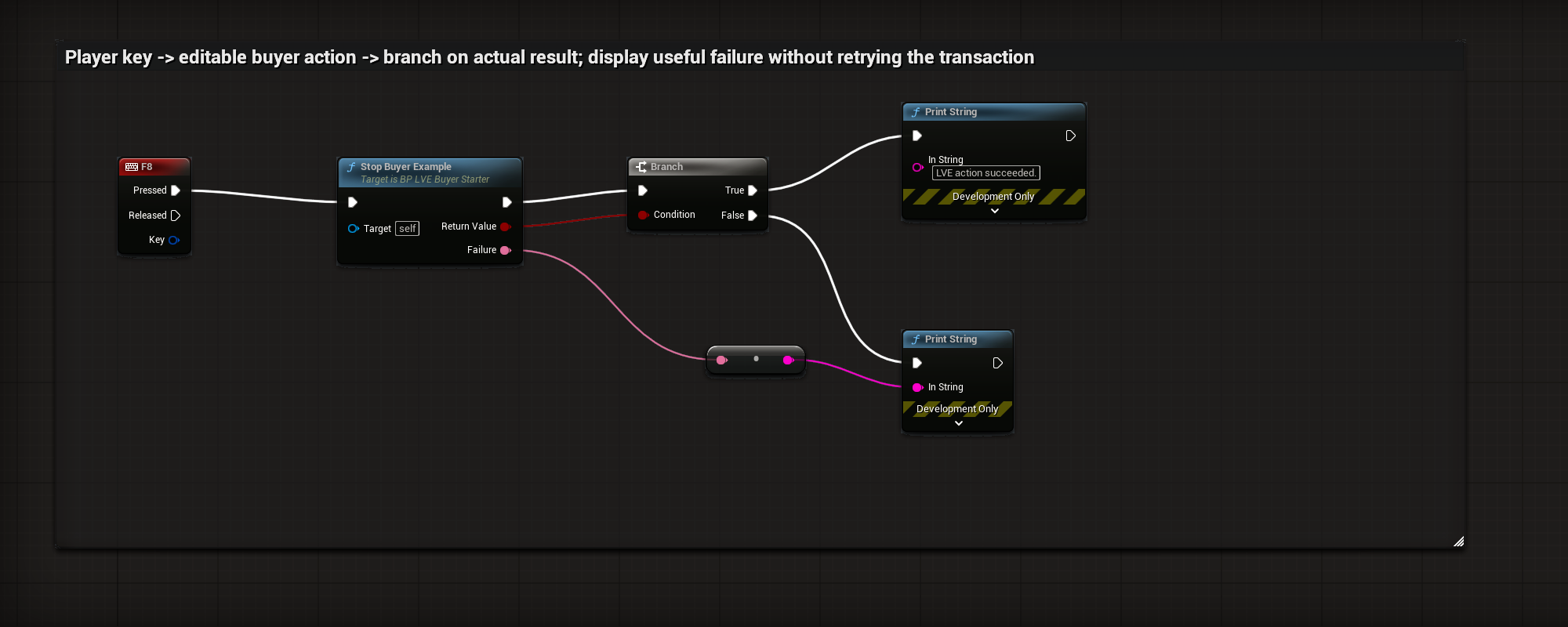
Select to enlarge. Full original capture remains available; display backgrounds are standardized for readability.
What to connect and what happens
- Open the EventGraph and find the F8 keyboard event. Pressed calls Stop Buyer Example; Target is Self, the starter actor.
- Connect the action’s Boolean Return Value into Branch Condition.
- True prints the success message. False converts the returned Failure text into the failure Print String input.
- Neither branch retries or independently grants a transaction. Replace the development-only Print String nodes with your game’s player feedback.
Compile, save and check: Press F8 in play and inspect the returned result and owned state. Display Failure on refusal. Use the interface close/cancel action to leave a surface; F8 ends the commerce connection.
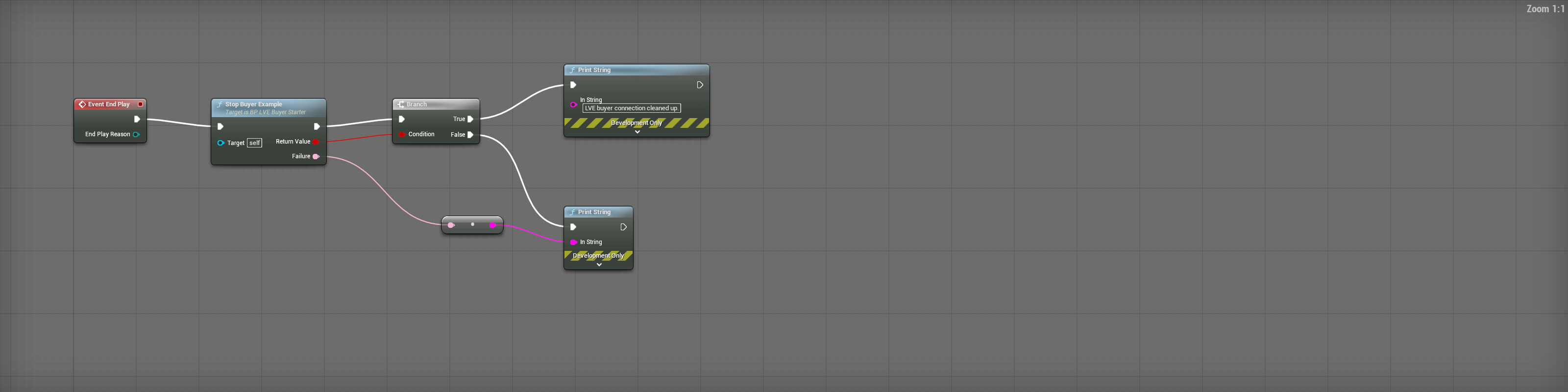
05Clean up when the actor leaves play
BP_LVE_BuyerStarter / EventGraph-EndPlay
Event End Play calls Stop Buyer Example on Self.
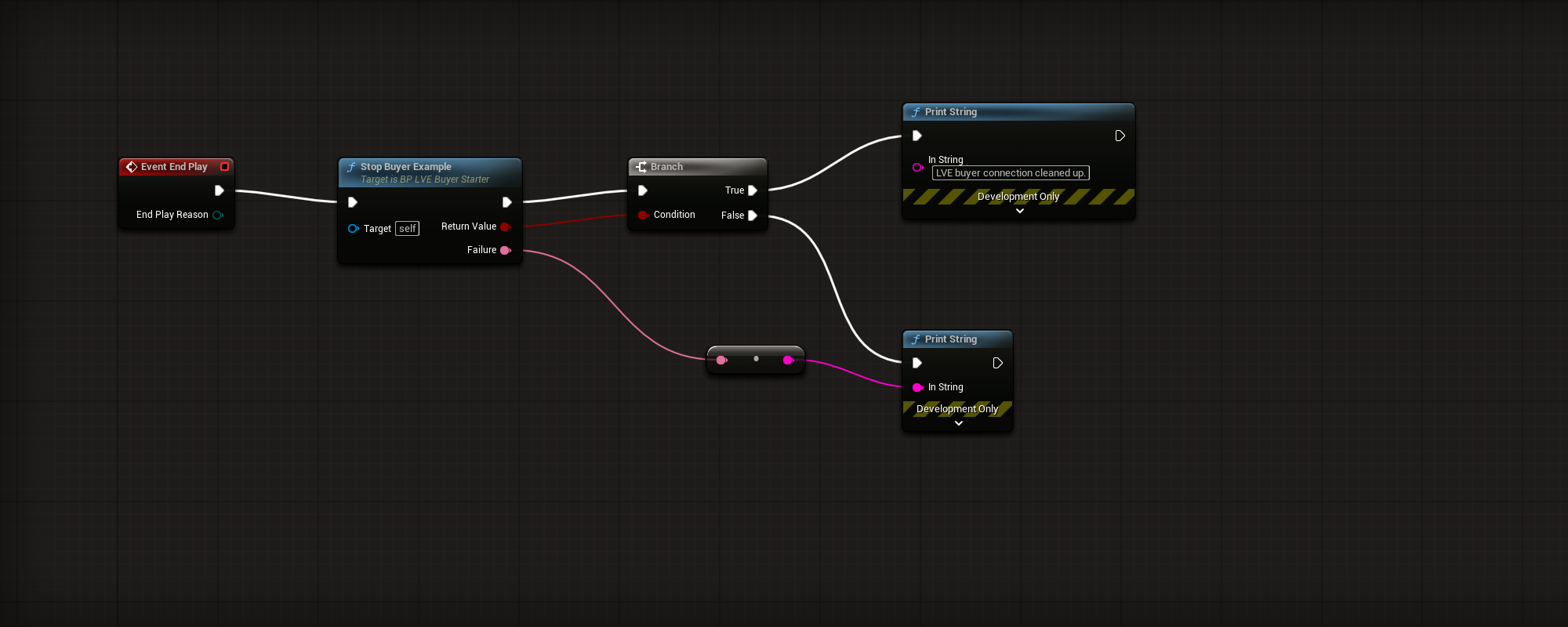
Select to enlarge. Full original capture remains available; display backgrounds are standardized for readability.
What to connect and what happens
- Event End Play calls Stop Buyer Example on Self.
- Its Boolean drives a Branch. True prints the cleanup message; False converts and prints the actual Failure.
- These Print String nodes are development feedback. Production games should route failures into their own diagnostics.
- EndPlay complements explicit F8 cleanup. If F8 already disconnected this owner, the repeated disconnect is refused and reports that result. Do not treat that refusal as another transfer or make a different owner eligible to disconnect.
Compile, save and check: After connecting vendor and loot, destroy the starter or end play. Confirm both source registrations are removed. Report refused cleanup rather than silently falling back to demonstration inventory.
Equivalent C++ integration
NATIVE INTEGRATION
Use your own C++ inventory and caller
The equivalent public routes for a native host game.
- Add LootVendorEconomy to your game module’s Build.cs dependency list. Include only the exported public headers you use: LVEInventoryExample.h, LVEInventoryCommerce.h, LVECommerceSubsystem.h and LVEGameplayLibrary.h.
- The included actor is ALVENativeBuyerExample. Its public declaration is Source/LootVendorEconomy/Public/LVENativeBuyerExample.h and implementation is Source/LootVendorEconomy/Private/LVENativeBuyerExample.cpp. Place it in the existing third-person level instead of a simultaneous BP_LVE_BuyerStarter; both examples use the same keys.
- ConnectLocalVendor(SourceActor,VendorComponent,InventoryOwner,Failure) binds inventory and registers the vendor. Register a separate loot actor with the world’s ULVECommerceSubsystem, using the same provider, its LootSourceId and Loot=true.
- For your own native inventory, implement the public Ironos::Commerce::IInventory contract in IronosInventoryCommerceV1.h. Register it as a modular feature, bind ULVENativeInventoryBridgeComponent explicitly, and label its unnamed wallet with the correct CurrencyId. The owner implements read, room and an atomic comparison of the complete expected and desired state.
- Use QueryVendor or QueryLoot to read current state. Submit FLVEOperationRequest through the commerce registry Commit and inspect FLVEOperationResult. Carry the operation ID, source/item/currency IDs, quantity, quote and observed revision. A receipt is confirmation; it must not grant another copy of a purchased or looted item.
- Subscribe to the inventory owner’s committed-state notifications and the public commerce OnReceipt delegate. Filter receipts to your own source actors, refresh the display from committed state, and remove subscriptions when play ends.
- Use AddInventoryItem and RemoveInventoryItem for host gameplay rewards or consumption. Capacity and atomic owner callbacks still apply. A rejected request leaves the entire wallet and item state unchanged.
- Cleanup is owner-safe: TryDisconnectLocalVendor checks/unbinds the current inventory owner before removing that vendor registration. Remove separate loot registration independently. Provider loss must fail closed rather than switching to demo inventory.